



In this video we show how to connect a Bluesky profile to Neyrova.
Video tutorial
This guide explains how to connect a Bluesky account to Neyrova so you can manage your posts directly from the platform.
1. Open the Social Accounts Section
In the Neyrova dashboard, click the Social Accounts tab in the navigation menu.
This section allows you to connect social media profiles to your Neyrova account.
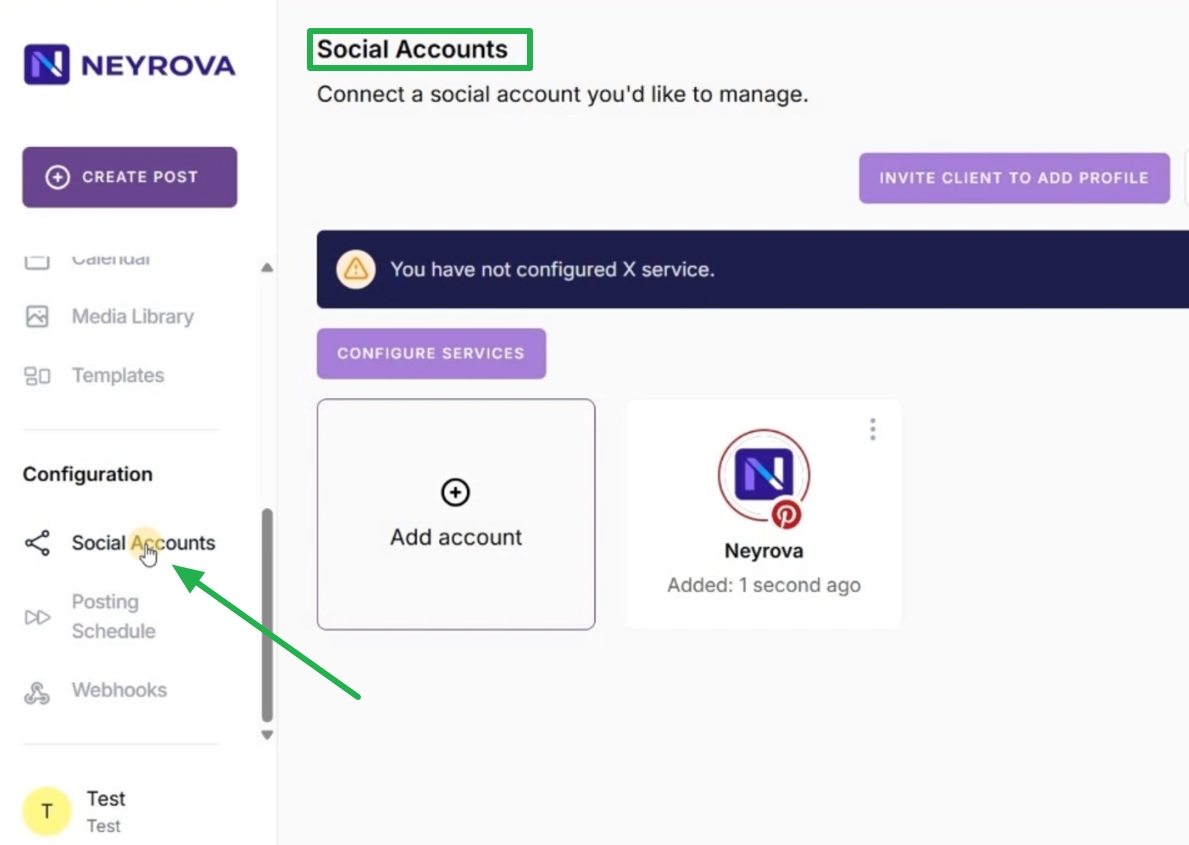
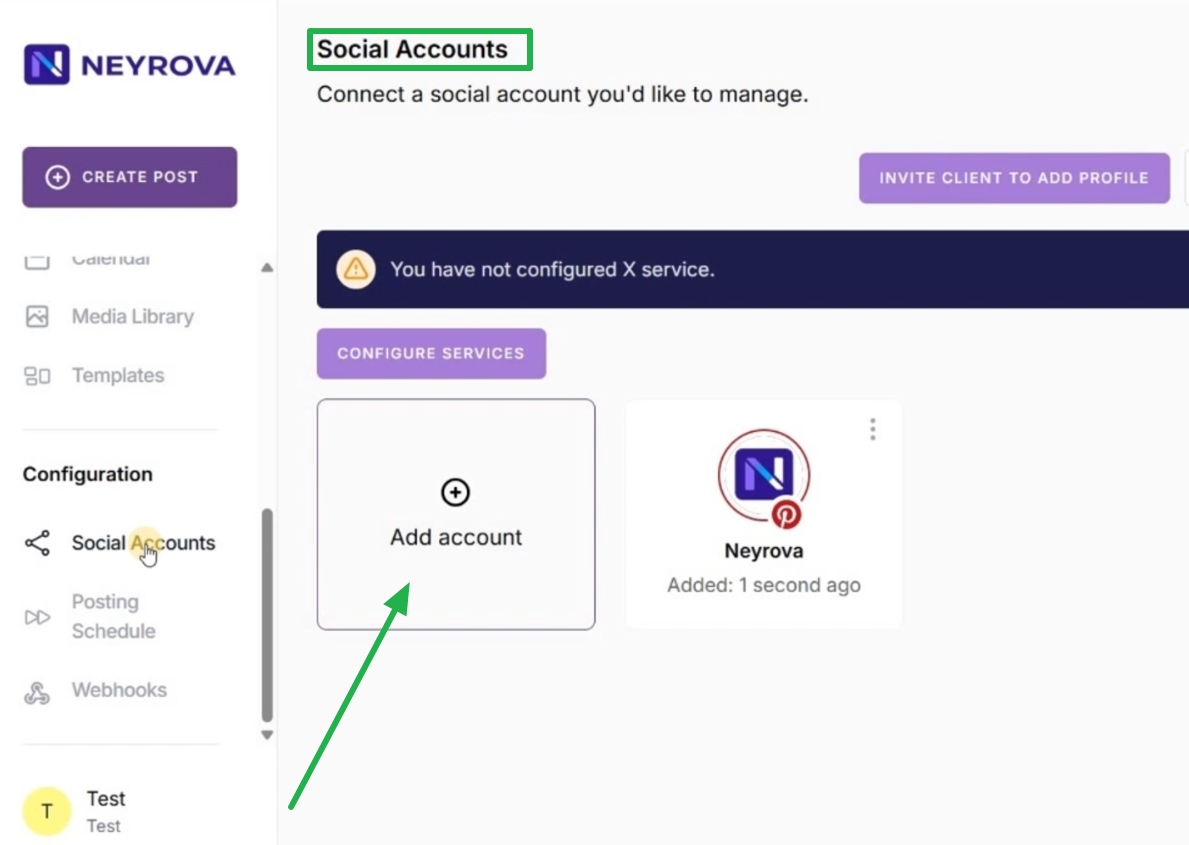
2. Click Add Account
In the Accounts section, click the Add Account button.
A list of available social networks will appear.
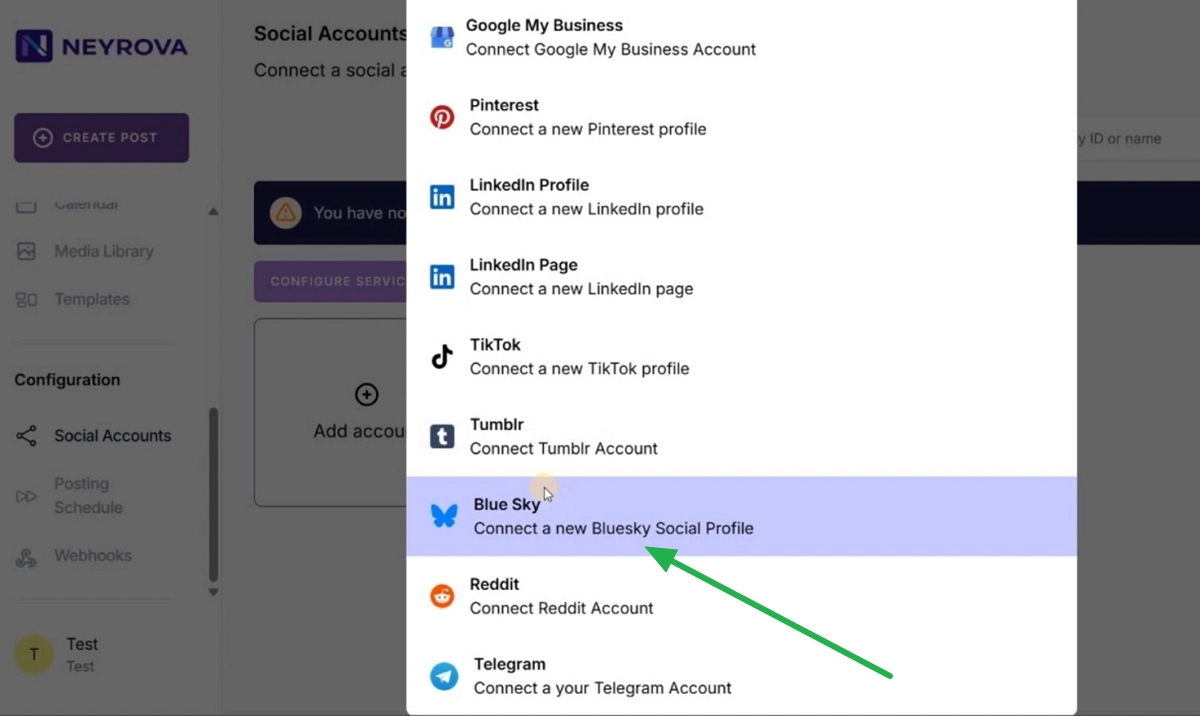
3. Select Bluesky
From the list of available social networks, select Bluesky.
A small window will open where you can enter your account information.
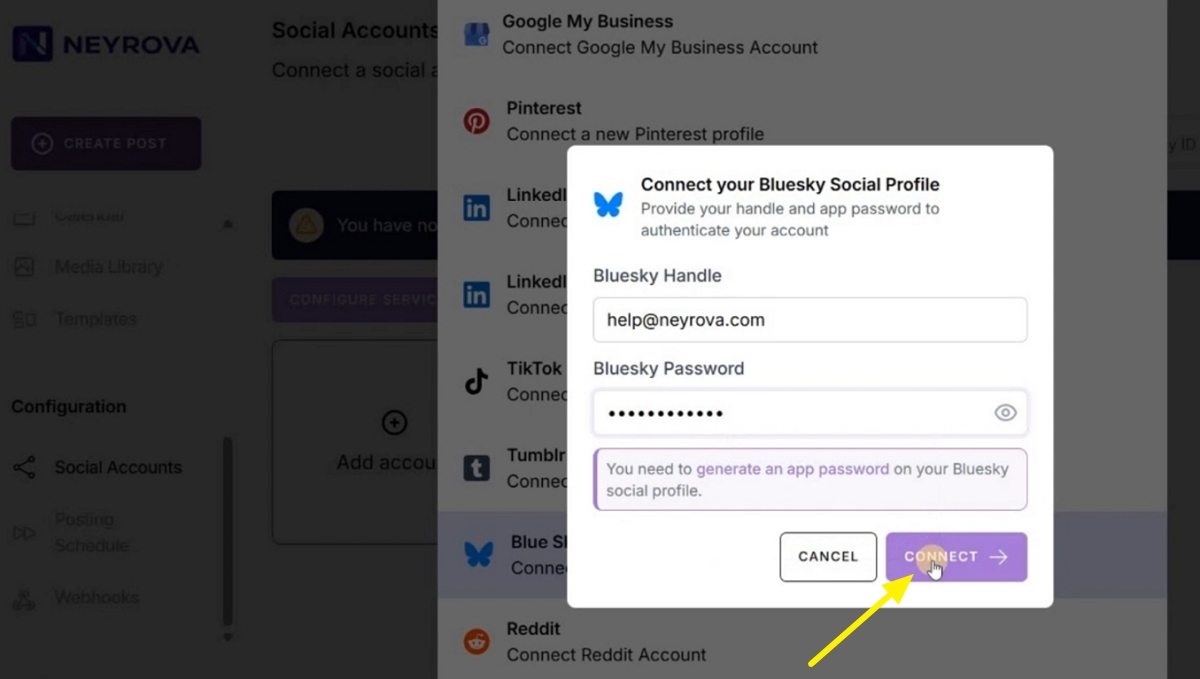
4. Enter Your Bluesky Account Details
In the connection window, enter the email address used to register your Bluesky account and your password.
Make sure all information is entered correctly.
5. Click Connect
After entering your account credentials, click Connect.
Neyrova will connect your Bluesky account to the platform.
6. Verify the Connected Profile
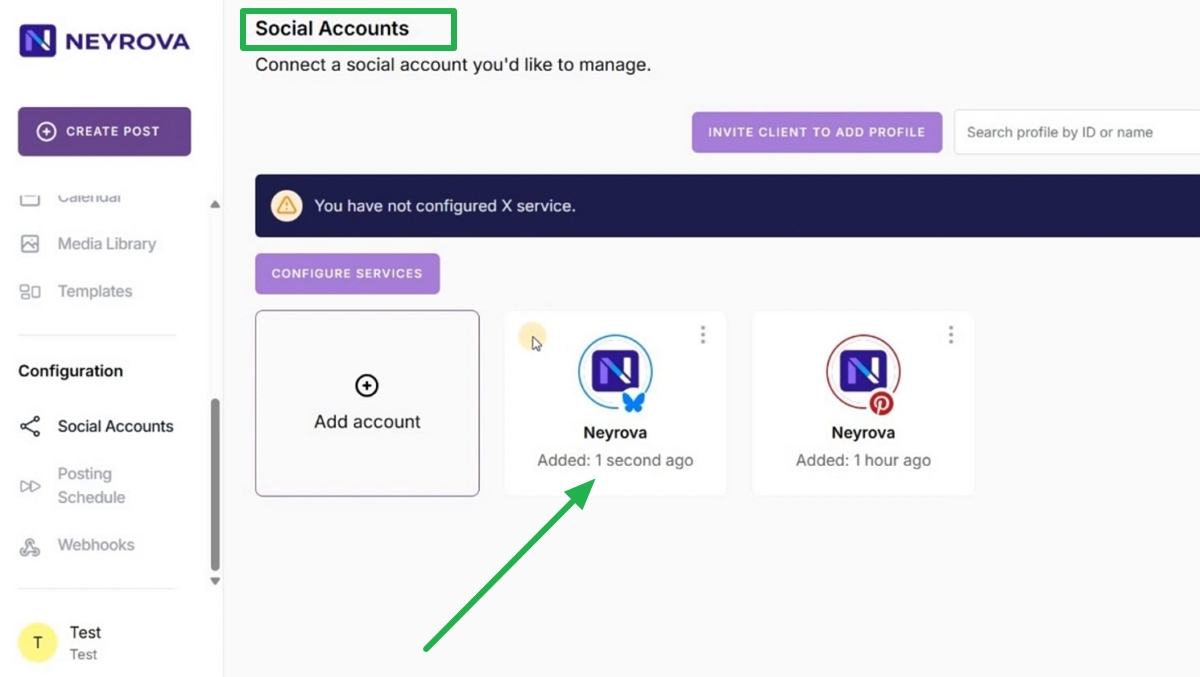
Return to the Social Accounts section and verify that your Bluesky account appears in the list of connected profiles.
Summary
After connecting your Bluesky account to Neyrova, you will be able to manage Bluesky posts directly from the platform.
This allows you to work with Bluesky alongside your other social media accounts from a single Neyrova workspace.