



In this guide, we’ll be showing you how to add Telegram channels to your Neyrova account, so you can plan and schedule posts. Neyrova’s Telegram posting supports Text, Image, and Videos.
Video tutorial
This guide explains how to add a Telegram channel to Neyrova so you can schedule and publish posts directly from the platform.
Publishing to Telegram through Neyrova supports text, images, and videos. Before connecting your channel, you must add the Neyrova bot as an administrator of your Telegram channel.
1. Open the Accounts Section
Sign in to your Neyrova account.
From the main menu, click Social Accounts.
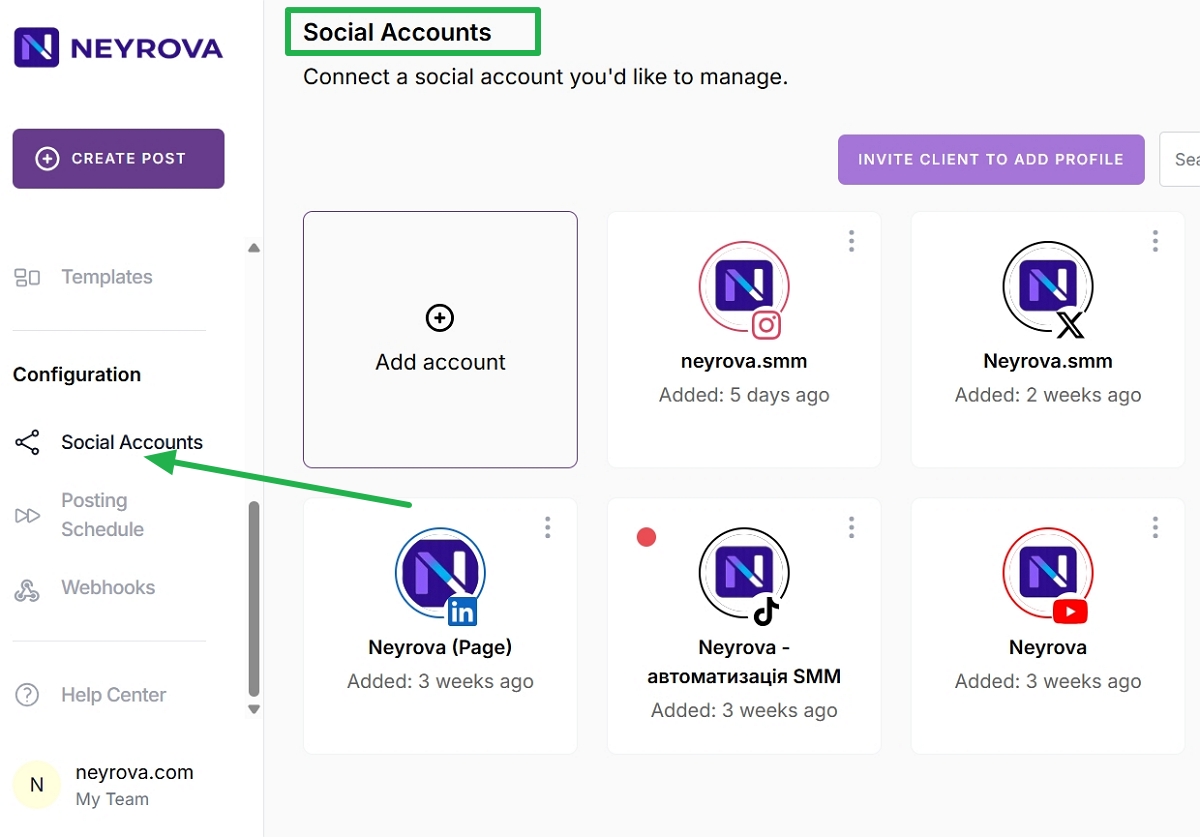
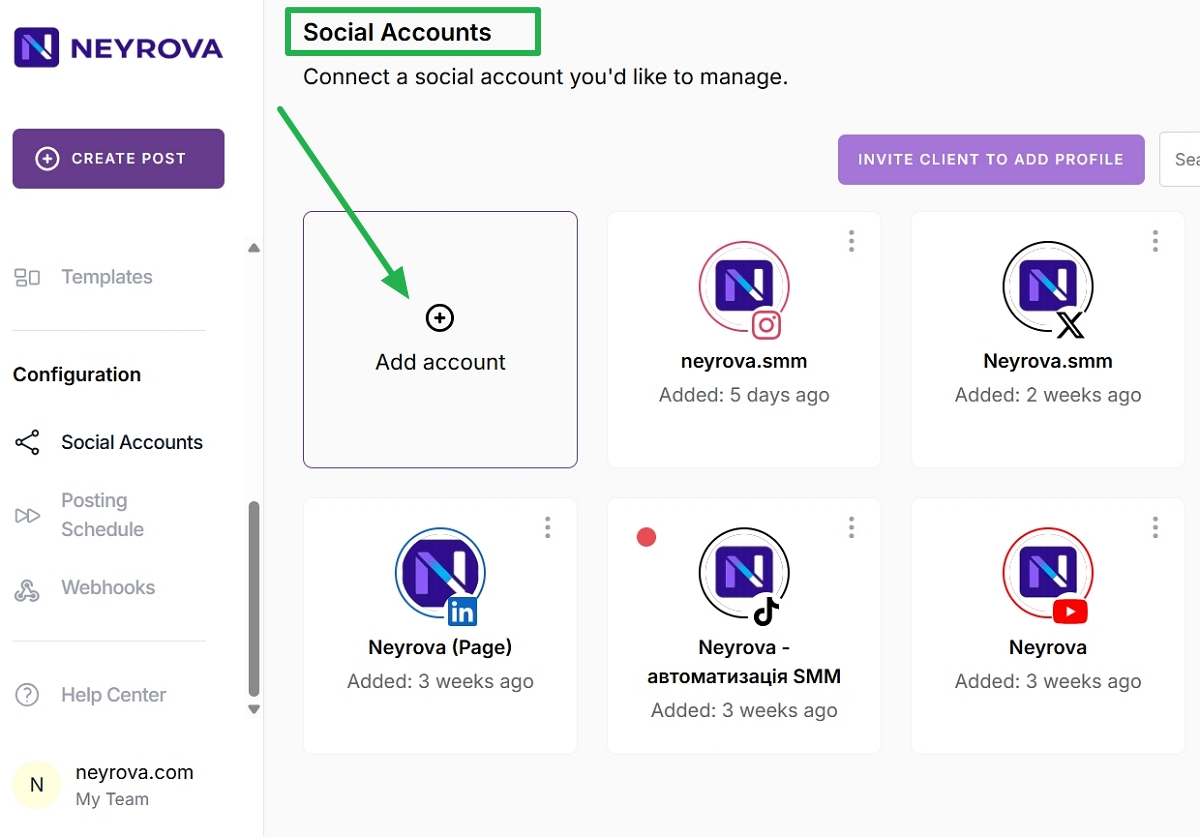
2. Click Add Account
In the Social Accounts section, click the Add Account button.
A list of available social networks will appear.
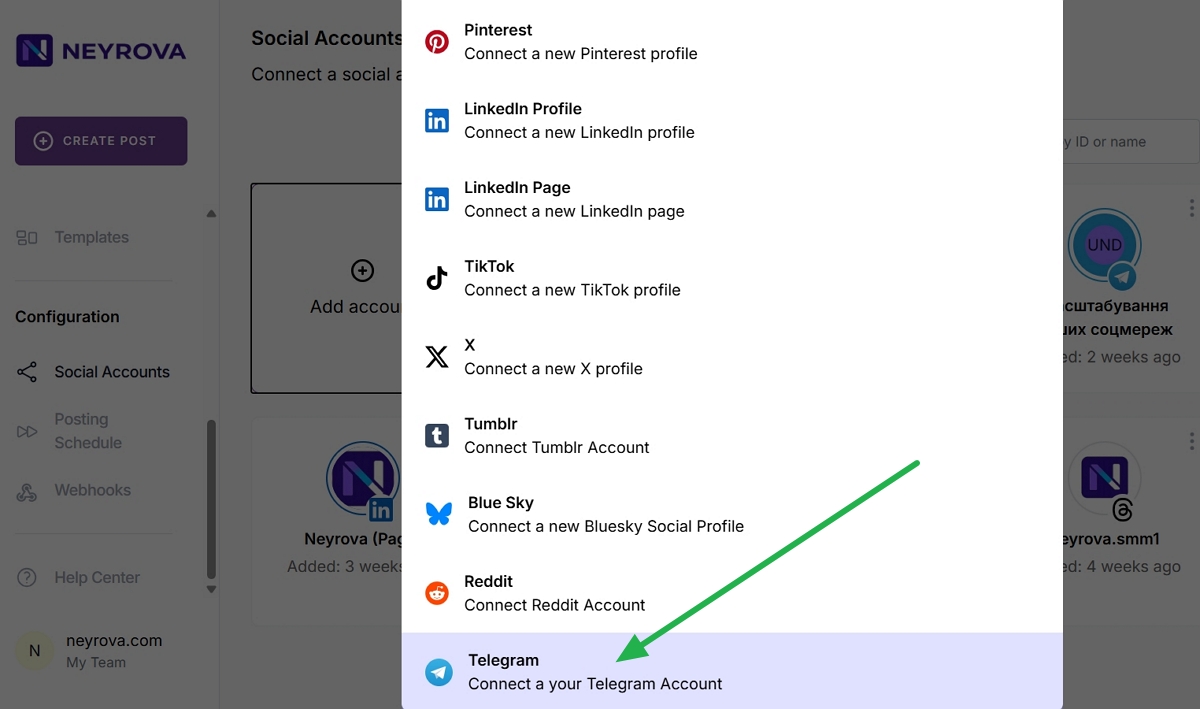
3. Select Telegram
From the list of supported social networks, select Telegram.
A Telegram channel connection form will open.
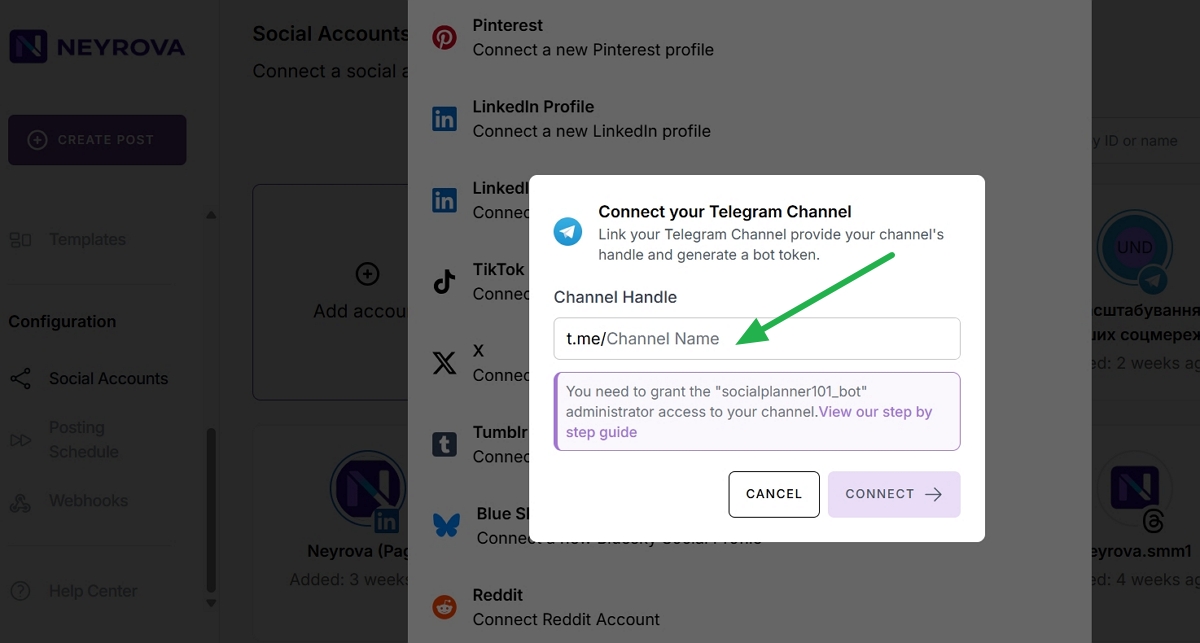
4. Enter the Telegram Channel Username
In the connection form, enter your Telegram channel @username in the appropriate field.
Before completing the connection, make sure the Neyrova bot has been added as an administrator of the channel.
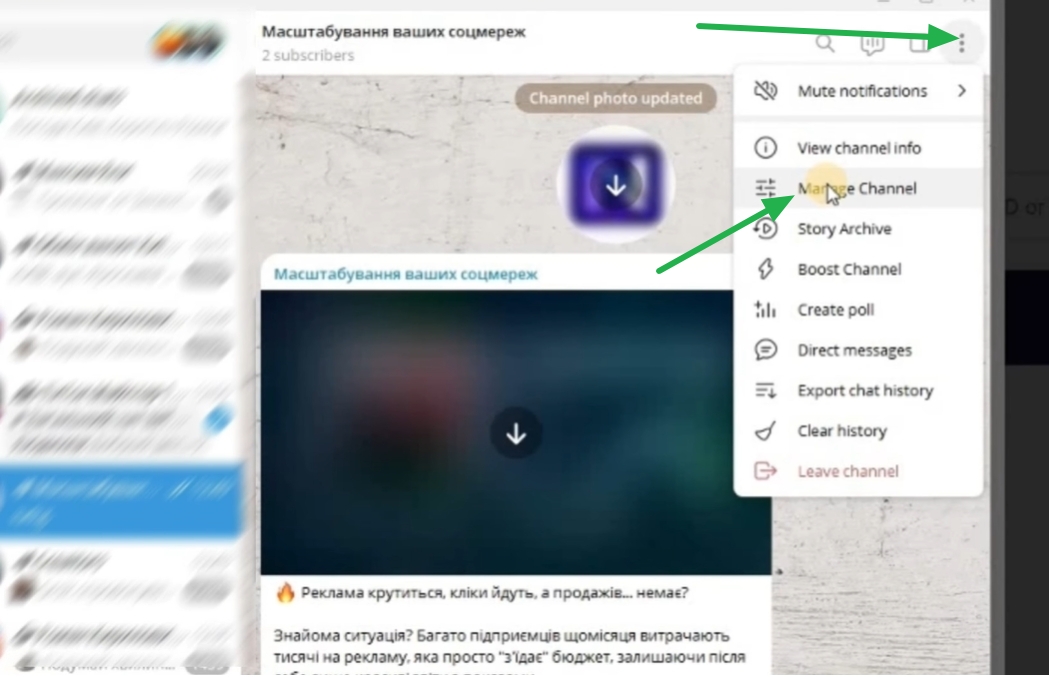
5. Open the Telegram Channel Settings
Go to your Telegram channel.
Open the channel settings menu and select Manage Channel.
6. Open the Administrators Section
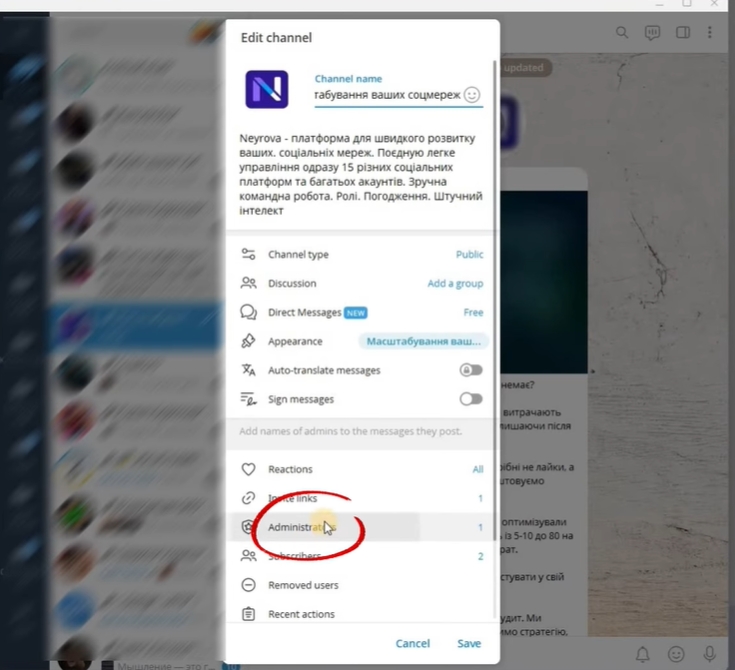
In the channel settings, open the Administrators section.
Then click Add Administrator to add a new administrator to the channel.
7. Find the NeyrovaApp_bot
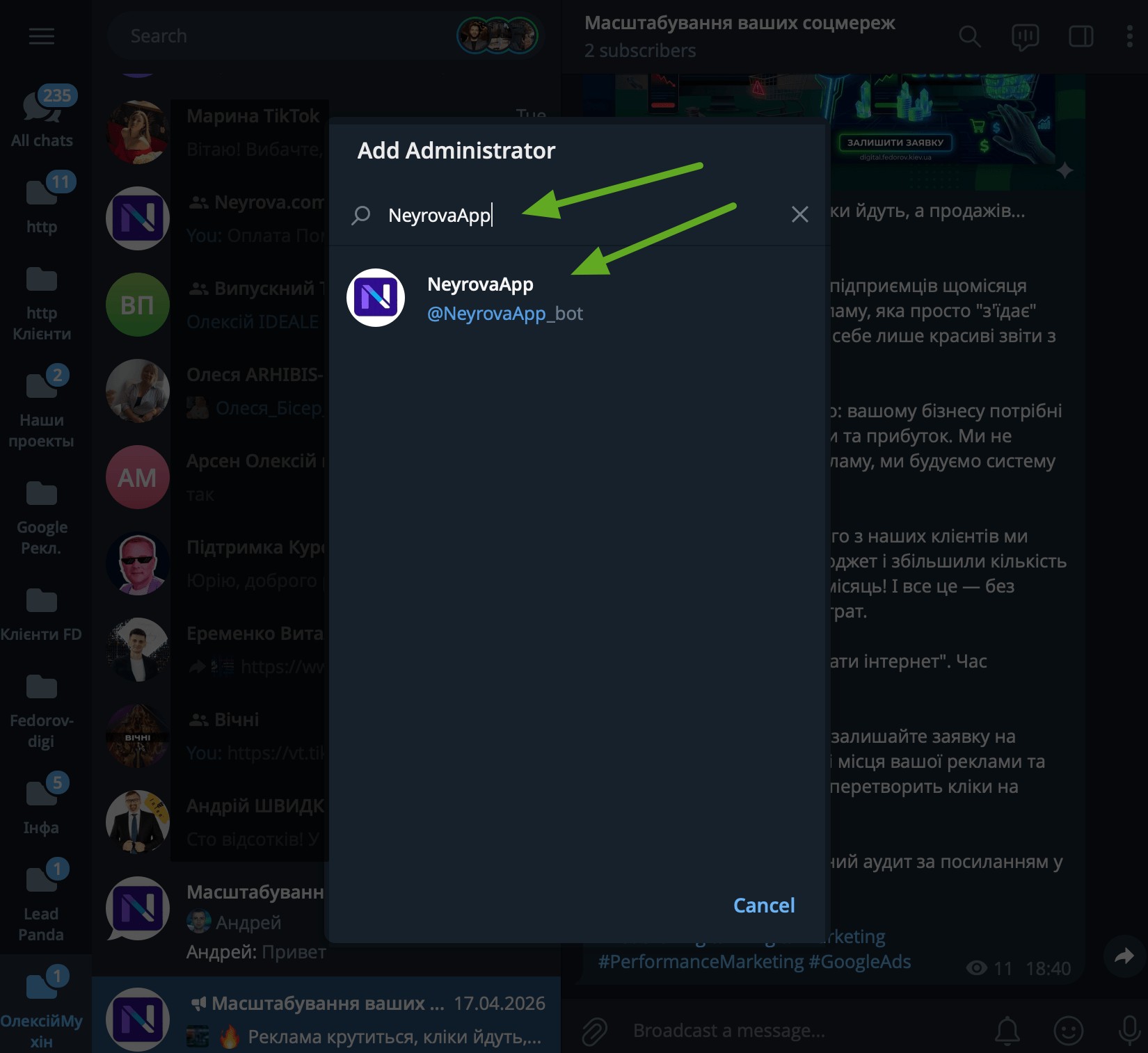
In the search field, enter NeyrovaApp_bot.
Make sure you select the correct bot with the Neyrova logo and the username NeyrovaApp_bot.
8. Add the Bot as an Administrator
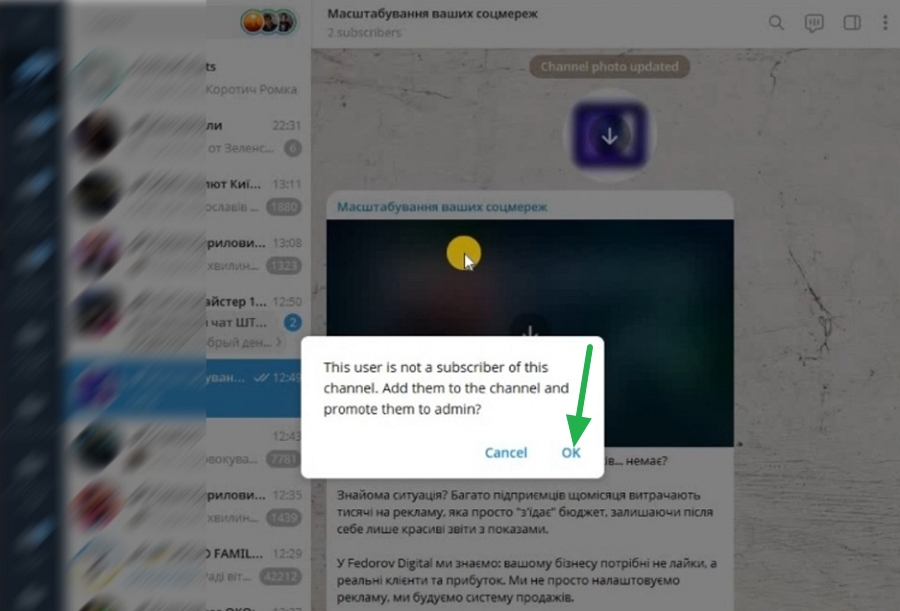
After selecting the bot, click OK to add it as an administrator of your Telegram channel.
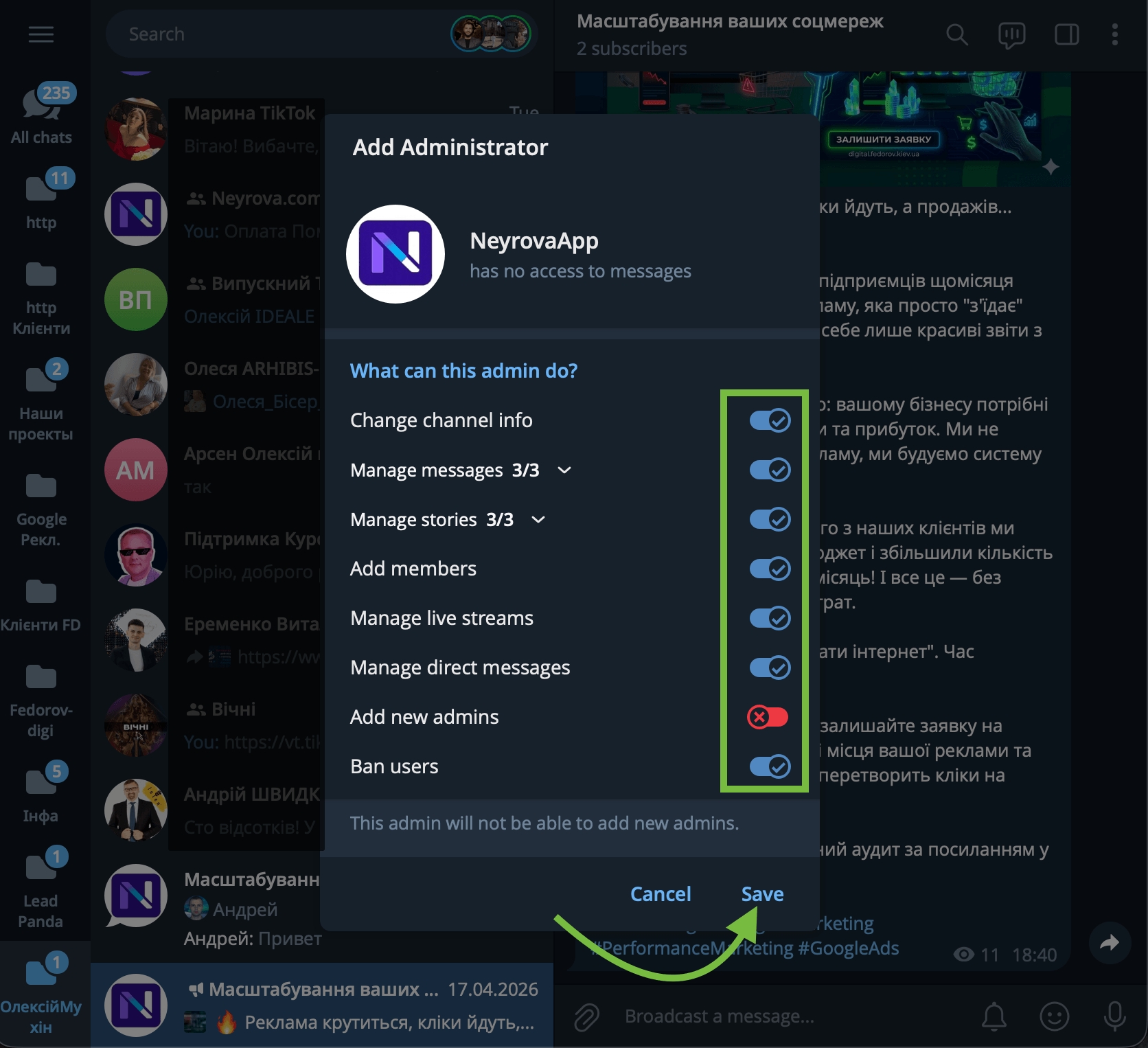
9. Grant the Manage Messages Permission
In the administrator permissions settings, enable the Manage Messages permission and click Save.
This allows the bot to manage posts in your Telegram channel.
10. Copy the Telegram Channel Username
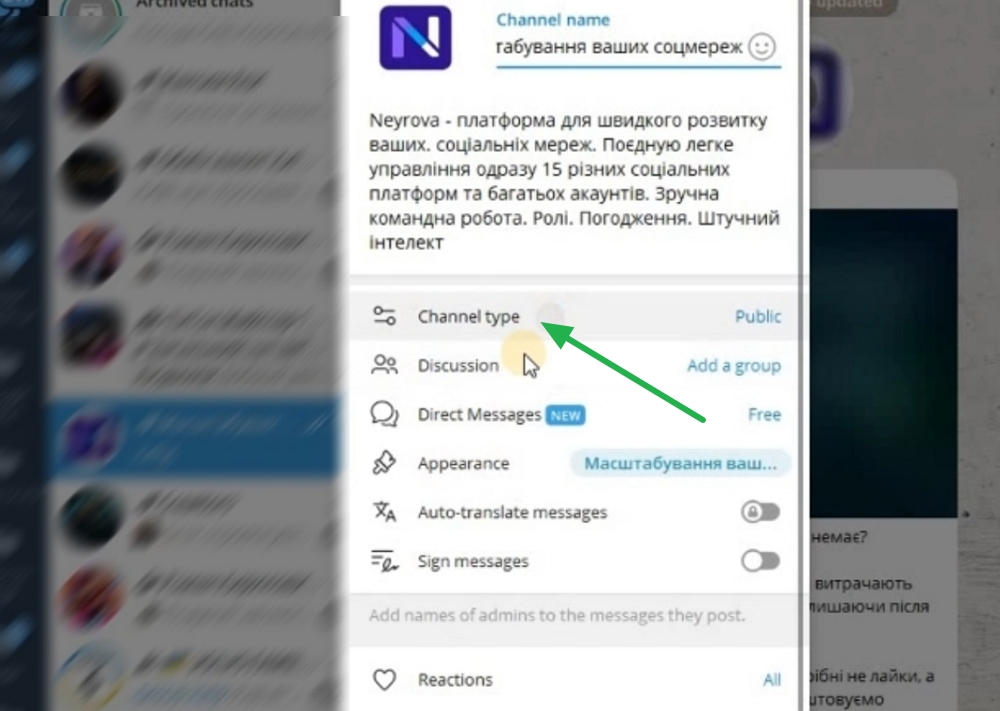
After adding the bot as an administrator, return to the channel settings.
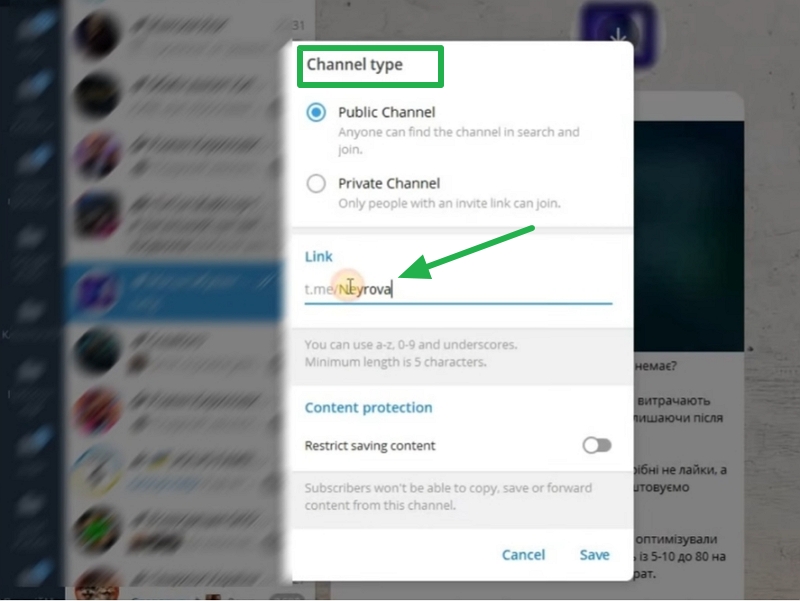
Open Manage Channel, go to Channel Type, and copy your Telegram channel @username.
11. Return to Neyrova
Return to the Telegram connection form in Neyrova.
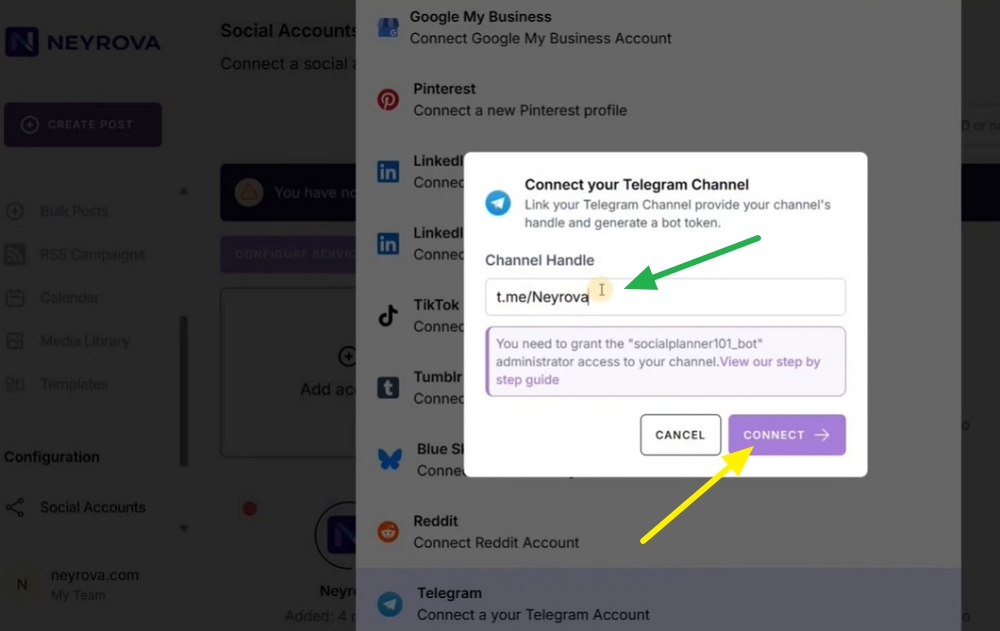
Verify that the correct Telegram channel @username has been entered.
12. Click Connect
After verifying the username, click Connect.
Neyrova will import the Telegram channel and add it to your list of connected accounts.
13. Verify the Connected Channel
After the connection is completed, open the Social Accounts section and verify that the Telegram channel appears in the list of connected profiles.
Summary
To connect a Telegram channel to Neyrova, select Telegram in the Social Accounts section, enter the channel @username, add the NeyrovaApp_bot as a channel administrator, grant it the Manage Messages permission, and complete the process by clicking Connect.
Once connected, you will be able to schedule and publish text posts, images, and videos to Telegram directly through Neyrova.