



This guide explains how to remove branding from a Biolink page or replace it with your own branding.
Branding is a service label or signature that may appear on a Biolink page. If needed, it can be disabled or customized to match your own brand.
1. Open the Link in Bio Section
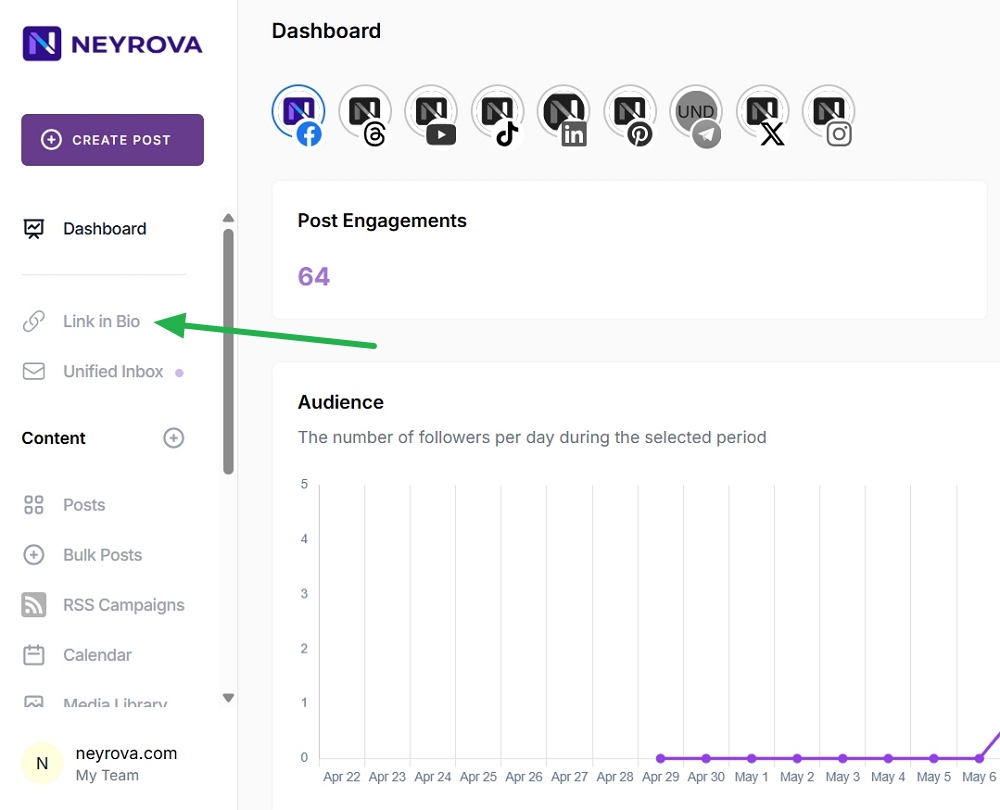
Sign in to your Neyrova account and navigate to the Link in Bio section from the dashboard.
This section contains all of your Biolink pages.
2. Select the Desired Biolink Page
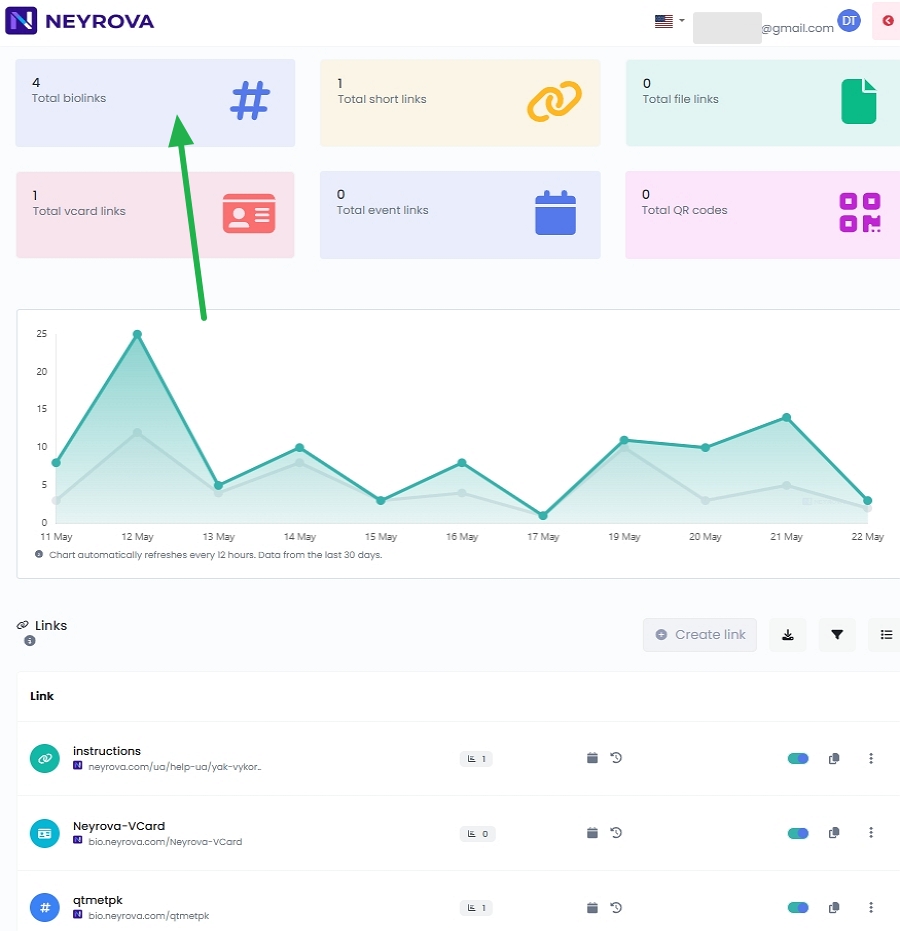
Click the Total biolinks icon.
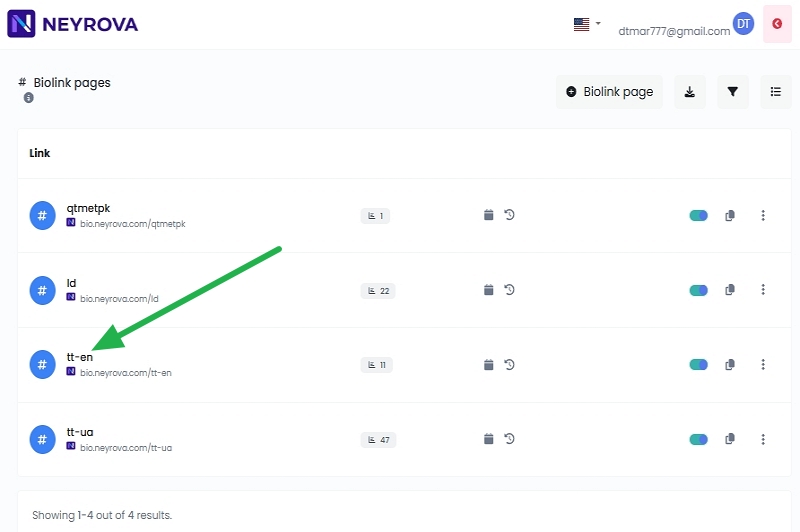
Select the Biolink page from which you want to remove the branding.
3. Open the Branding Section
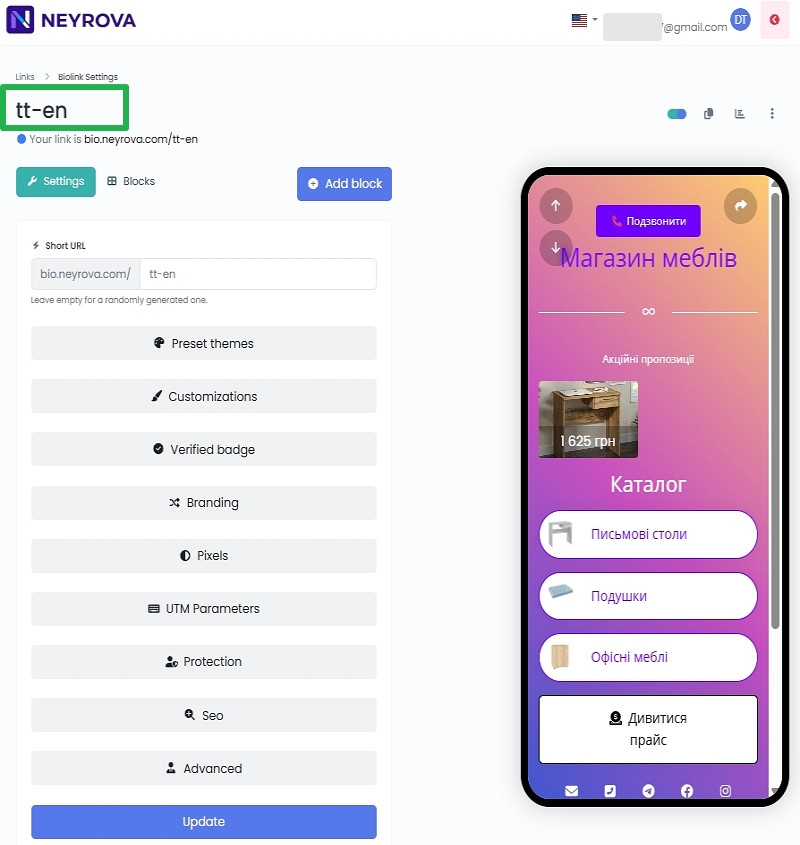
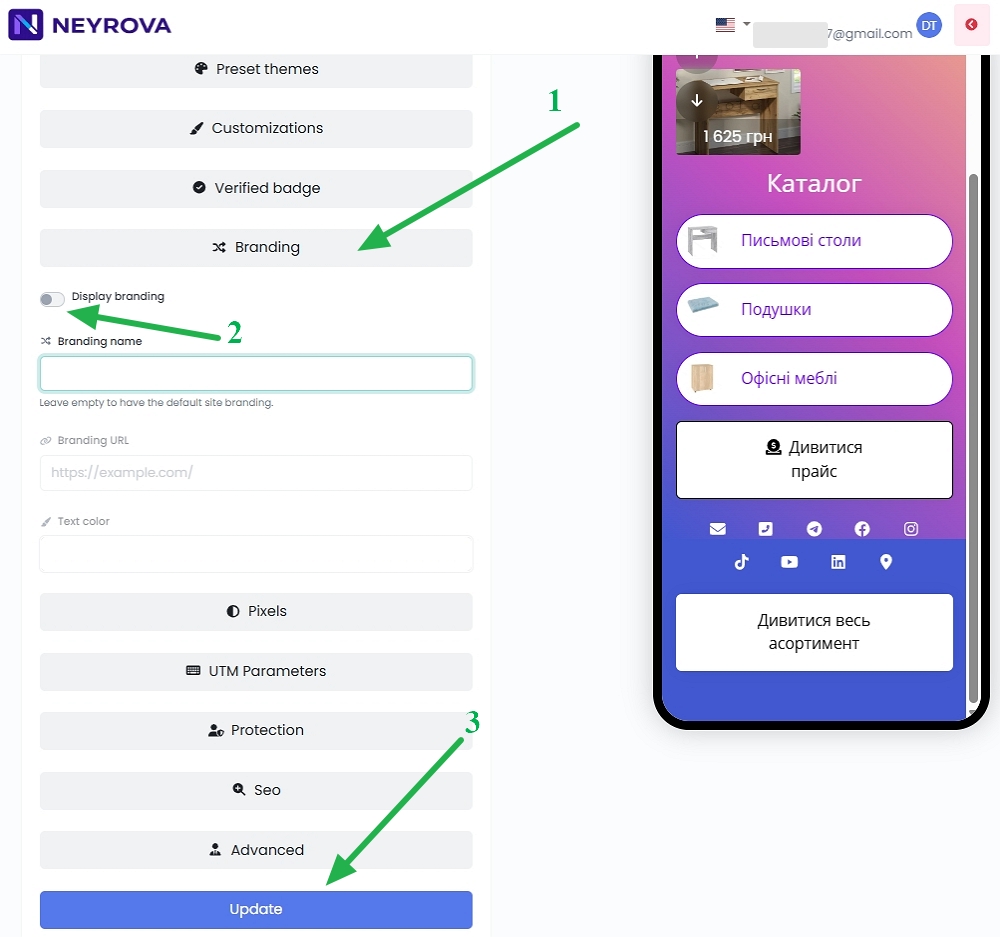
In the page settings, open the Branding section.
This is where you can manage how branding is displayed on the page.
4. Enable or Disable Branding
Use the Display branding toggle to enable or disable branding on your Biolink page.
To remove the branding, switch the toggle to the Off position.
Click the Update button to apply the changes.
5. Add Custom Branding if Needed
If you do not want to remove branding completely but instead replace it with your own:
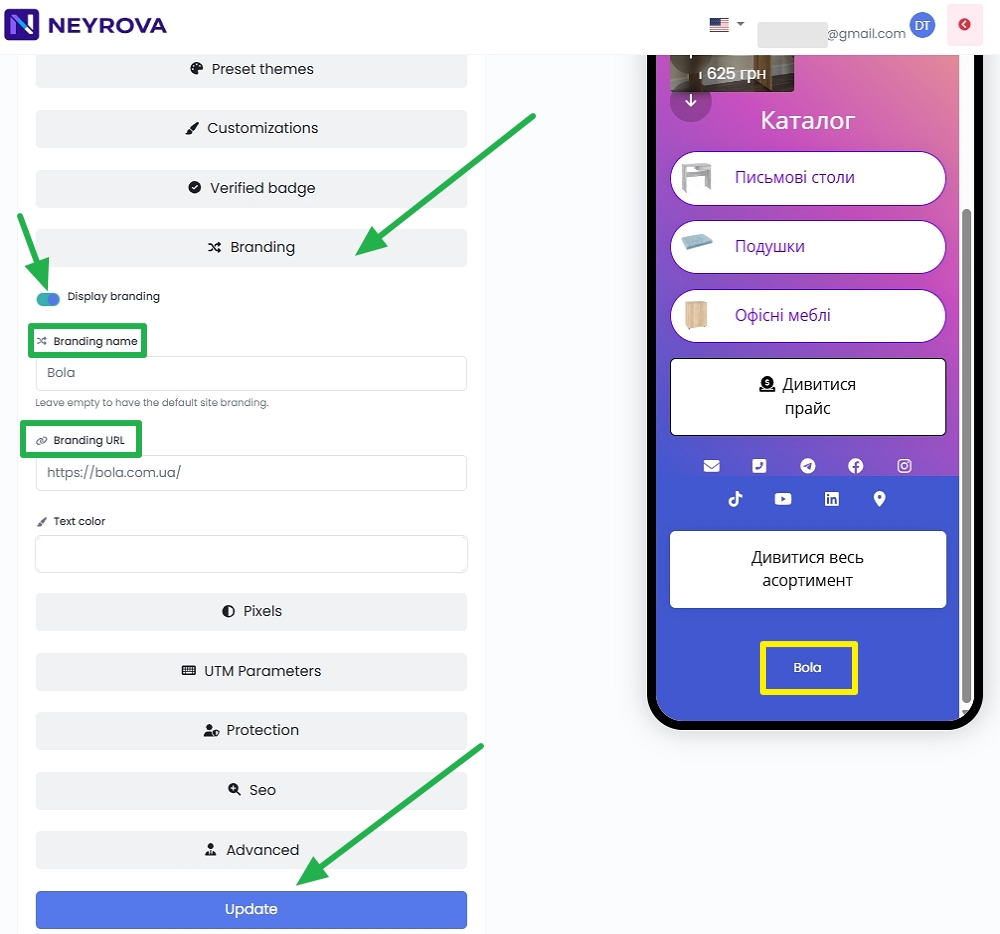
- enable the Display branding toggle;
- enter your brand name in the Branding name field (for example: Bola);
- enter your website address in the Branding URL field (for example: https://bola.com.ua/);
- click Update to save the changes.
This allows you to display a link to your own brand, website, or another resource on the page.
6. Review the Result
After saving the changes, the page will display your custom branding instead of the default branding.
Open the page preview and verify that the branding appears correctly.
Summary
In Neyrova, you can remove branding from Biolink pages or replace it with your own custom brand.
To do this, open the page settings, go to the Branding section, disable branding display, or specify your own brand name and website address.
After saving the changes, the page will be displayed according to your selected branding settings.