



This guide explains how to shorten a long URL using the Biolinks tool in Neyrova and configure additional access settings.
Short links are more convenient to use in posts, social media profiles, advertisements, messages, and QR codes.
1. Open the Link in Bio section
Log in to your Neyrova account and navigate to the Link in Bio section from the dashboard.
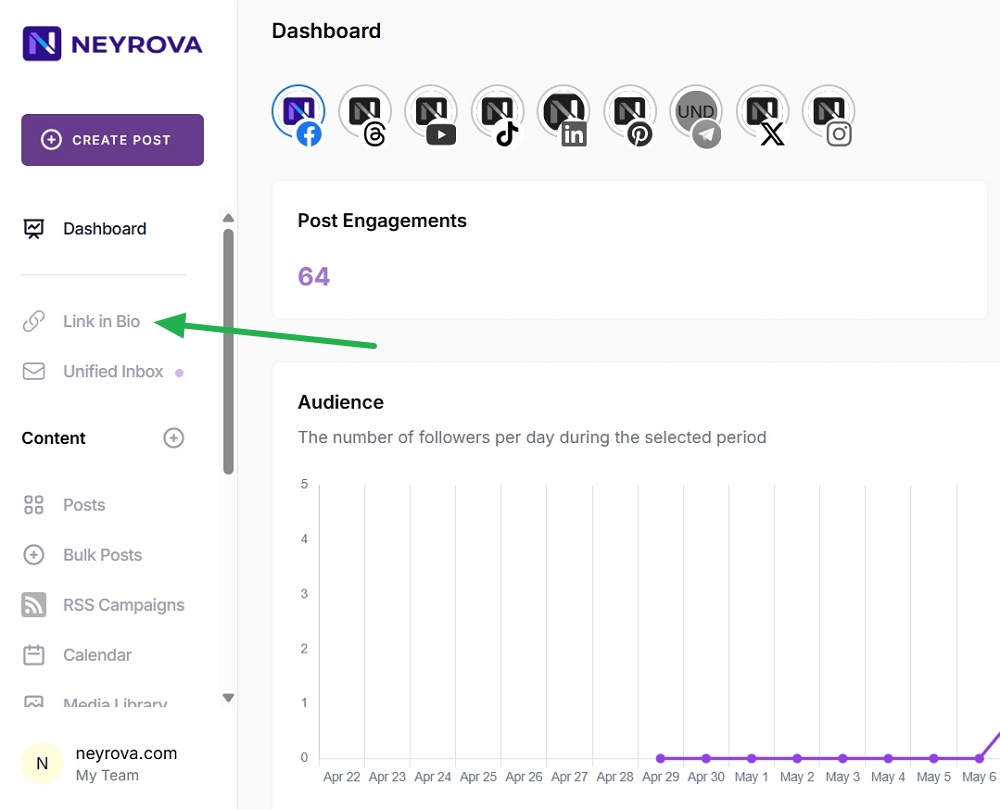
Then select the Link section.
2. Create a new short link (Short URL)
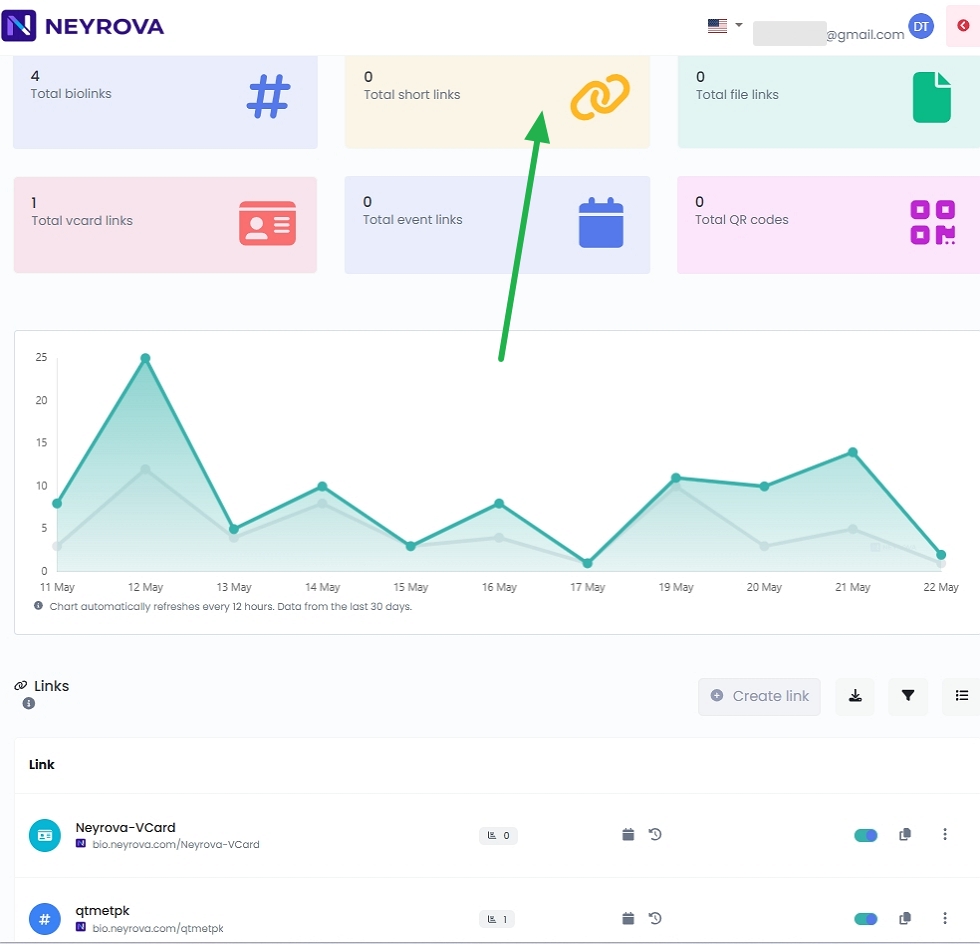
Click Shortened URL.
Shortened URL is a link type that converts a long URL into a shorter and more convenient one for sharing and use.
3. Enter the long URL
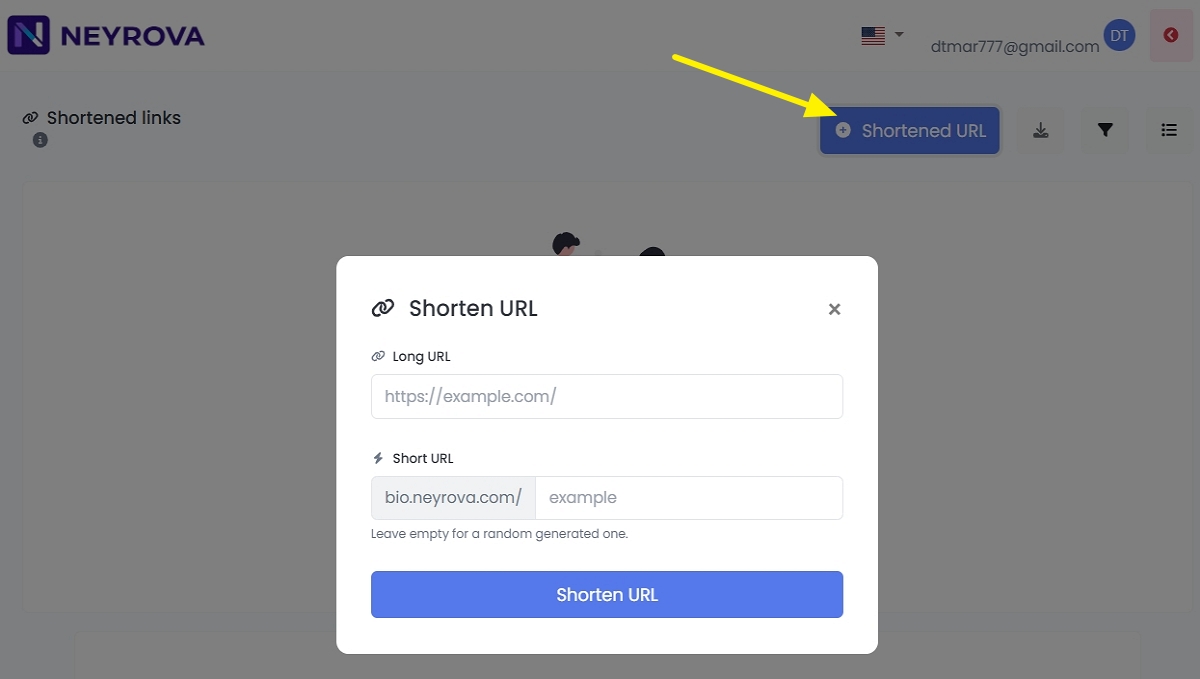
In the Long URL field, enter the full address of the page you want to shorten (for example: https://neyrova.com/ua/help-ua/yak-vykorystovuvaty-ai-writer-dlya-generaciyi-ta-redaguvannya-opysiv/).
This can be a link to an article, website page, product, booking form, or any other resource.
4. Set an alias if needed
Optionally, create a custom alias for your short link.
An alias is the part of the URL that makes the link more recognizable and easier to understand.
In the Short URL field, after the bio.neyrova.com/ prefix, enter your unique identifier (for example: AI-Writer_instructions).
- If you leave this field empty, the system will automatically generate a random short URL.
5. Click Shorten URL
After entering the long URL and alias, click Shorten URL.
Neyrova will generate a short link associated with the original URL.
6. Configure a Temporary URL (optional)
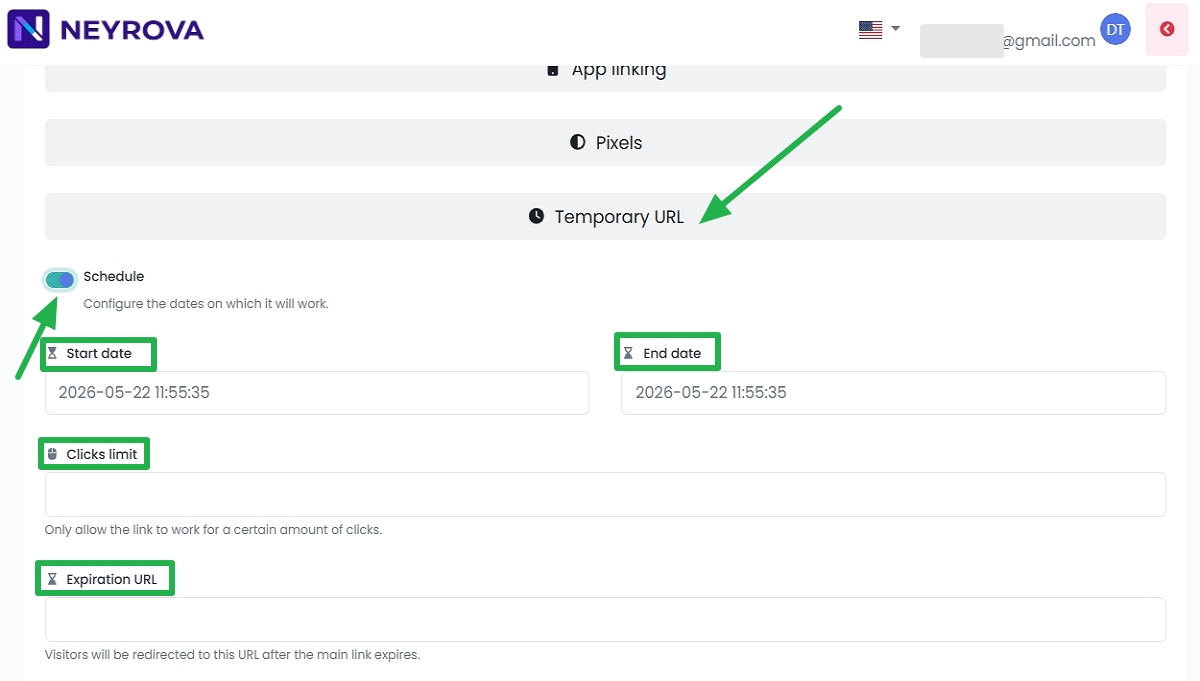
In the Temporary URL section, you can enable scheduling and set an expiration date for the link.
This is useful if the link should only be active until a certain date, such as for a promotion, event, or limited-time offer.
6.1 Enable the Schedule toggle to define when the link should be active.
Start date — the date and time when the link becomes active.
End date — the date and time when the link expires.
Between the Start date and End date, the link functions as the primary URL. Once the expiration date is reached, the link automatically becomes unavailable. If an Expiration URL has been configured, visitors will be redirected there.
6.2 Configure a click limit
Clicks limit — optionally specify the number of clicks after which the link will stop working.
Enter a number in this field (for example, 5).
This number represents the maximum number of visits allowed through the link.
Once the limit is reached, the link will stop working. If an Expiration URL is configured, visitors will be redirected there. Otherwise, the system will display a message indicating that the link is unavailable.
6.3 In the Expiration URL field, specify the address where visitors will be redirected after the main link expires.
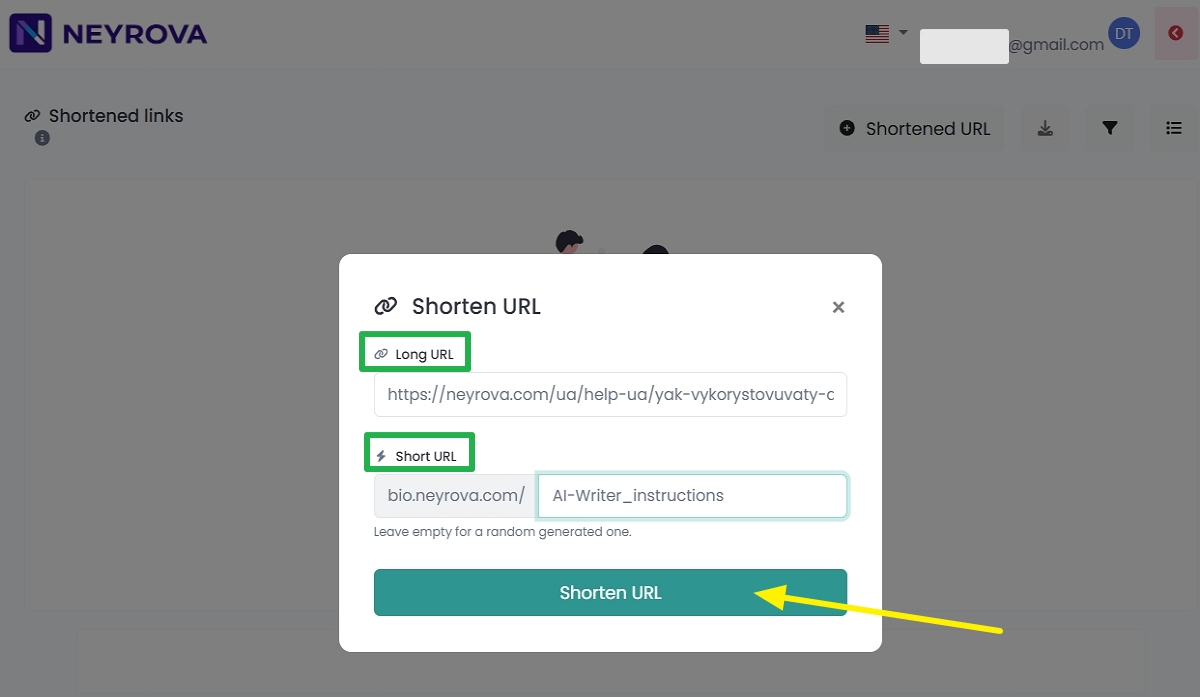
The main link is generated in the Short URL field (see section 2. Example: AI-Writer_instructions).
When a restriction is triggered (date, click limit, or other parameters), the main link stops working.
After that, users are automatically redirected to the address specified in the Expiration URL field.
7. Add password protection
In the Protection section, you can set a password.
In this case, only users who know the password will be able to access the link.
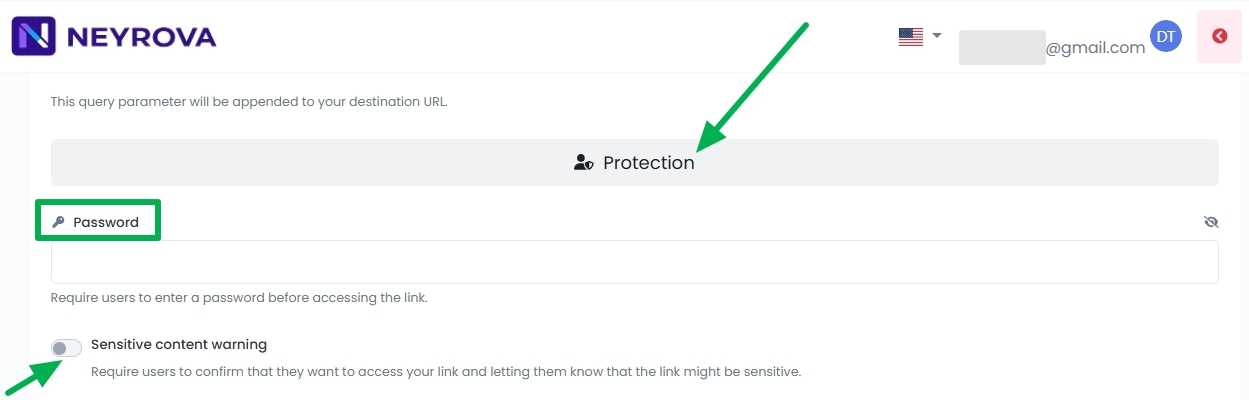
Sensitive content warning — enable this option if the link contains content that may be sensitive or inappropriate; users will see a warning before accessing it.
8. Configure Targeting
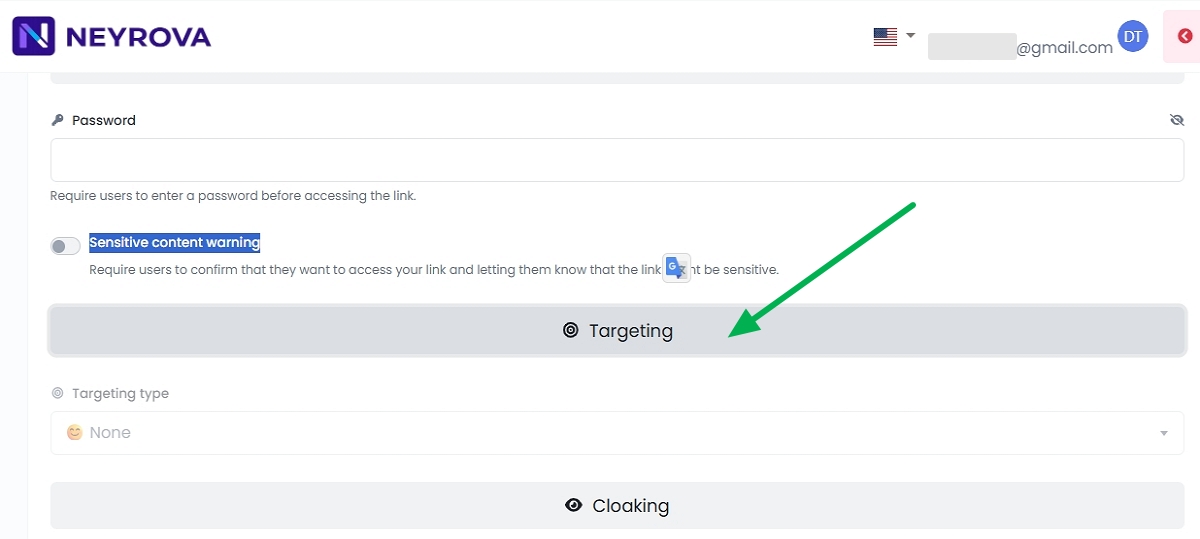
In the Targeting section, you can select a target audience for the link (for example: Country, Device Type, Browser language) or leave access open to everyone.
If audience targeting is not required, leave the default settings unchanged.
9. Choose a project category
In the Advanced section, select a project category.
This helps organize your links and makes them easier to find among other created materials.
10. Save your settings
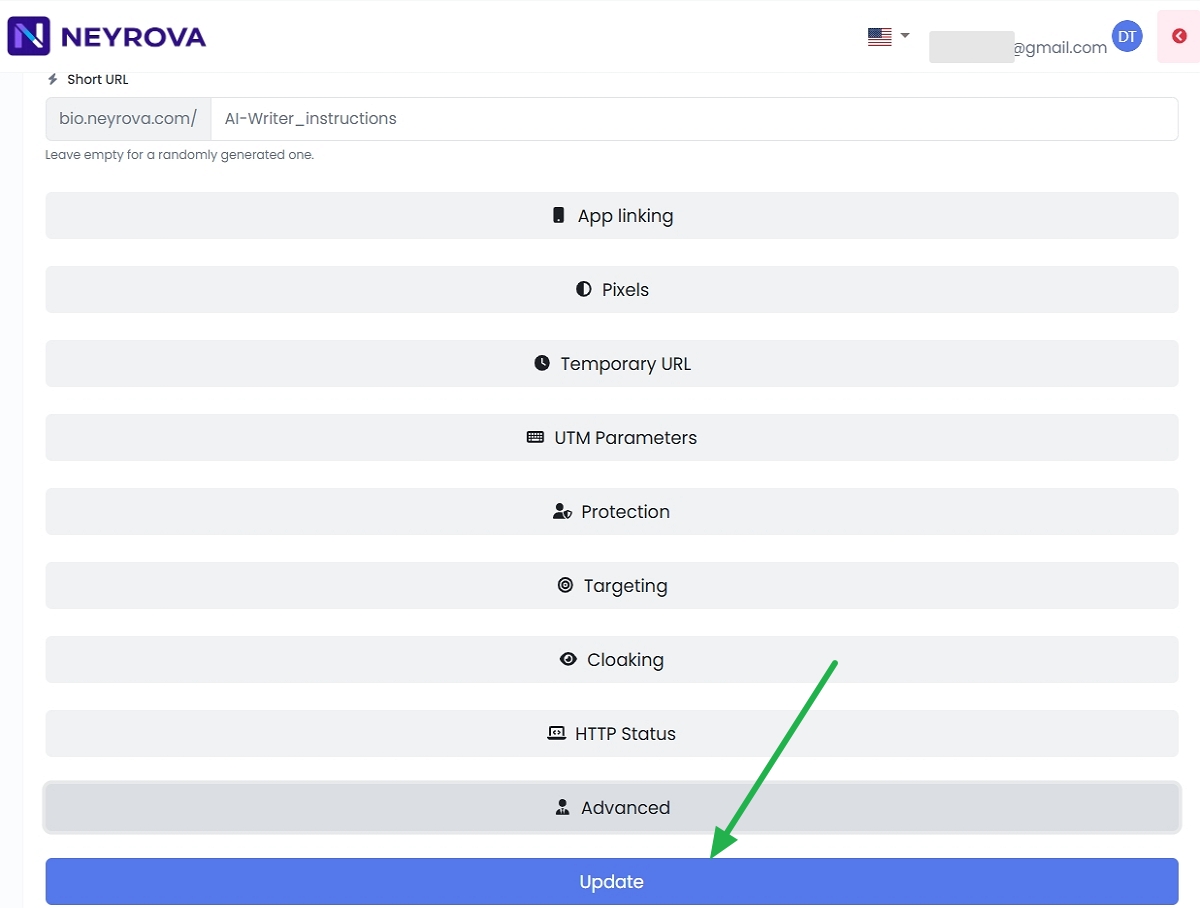
After completing the setup, click Update.
Your short link will be saved and ready to use.
Summary
In Neyrova, you can quickly create a short link using Biolinks, define a custom alias, restrict access by date, add password protection, and organize links by category.
After saving, the short URL can be used in social media, advertising campaigns, messages, QR codes, or on Biolink pages.