



This guide explains how to view billing receipts in Neyrova and download the required document.
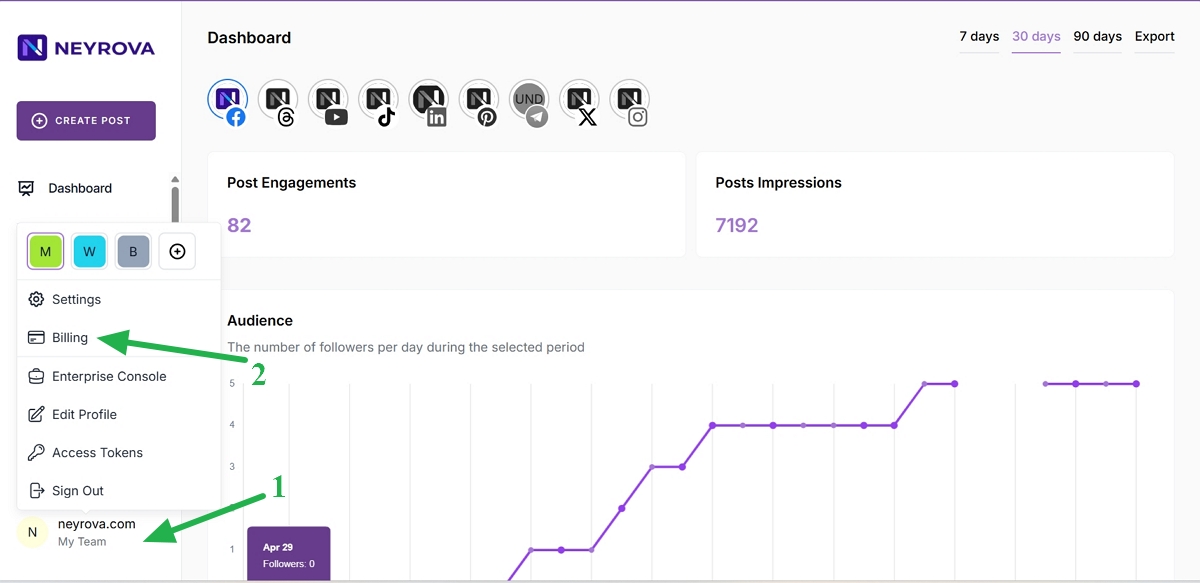
1. Open the user menu
In the lower-left corner of the Neyrova dashboard, click your name or profile icon.
This will open the user menu.
2. Go to Billing
In the user menu, click Billing.
This will open the payment management and billing documents section.
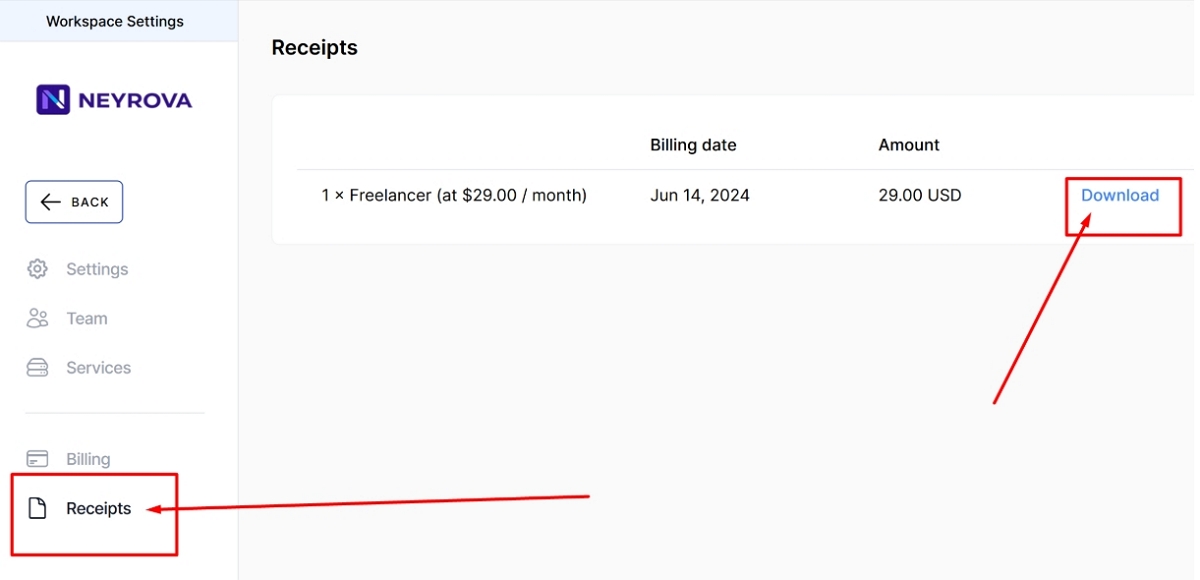
3. Open the Receipts tab
On the Billing page, navigate to the Receipts tab.
This section displays your billing receipts and invoices.
4. Find the required invoice
Browse the list of available billing records.
Typically, you will see the billing date, payment amount, and an available action to download the document.
5. Download the invoice
Next to the required invoice, click Download.
The invoice will then be downloaded to your device.
Summary
In Neyrova, invoices and billing receipts can be viewed in the Billing → Receipts section.
To obtain the required document, simply find the corresponding payment record and click Download.