



In this guide, we’ll show you how to setup your own Twitter API keys for seamless posting to Twitter.
Video Guide:
Step 1: Create a Twitter Developer account
If you don’t have a Twitter Developer account, you need to set one up. (Don’t worry it’s free – for the most basic one and it only takes a few minutes)
Go to https://console.x.com/ and sign up for an account using your existing X (Twitter) account.
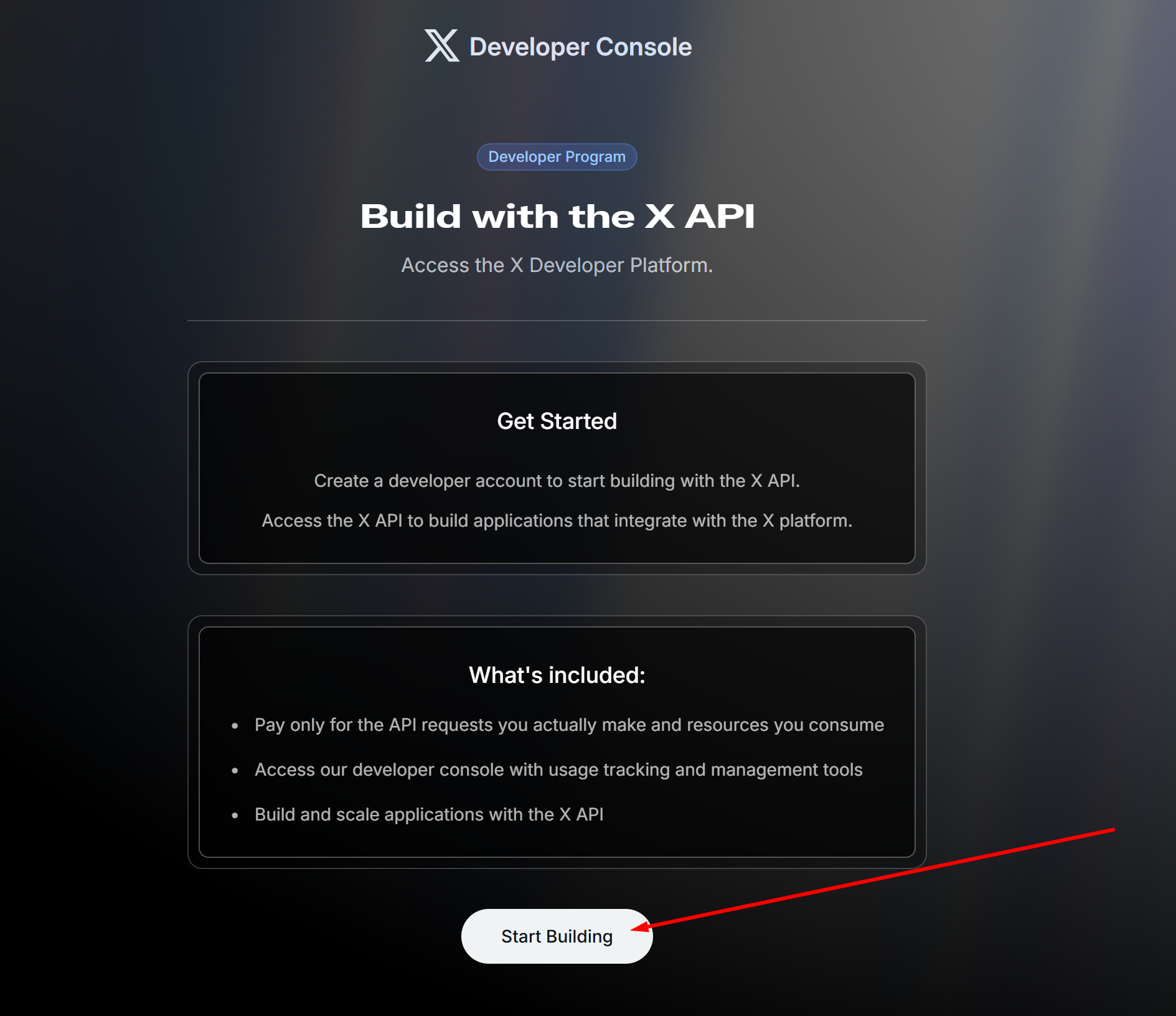
Once on this page:
1 – Click on START BUILDING
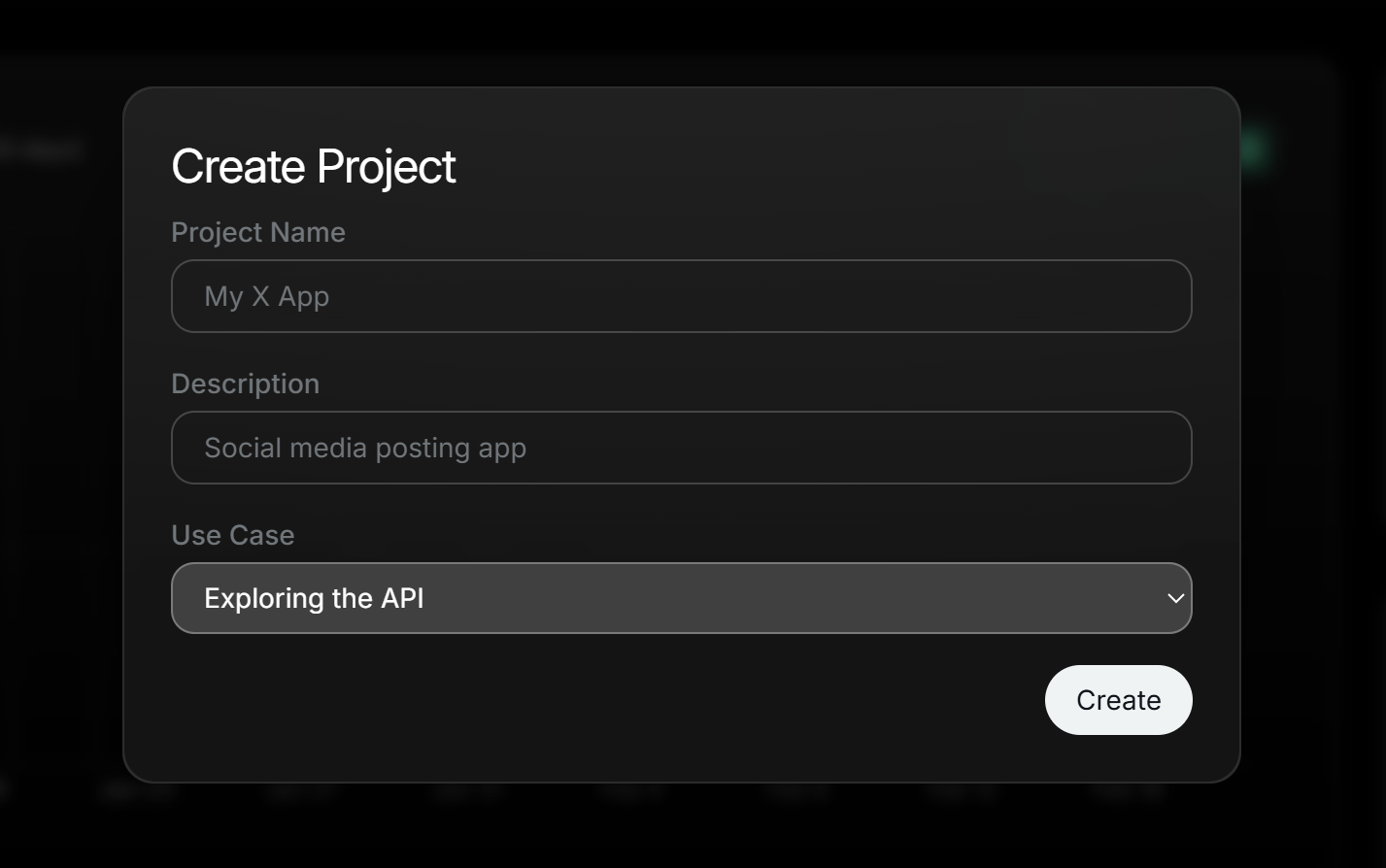
2 – When you first login to the Dashboard, you’ll be prompted to Create your first Project
-
Give the project a name
-
Enter a description
-
And select a use case as shown below
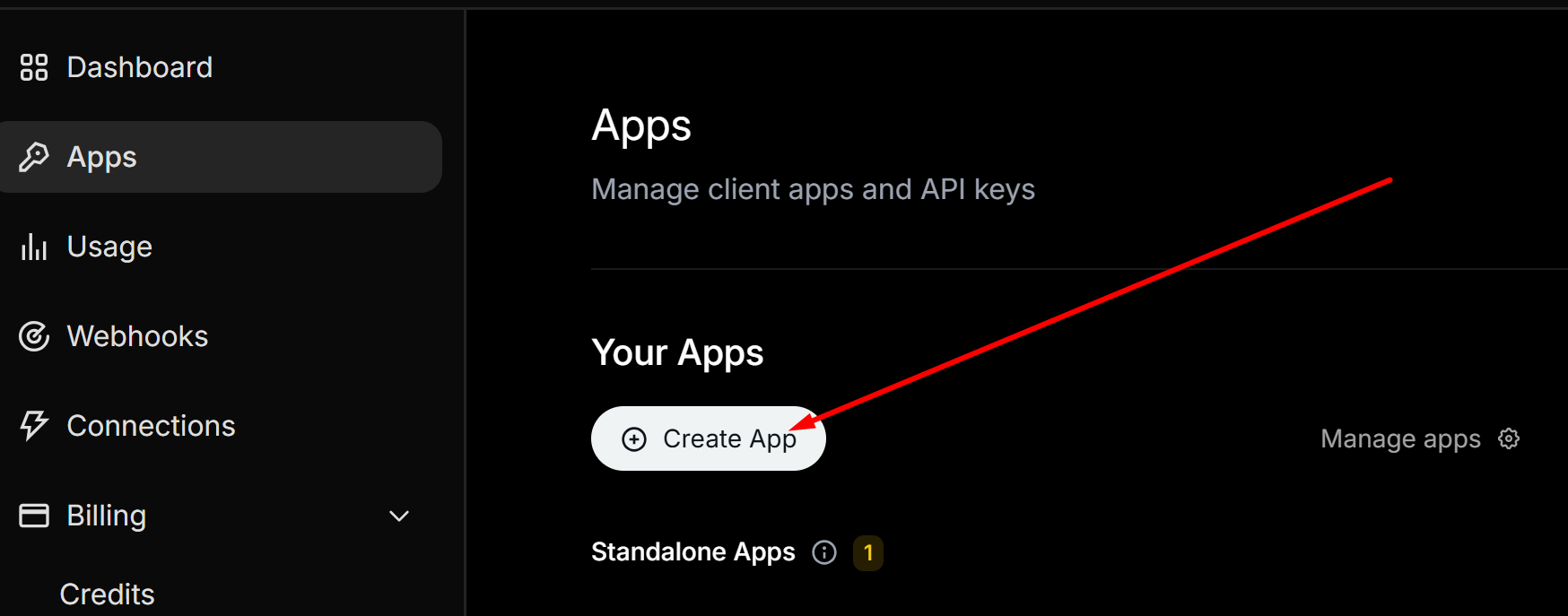
3 – On the Dashboard, click on Apps > Create App
-
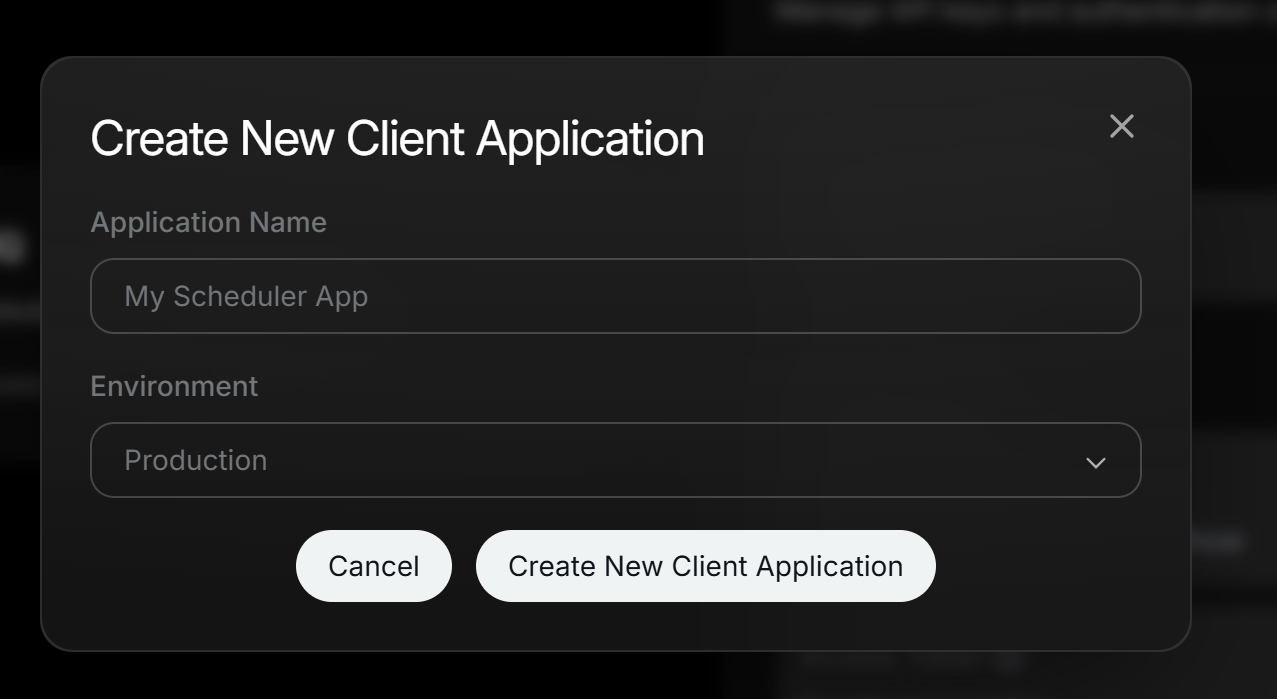
Give your app a name
-
Set the Environment to Production. Then Create New Client Application
4. Copy the Consumer and Secret keys and save then in a secure place.
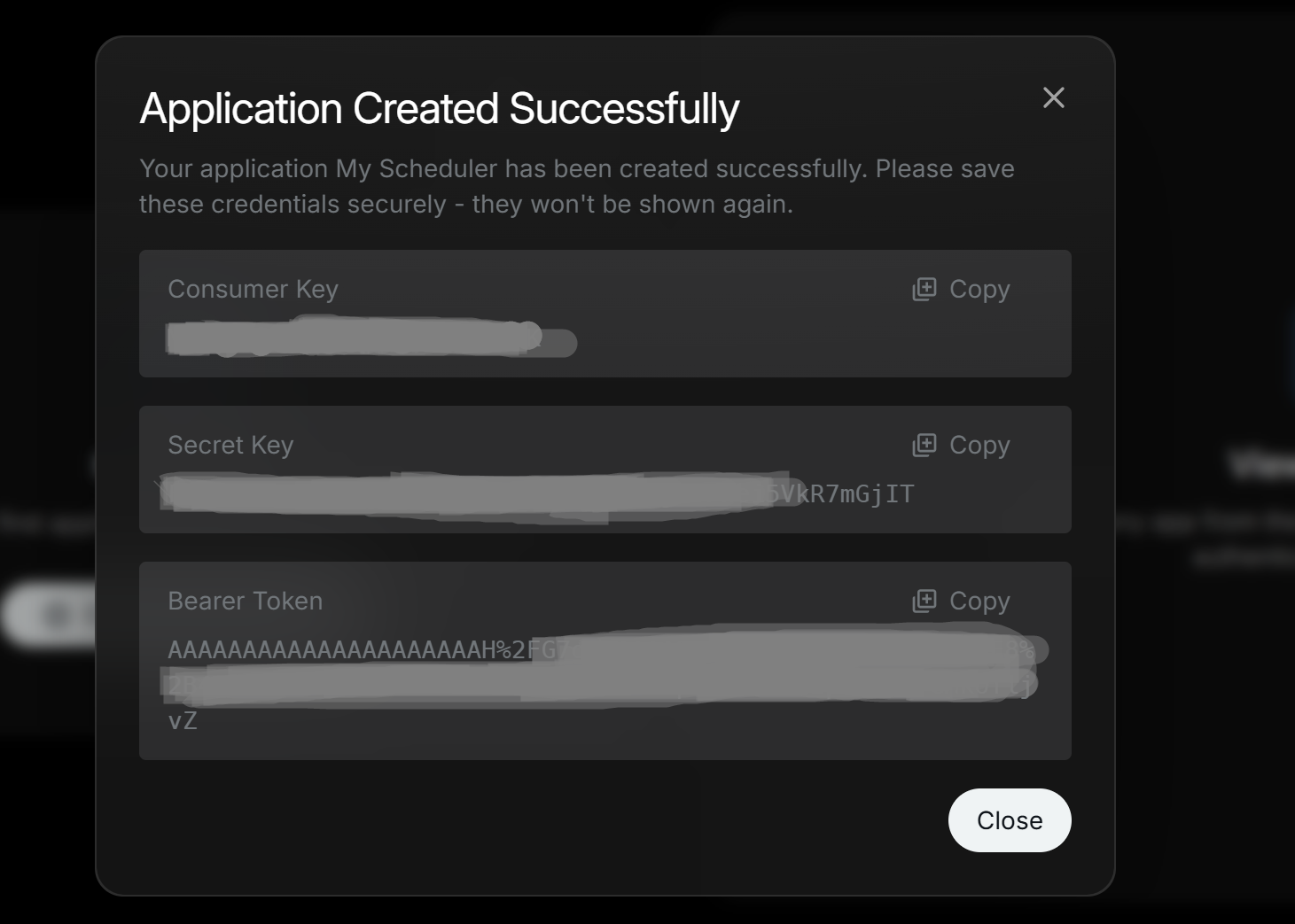
💡Hint: Note them down, because they are important! Copy the Consumer Key and Secret Key and have them saved in a document or a safe place.
Step 2: Setting up your app
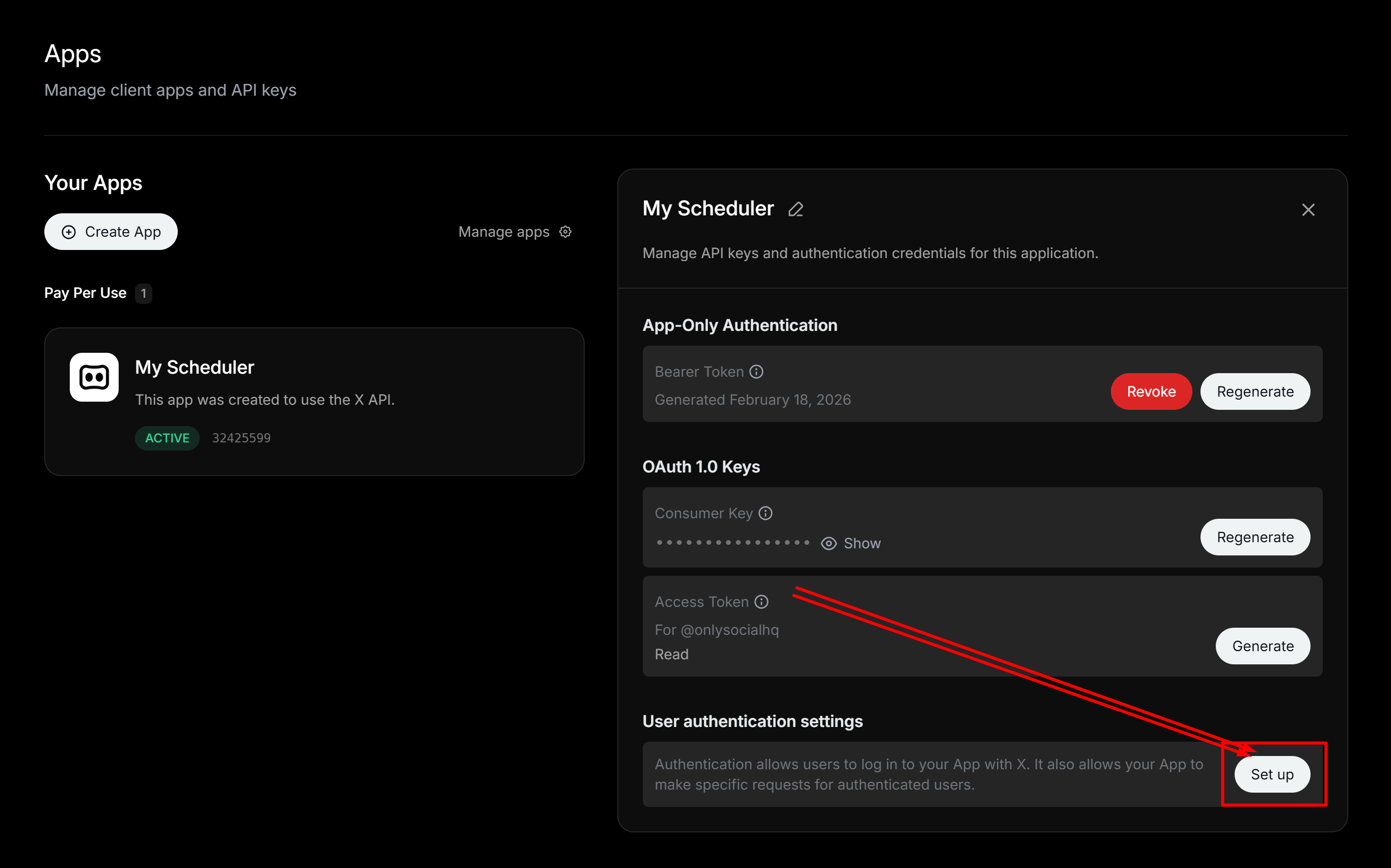
1. Click on your newly created. Under User authentication settings , Click the Set up button
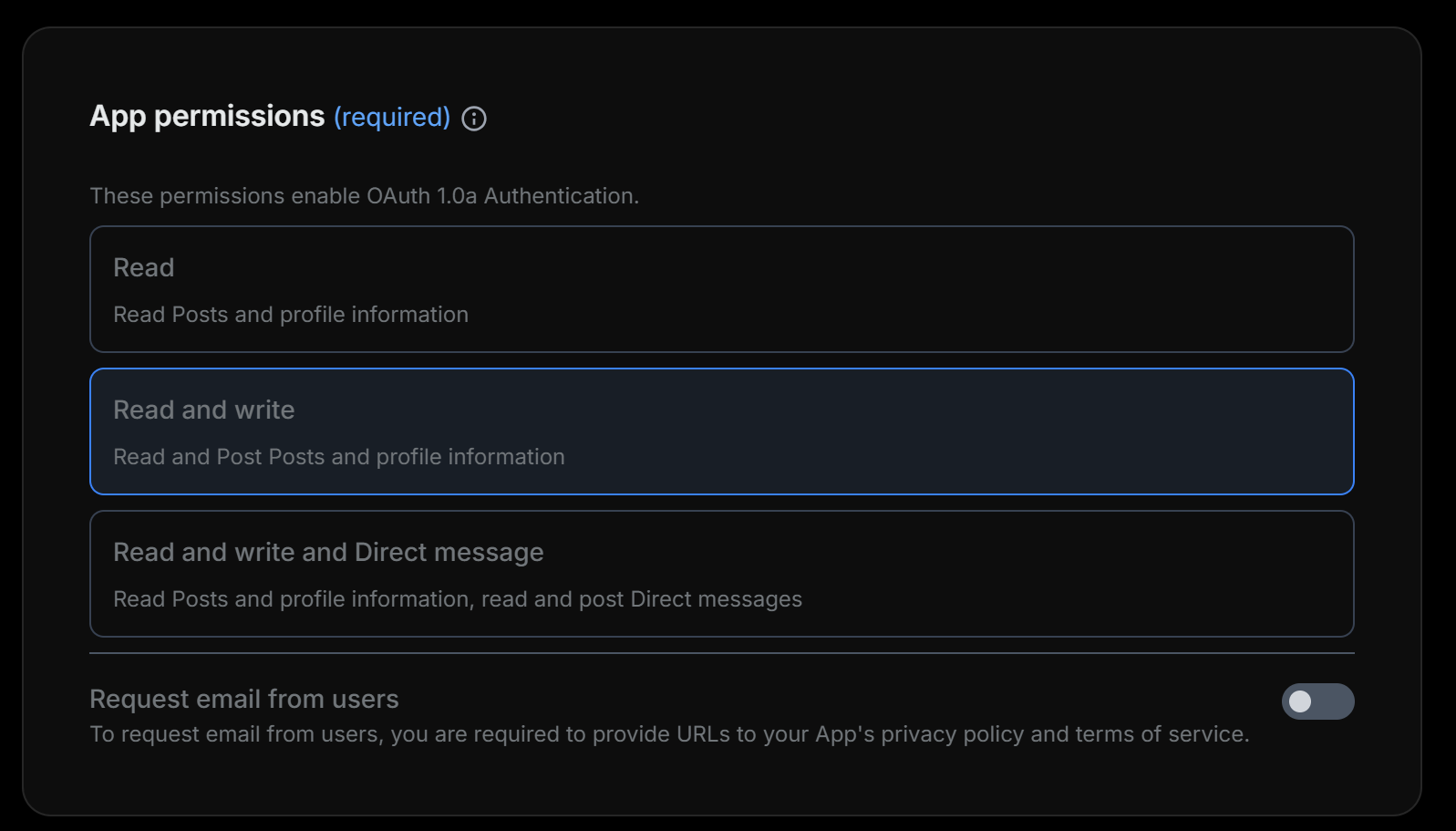
2. Under App Permissions , select Read and Write
-
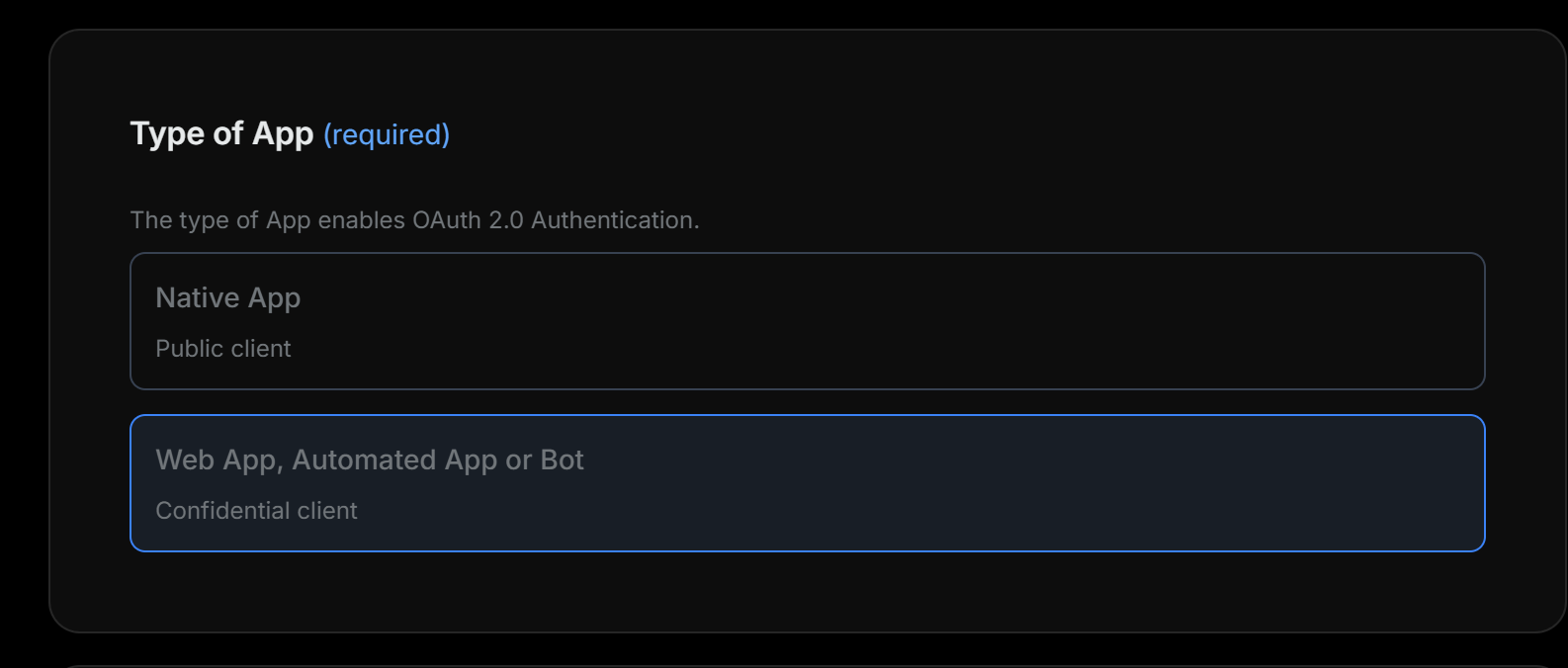
Under the App Type, select Web app, Automated app or Bot
-
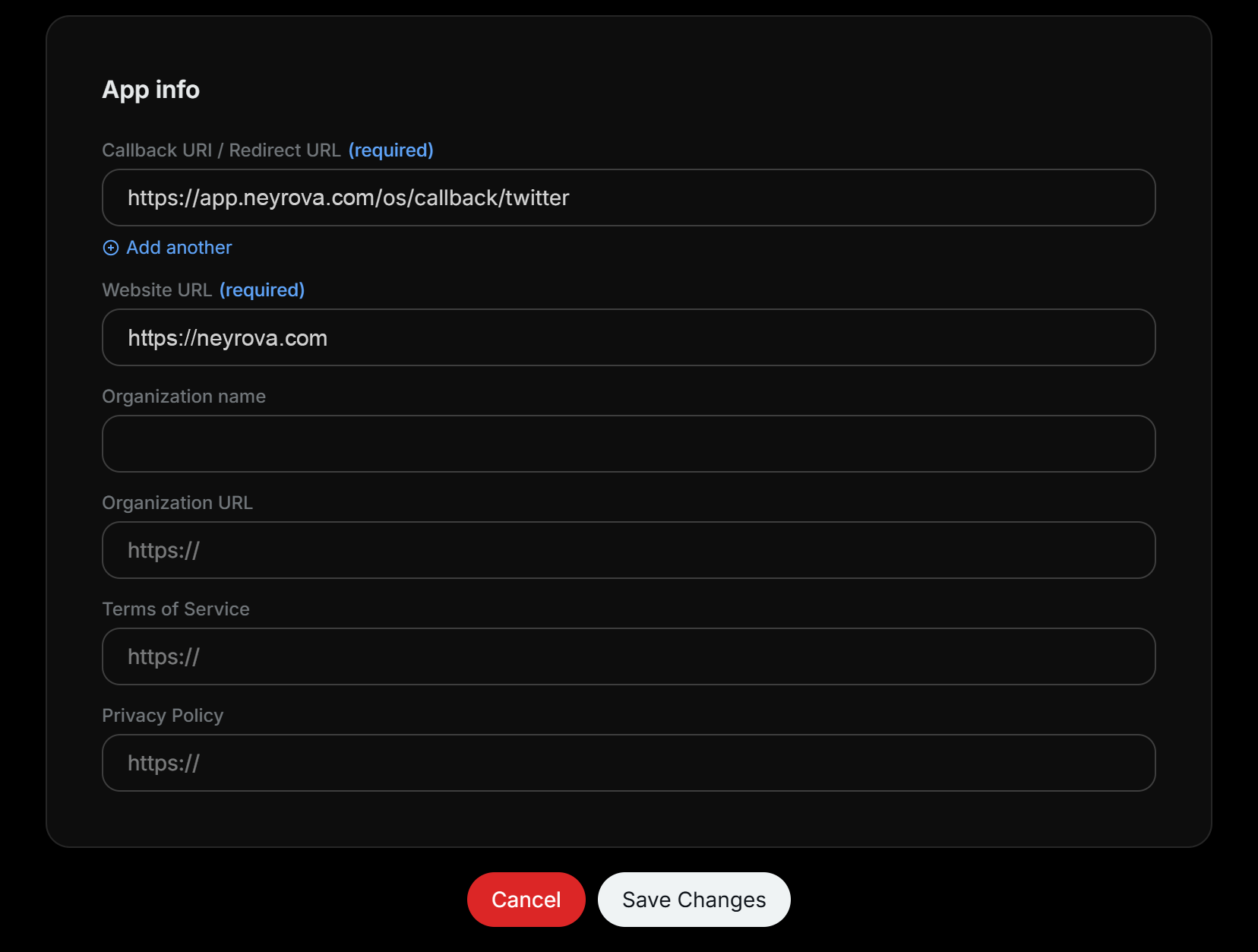
Under App info add this URL in Callback URI / Redirect URL:
Ensure to enter the exact URL as shown above.
Note: If you’re a Whitelabel client, replace neyrova.com with your whitelabel app domain
-
Under Website URL you can add a link to your own website or https://neyrova.com
Now Save your settings.
You do NOT need to copy the Client ID or Client Secret. What you need is the Consumer Key and Secret copied in Step 1 point 4.
Now head over to Neyrova to setup the API keys.
Step 3: Adding Fund to your account
X’s latest updates requires that you add some credits to your developer console before you can make any API call.
We usually recommend at least $5, which gives you up to 500 posts.
To add fund to your account;
-
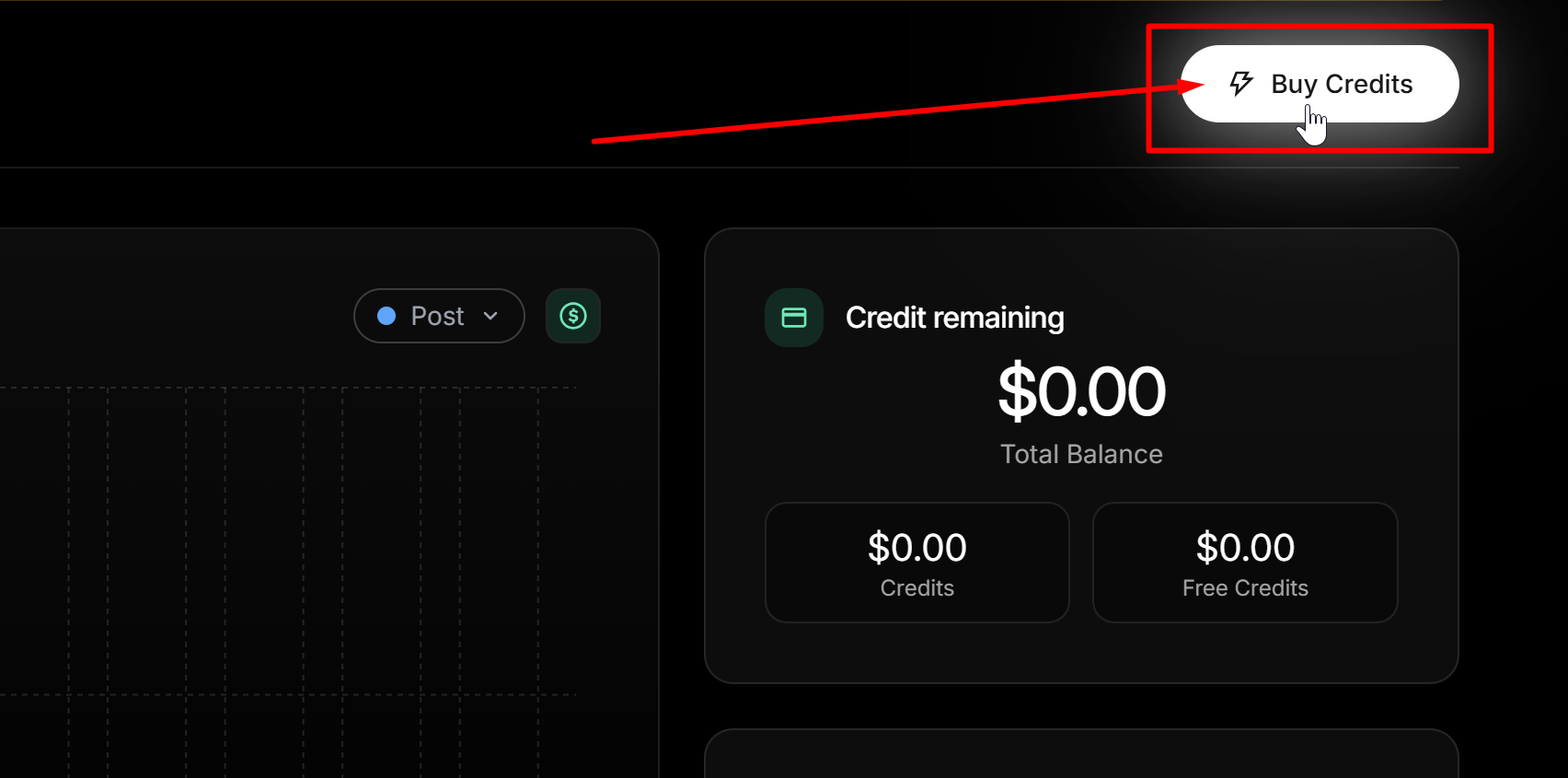
Go to your X developer Dashboard
-
Click on Buy Credits
-
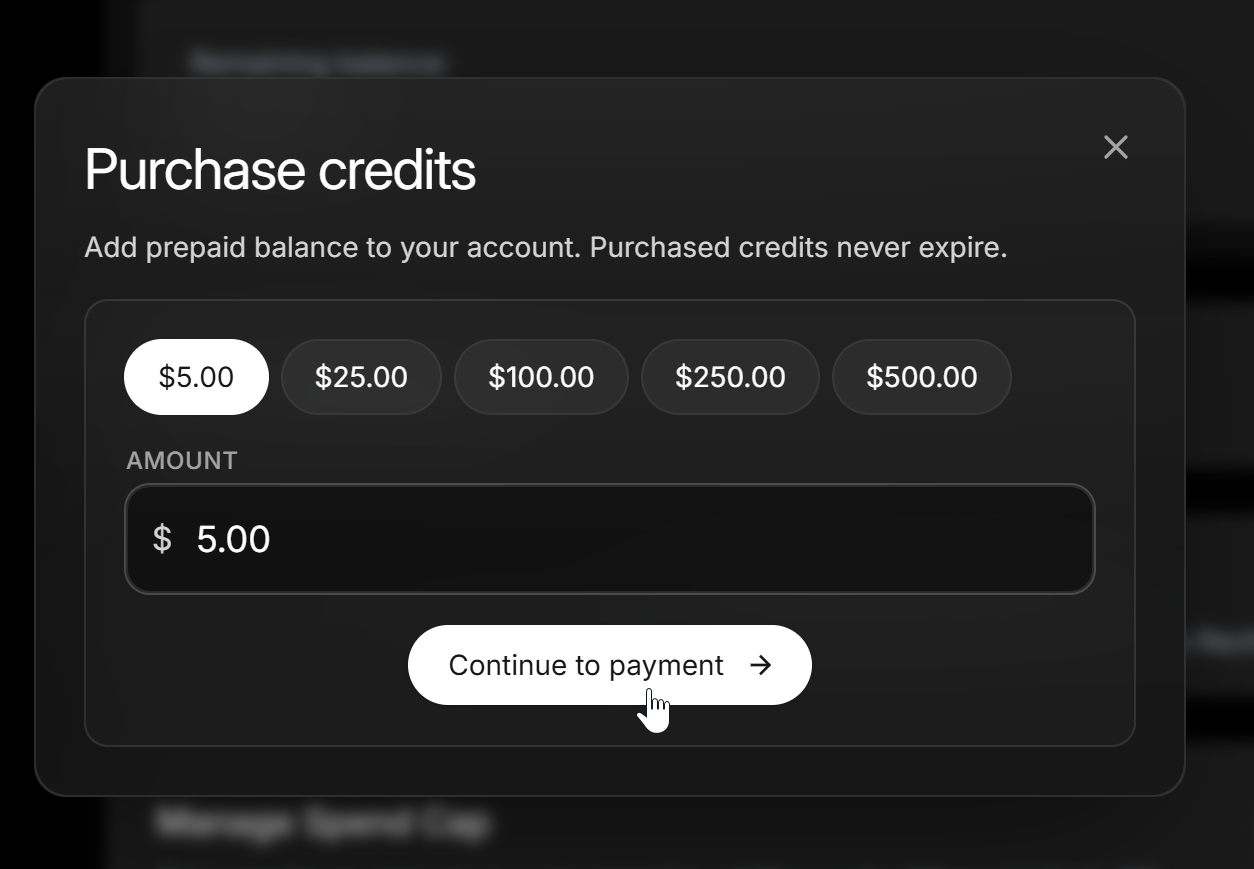
The next page would ask you to set the amount you want to deposit. Set this and click Continue to Payment
-
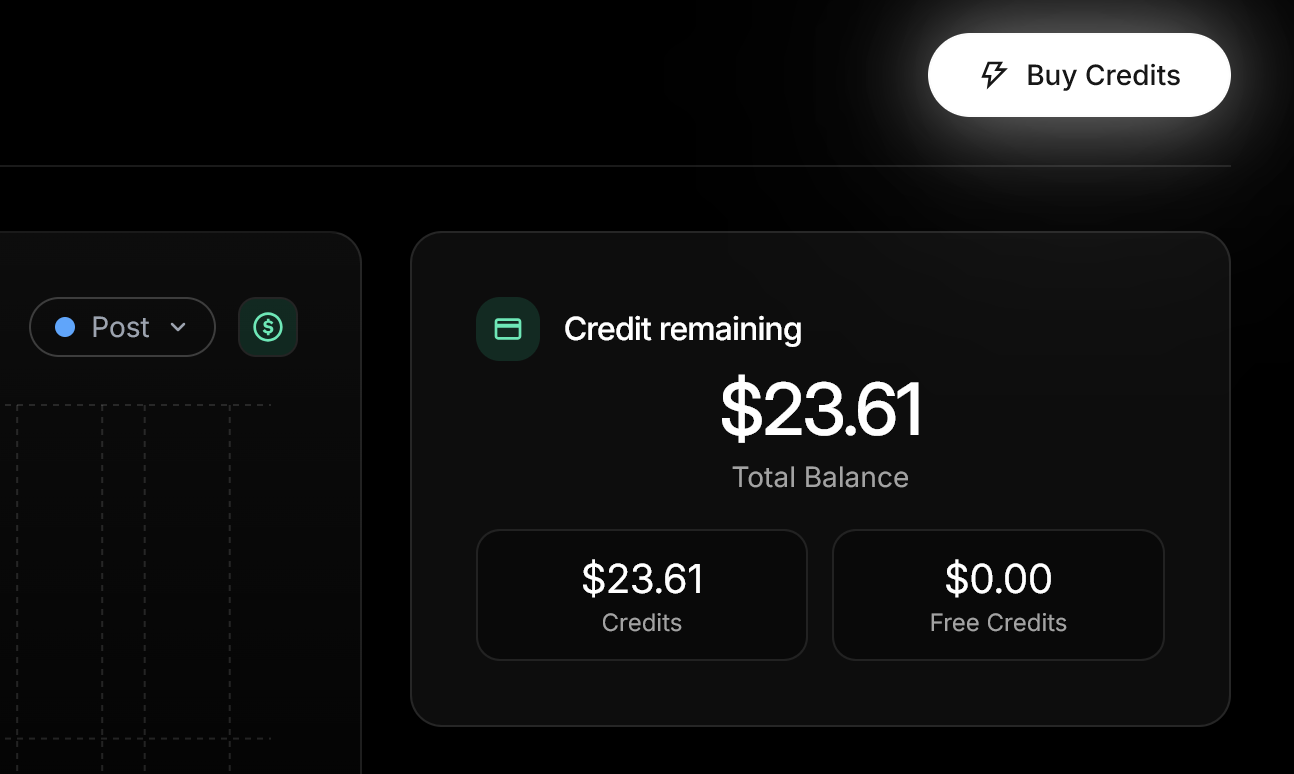
When you finalize the payment, you’d see the added credit on your dashboard.
Step 4: Setting up Your Keys on Neyrova
Head over to your Neyrova Workspace, and follow the guide below:
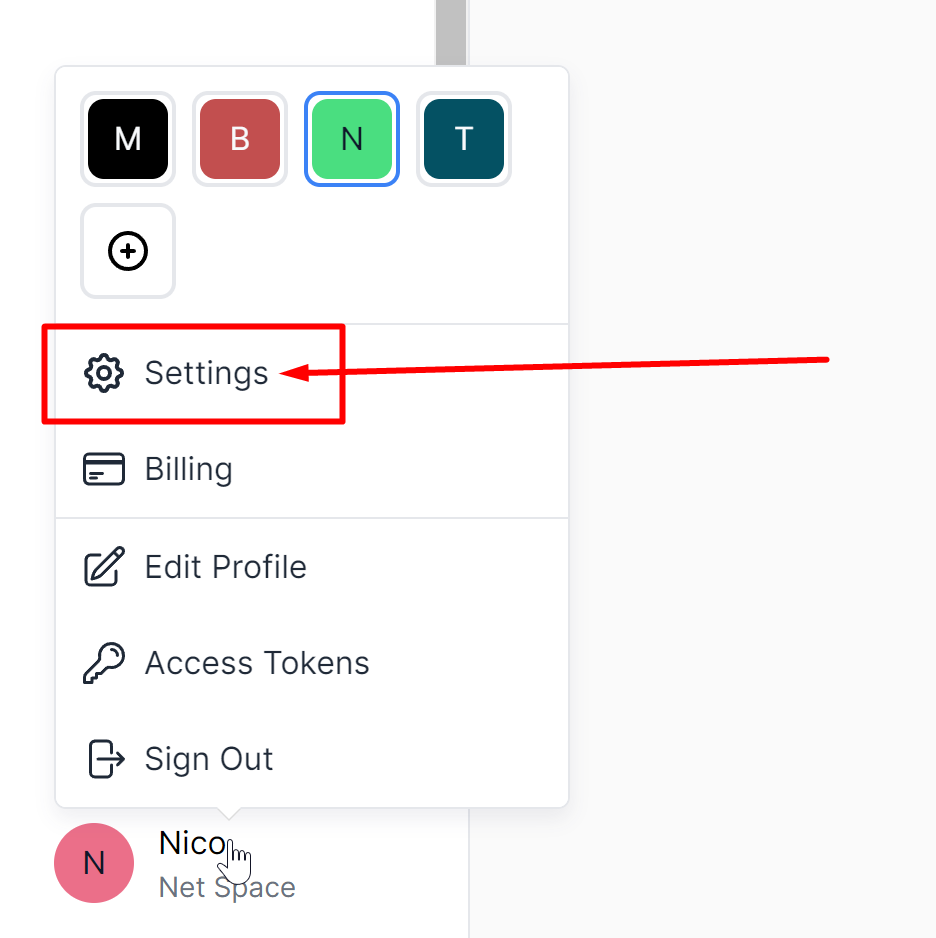
Click on the user menu and click on Settings
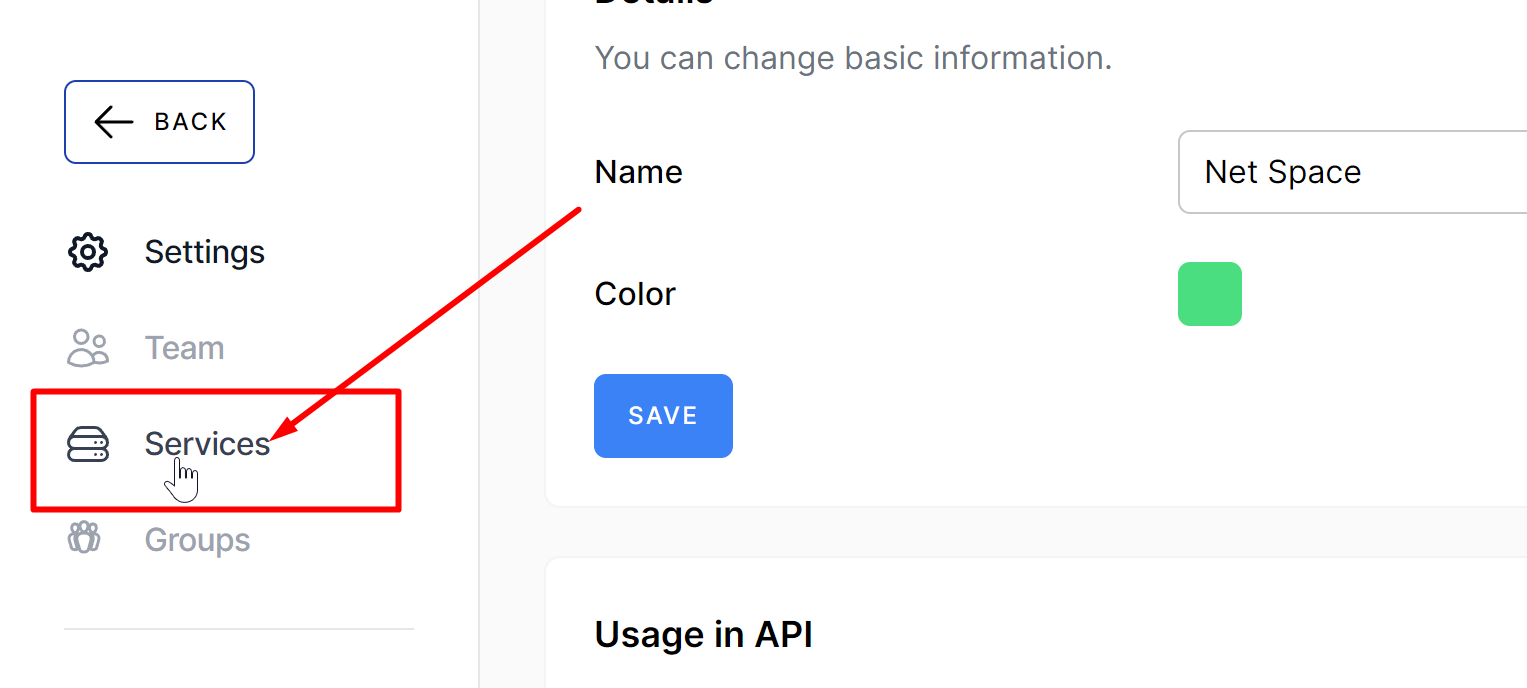
Now click on Services
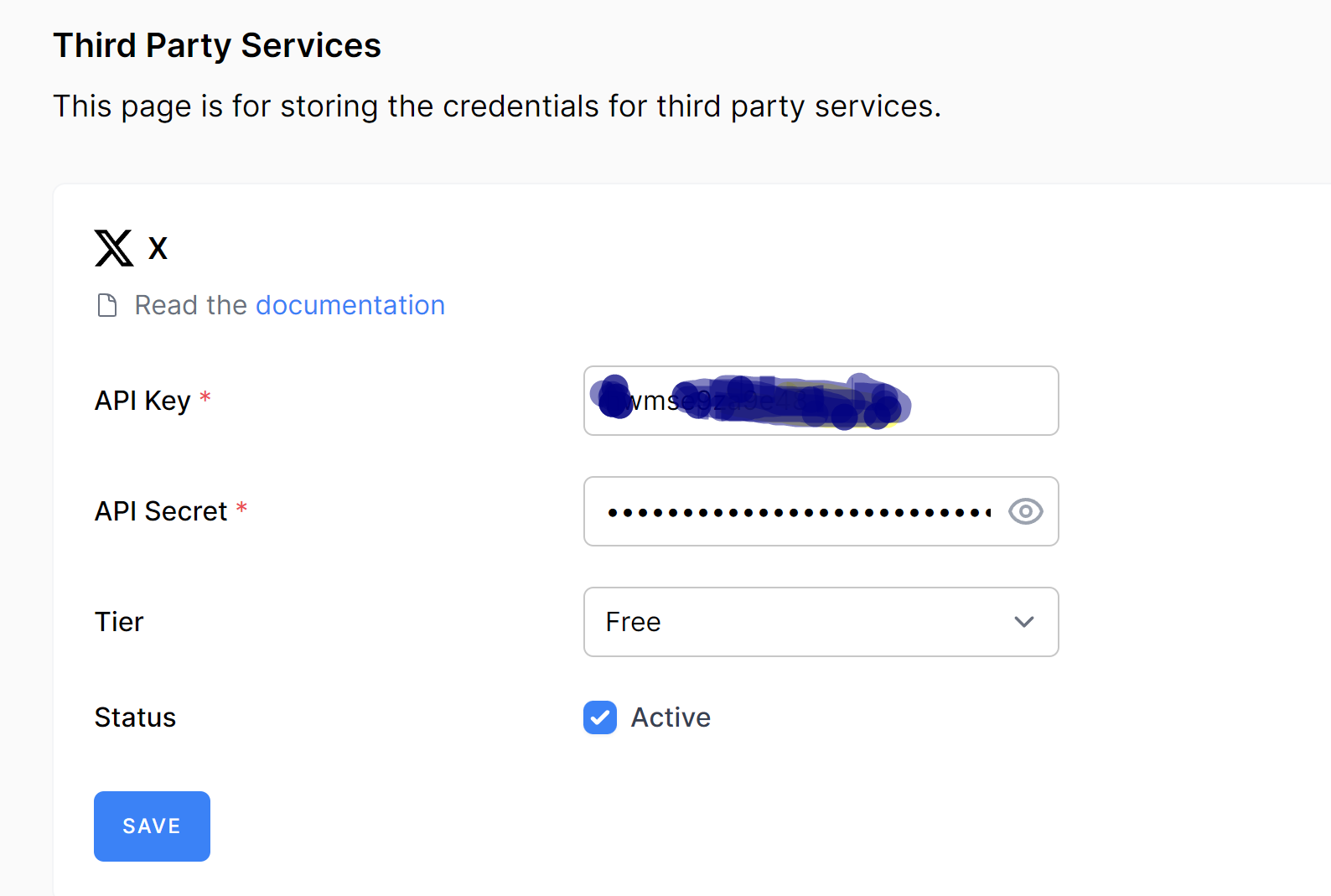
Now enter your Consumer Key and Secret in the provided fields.
Under Tier, select Free or Basic
Tick the Active box. And Save
Now you can proceed to Connect/Reconnect your X Twitter profiles by going to Accounts > Add account > X
Troubleshooting
If you’re unable to add your profile to Neyrova after saving the correct keys. The most common issue is usually when you paste the wrong Consumer Key and Secret
To resolve, go to your X developer Console:
-
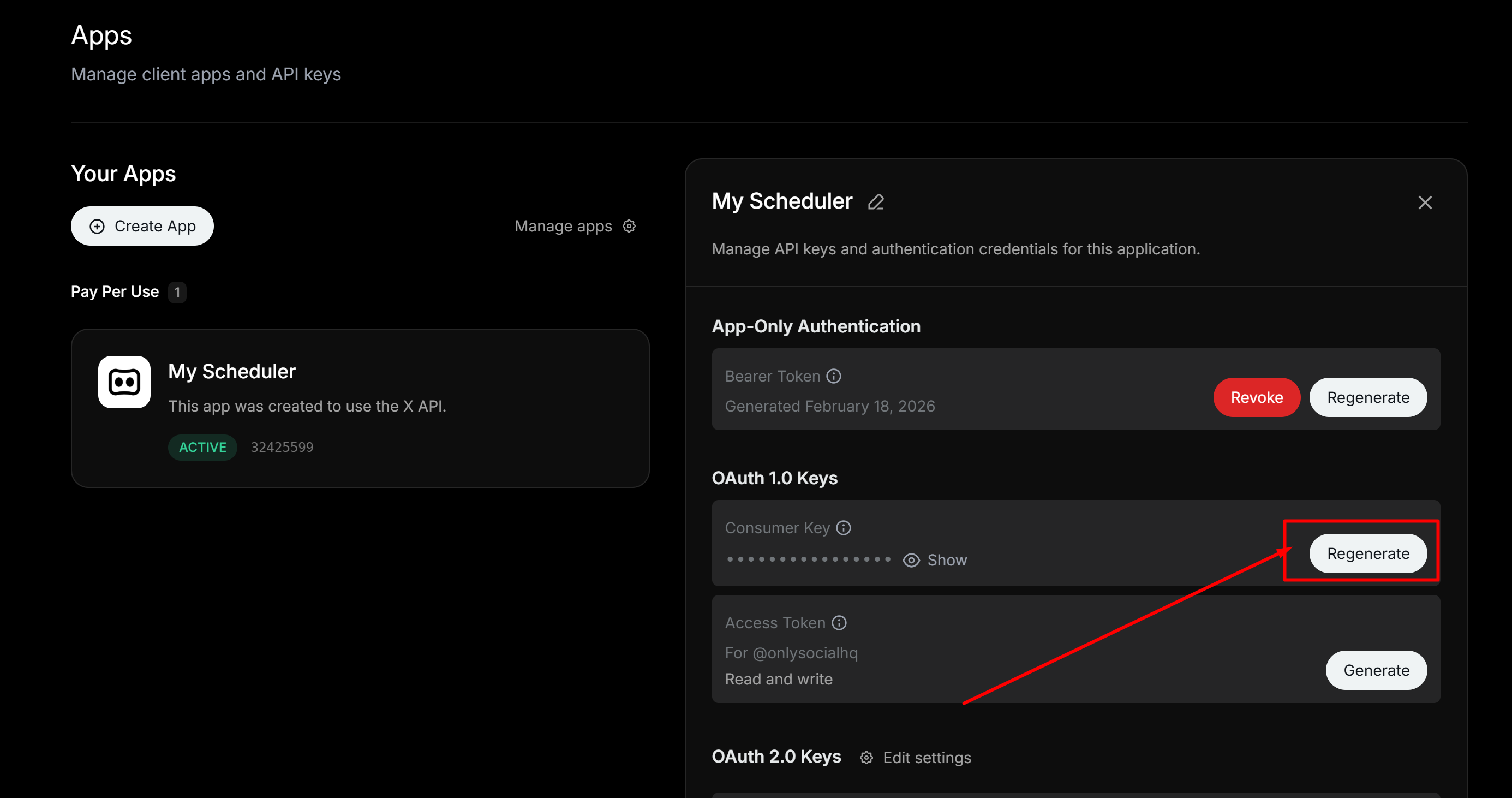
From the Main menu, click on Apps
-
Under OAuth 1.0 keys, Click Regenerate
-
This will bring to you new Consumer and Secret Key. Copy these and replace those you have under your Neyrova Services menu as described in Step 4 above.
Troubleshooting 2:
If you’re able to connect your profiles, but your posts are stuck in Publishing, this means you’ve ran our of credits. Kindly head over to X Developer console to add some credits, at least $5 is recommended, which gives you up to 500 Posts.