



This guide explains how to duplicate an existing post in Neyrova, edit it, and prepare it for republishing.
1. Sign in to Your Neyrova Account
Log in to your Neyrova account and open the dashboard.
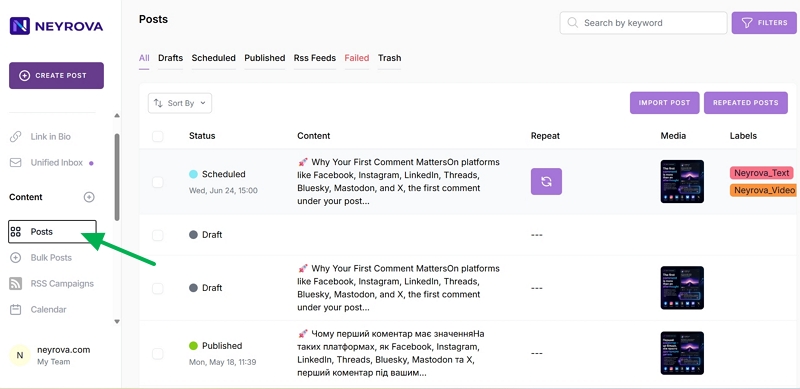
2. Open the Posts Section
In the left-hand menu of the dashboard, click the Posts tab.
This section displays your created, scheduled, published, and draft posts.
3. Find the Desired Post
In the list of posts, locate the publication you want to duplicate for reuse.
This can be a post that you want to update, adapt, or publish again.
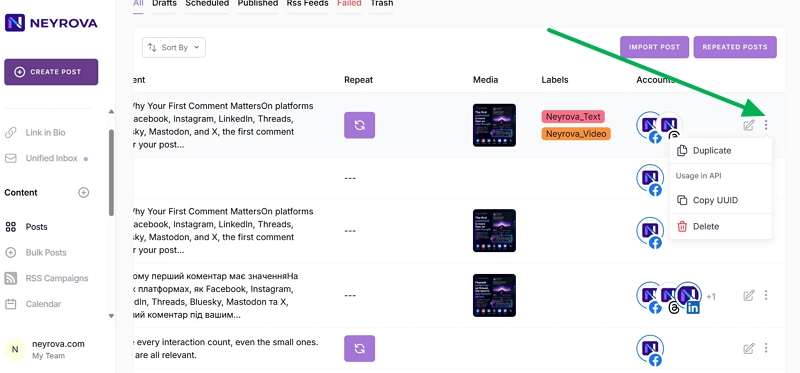
4. Open the Post Menu
Next to the desired post, on the far right side, click the three vertical dots.
This will open an additional menu with available actions for that post.
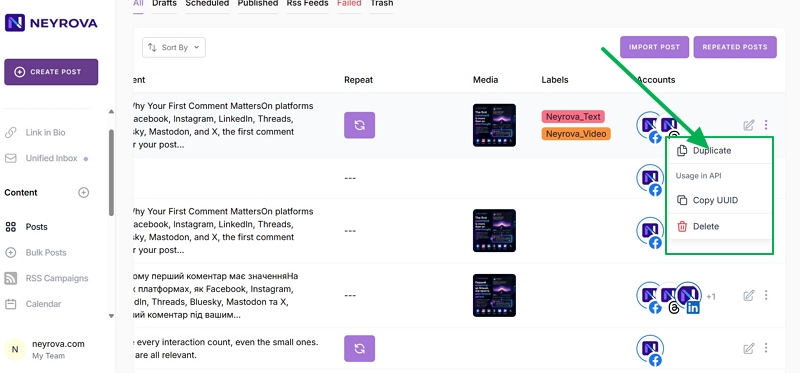
5. Select Duplicate
In the menu that opens, click Duplicate.
Neyrova will then create a copy of the selected post.
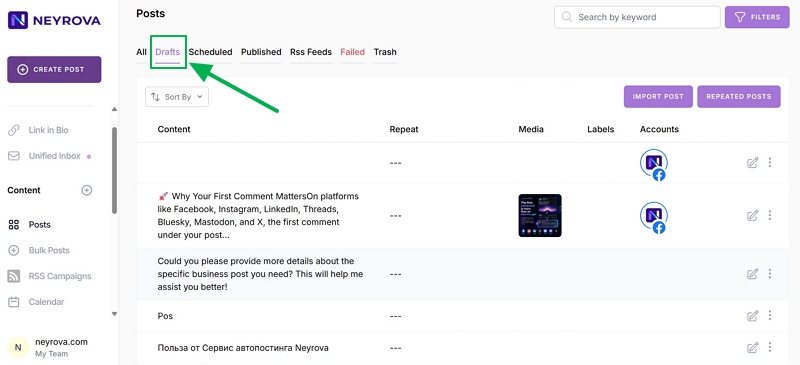
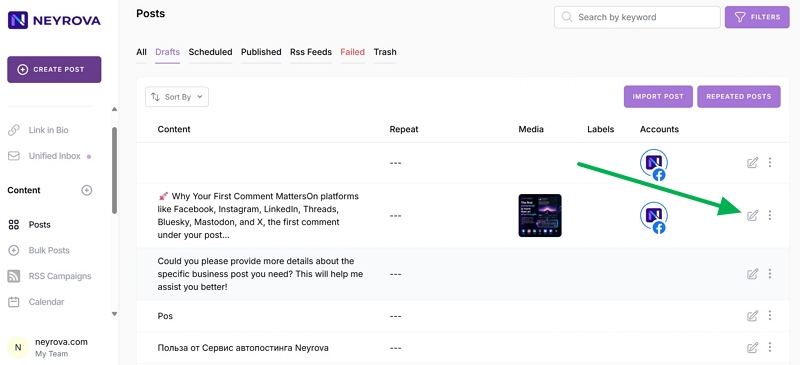
6. Go to Drafts
The duplicated post will appear in the Drafts section.
Open the draft to review the copied post before editing it.
7. Click Edit
To make changes to the duplicated post, click Edit on the far right side.
This will open the post editor.
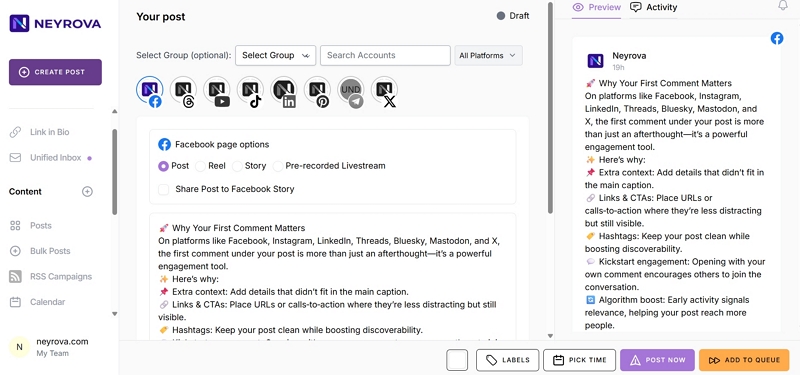
8. Edit the Post
In the editor, you can modify the post text, add new images, videos, or other content.
If necessary, adapt the post for a new date, social network, or another communication goal.
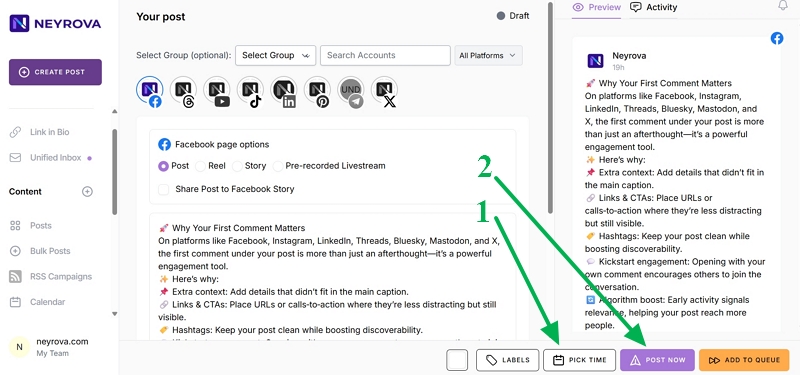
9. Schedule or Publish the Post
Once all changes have been made, you can:
- schedule the publication for a specific date and time;
- publish the post immediately.
Choose the option that best fits your content plan.
Summary
Duplicating posts in Neyrova allows you to quickly reuse existing content without creating a publication from scratch.
You can duplicate a post, make the necessary changes, and immediately schedule or publish the updated version.