



This guide explains how to create a thread for X Twitter or Mastodon in Neyrova.
A thread is a series of connected posts published in sequence. This format is useful when you need to explain a topic using multiple logically connected messages instead of a single short post.
1. Create the Main Post
In Neyrova, open the post editor and write your first message.
This post will become the beginning of your thread, so it is best to keep it short, clear, and engaging.
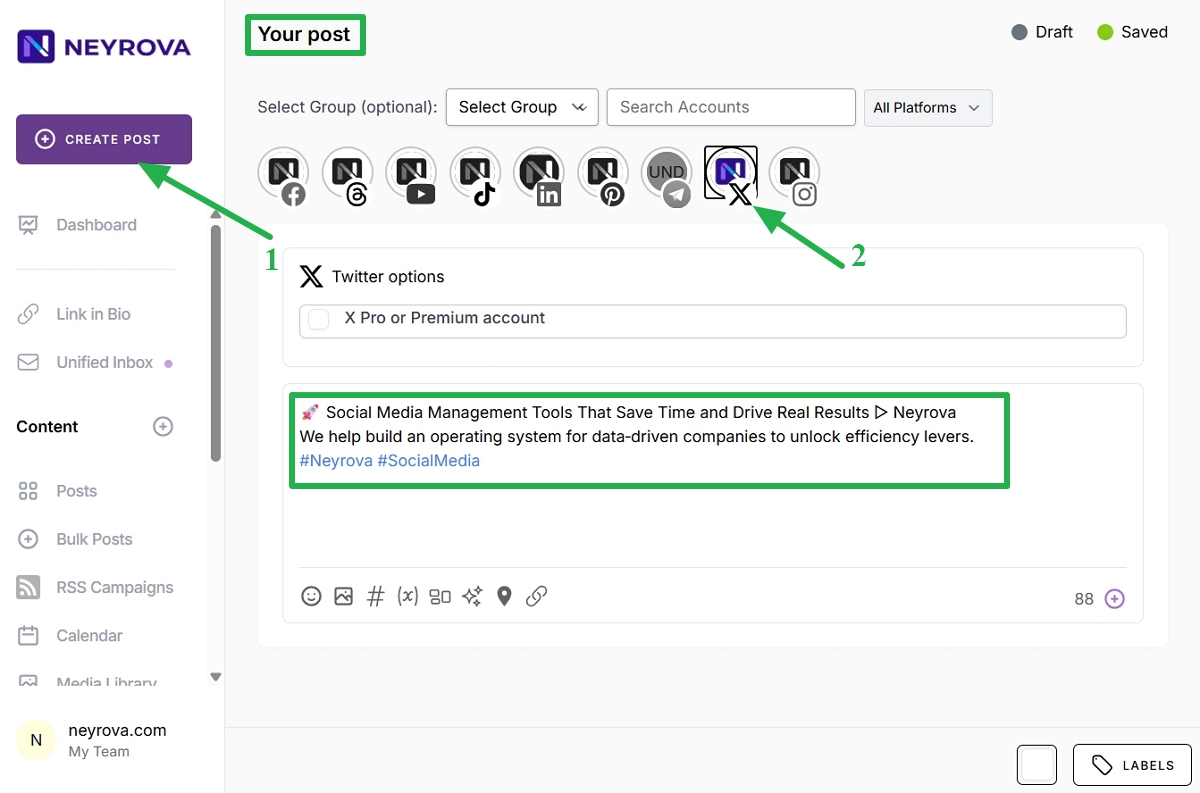
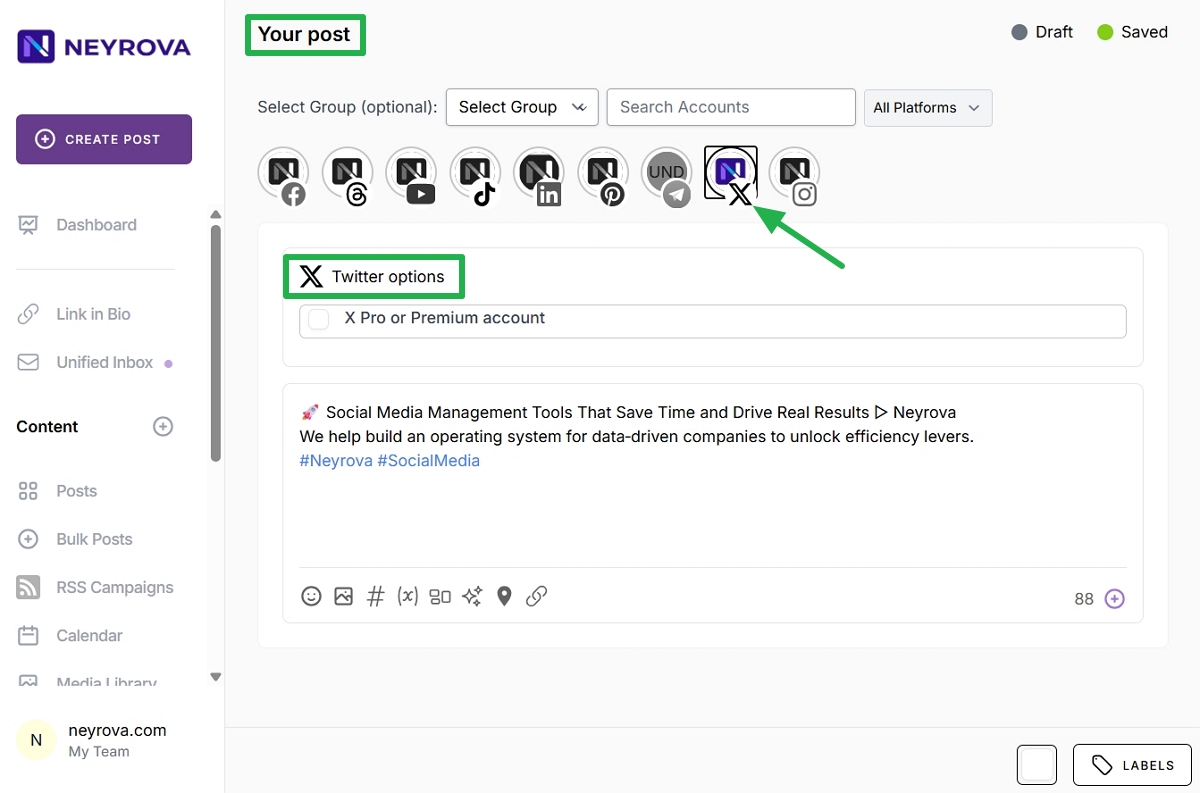
2. Select an Account for Publishing
Select the profile where you want to publish the thread.
You can choose an X Twitter account, a Mastodon account, or both platforms at the same time.
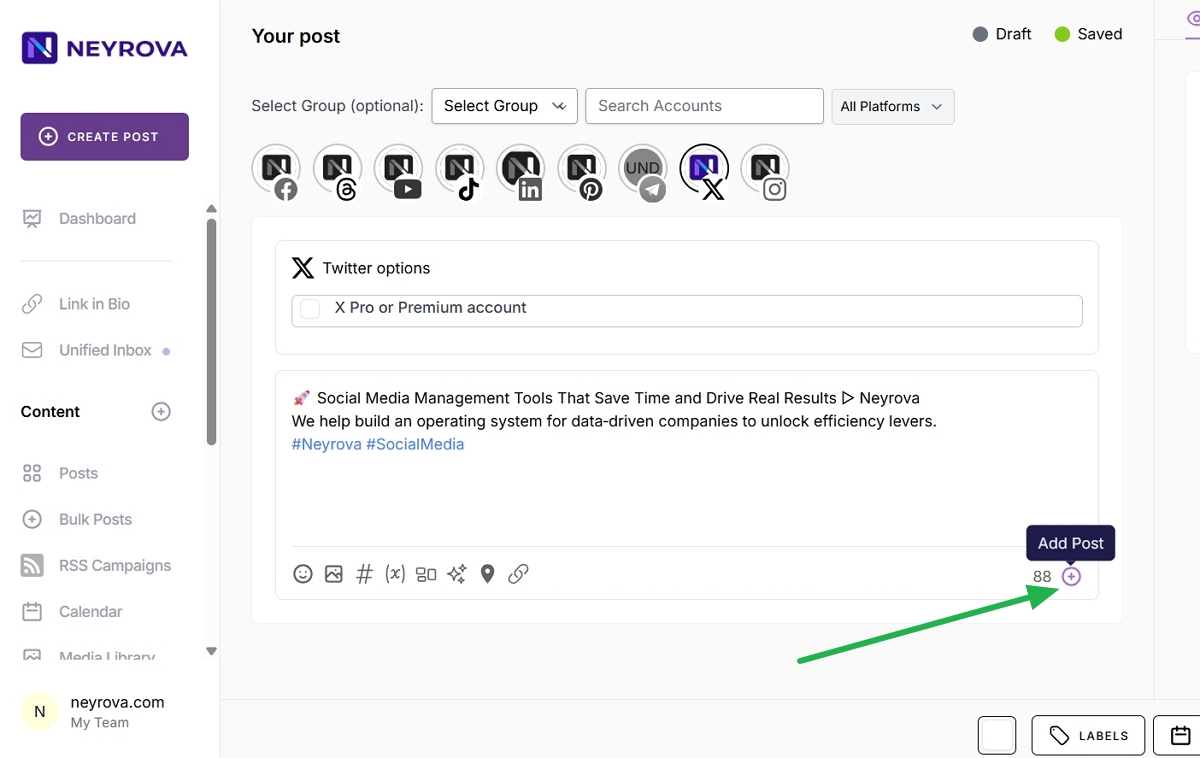
3. Add the Next Message to the Thread
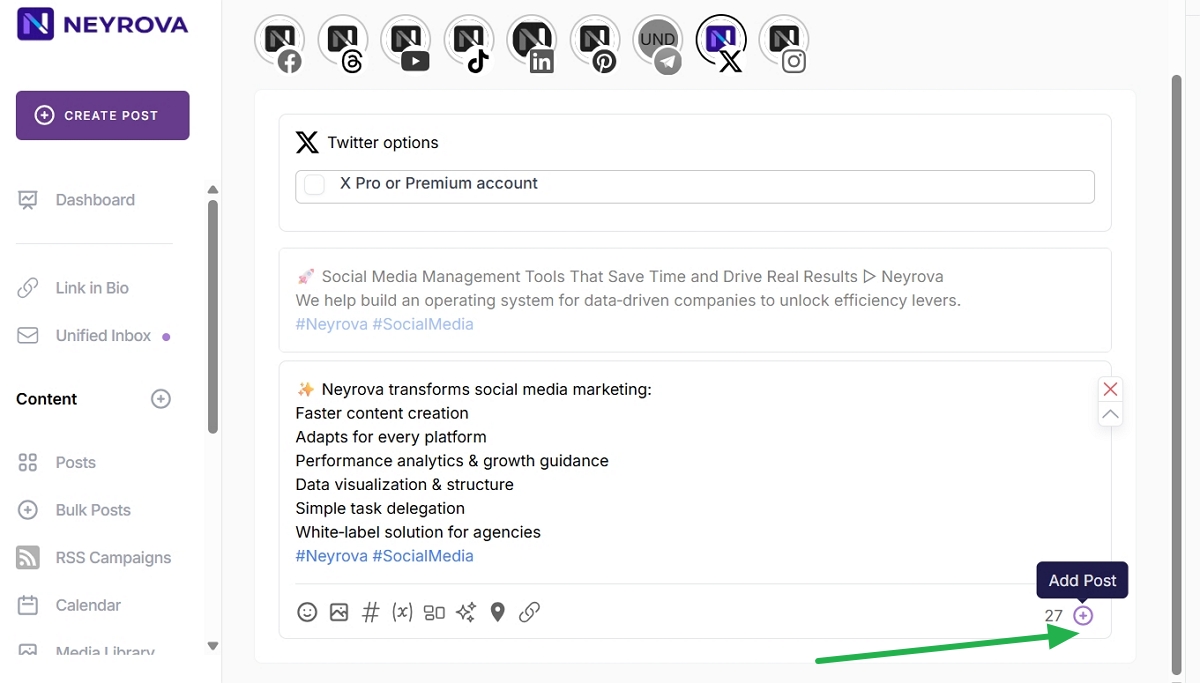
Once the main post is ready, click the plus button below it.
This allows you to add another message that will become part of the same thread.
4. Write the Next Part of the Thread
Add the text for the next message.
Use it to continue your idea, provide an explanation, share an example, present an argument, or add the next logical section of the topic.
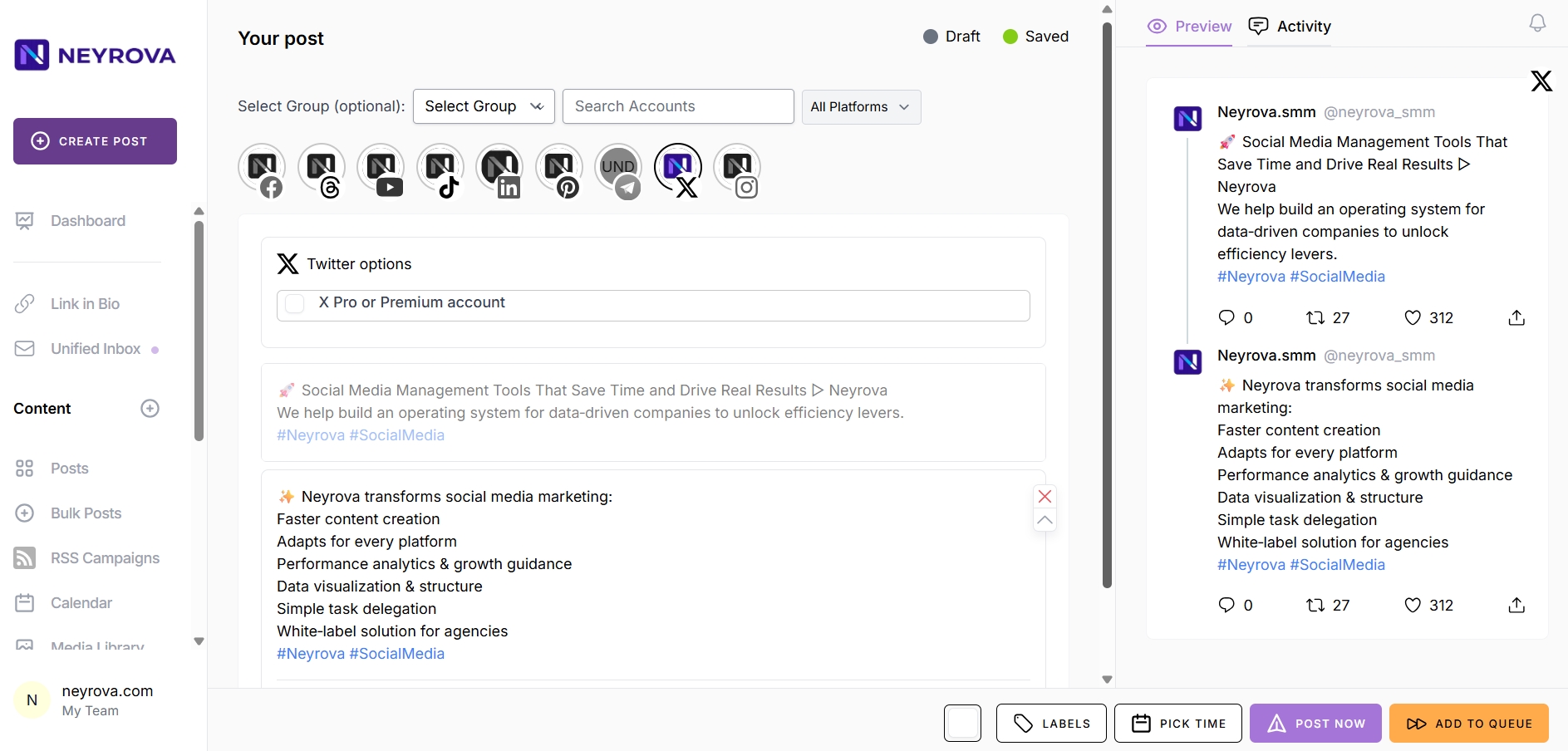
5. Add as Many Messages as Needed
If necessary, continue clicking the plus button and adding new parts to the thread.
Each additional message will be linked to the main post and become part of a single thread for X Twitter or Mastodon.
6. Review the Thread Structure
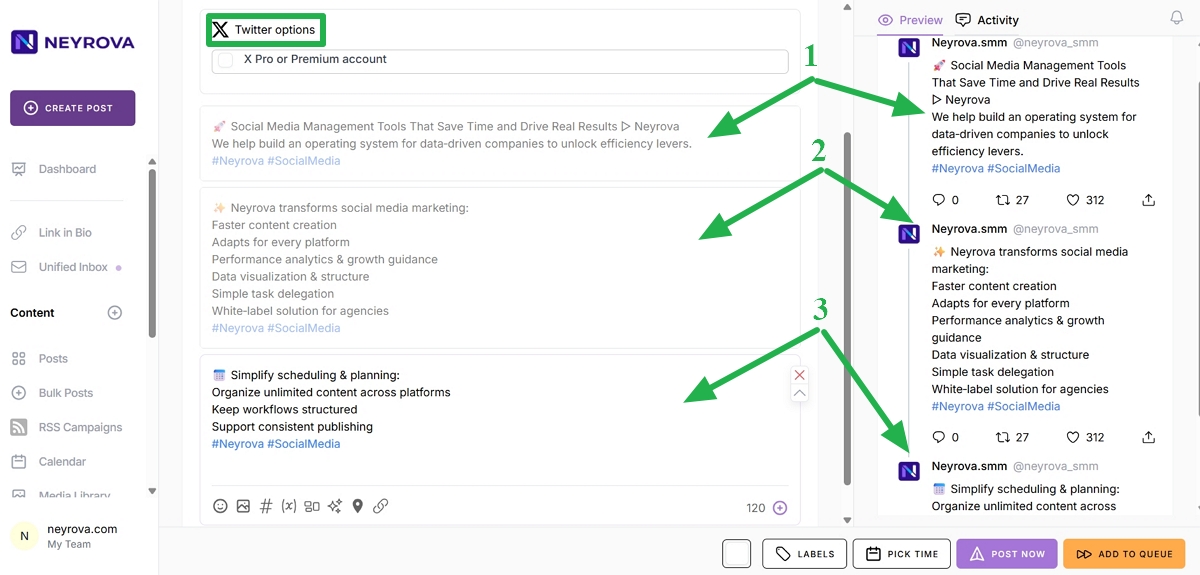
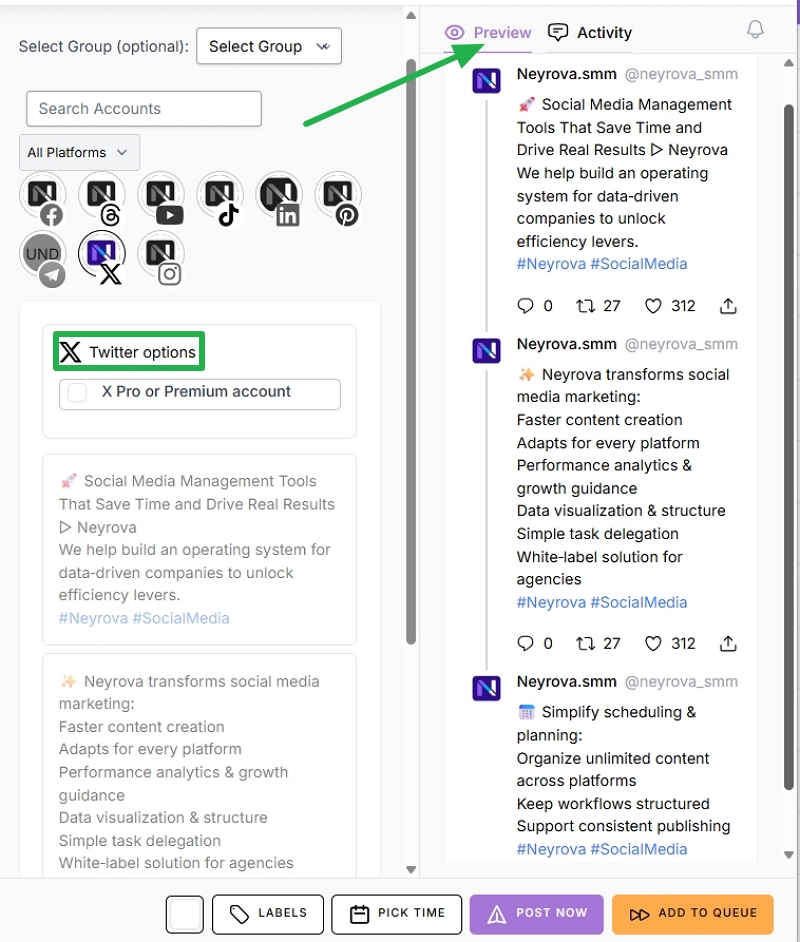
Before publishing, review all parts of the thread.
Make sure the messages are in the correct order, the topic flows logically, and the content fits the requirements of the selected platform.
7. Publish or Schedule the Thread
When your thread is ready, choose one of the following actions:
- publish the thread immediately by clicking Post Now;
- schedule it for a later date and time by clicking Pick Time or ADD TO QUEUE.
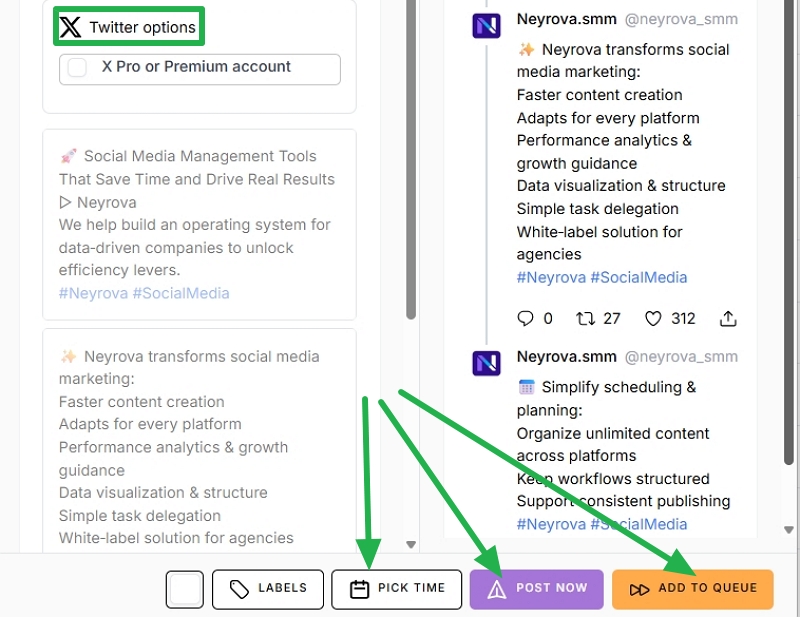
After that, Neyrova will publish all messages in the thread in the correct sequence.
Summary
Neyrova allows you to create threads for X Twitter and Mastodon directly from the post editor.
You create a main post, add additional messages using the plus button, review the thread structure, and then either publish it immediately or schedule it for a specific time.