



This feature allows you to save time and manage your social media content more efficiently.
Let’s get started.
First, sign in to your Neyrova account.
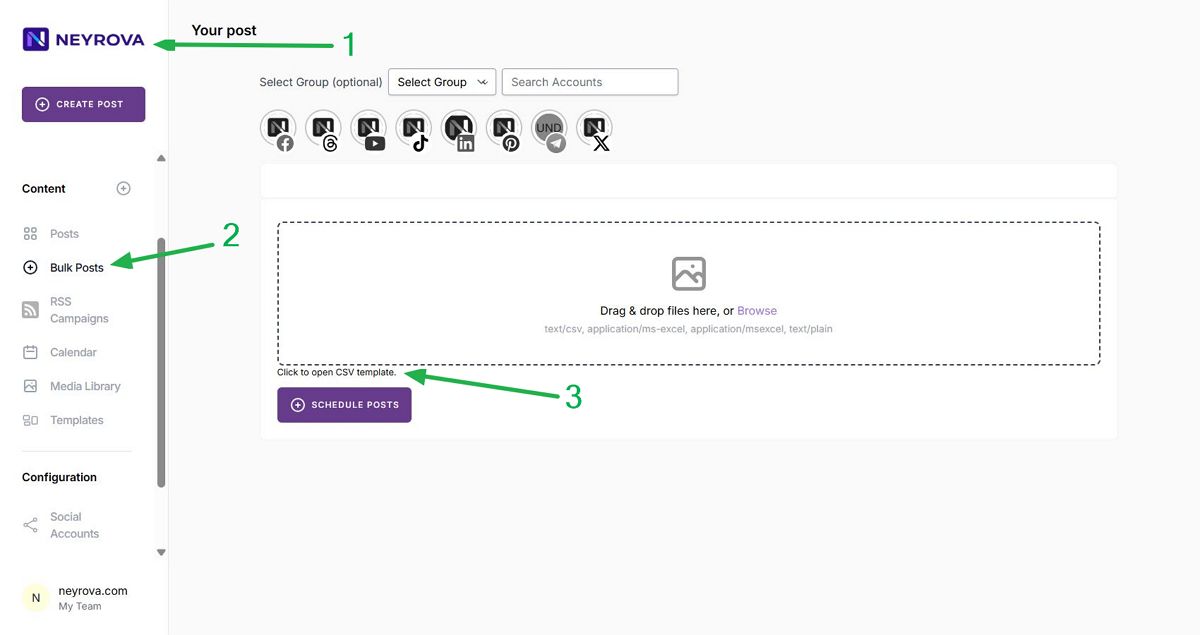
- Go to the Neyrova home screen.
- In the dashboard, click the Bulk Post tab in the left-hand menu.
- Next, you will see the CSV template download option Click to open CSV template. Click it to open the template.
The template will open in Google Sheets. If necessary, sign in to your Gmail account and click Use Template.
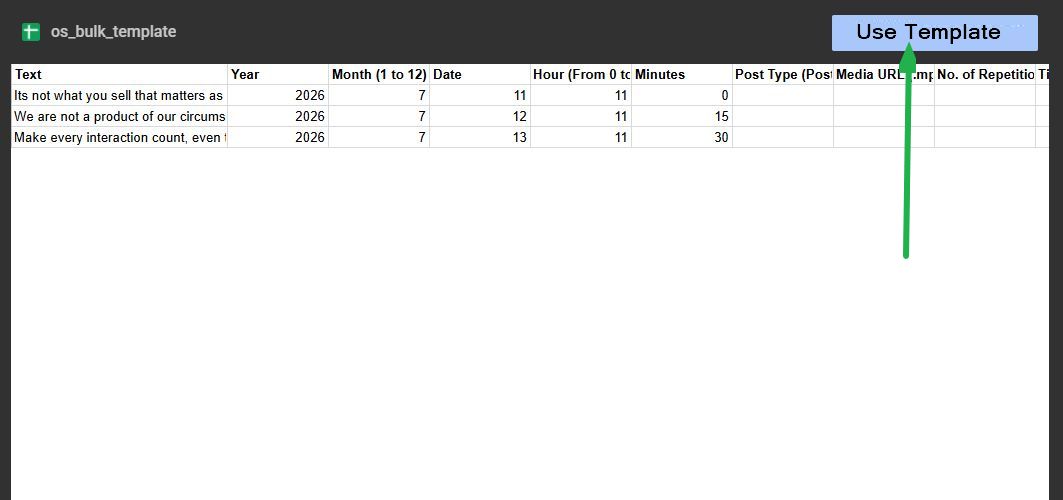
Let’s Review Each Column in the CSV File
- Text — enter the post text or caption.
- Year — specify the publication year, for example, 2024.
- Month (1 to 12) — the month number from 1 to 12.
- Date — the day of the month from 1 to 31.
- Hour (From 0 to 23) — the publication hour in 24-hour format, from 0 to 23.
- Minutes — minutes from 0 to 59.
- Post Type — the type of post: Post — a regular post, Story — a story, Reel — a reel. Use the same spelling as shown in the template.
- Media URL — an optional field. Here you can add a direct link to an image.
- Number of Repetitions — the number of post repetitions, from 1 to 100.
- Time Gap Between Repetitions — repetition frequency: daily, weekly, monthly, or yearly.
- Pinterest Title and Pinterest Link — required only for Pinterest publications.
- Youtube Title — the title of the YouTube video.
- First Comment (Facebook, Instagram, LinkedIn, Threads, Bluesky, Mastodon, X) — an automatic first comment. Especially useful when a link can only be added in a comment.
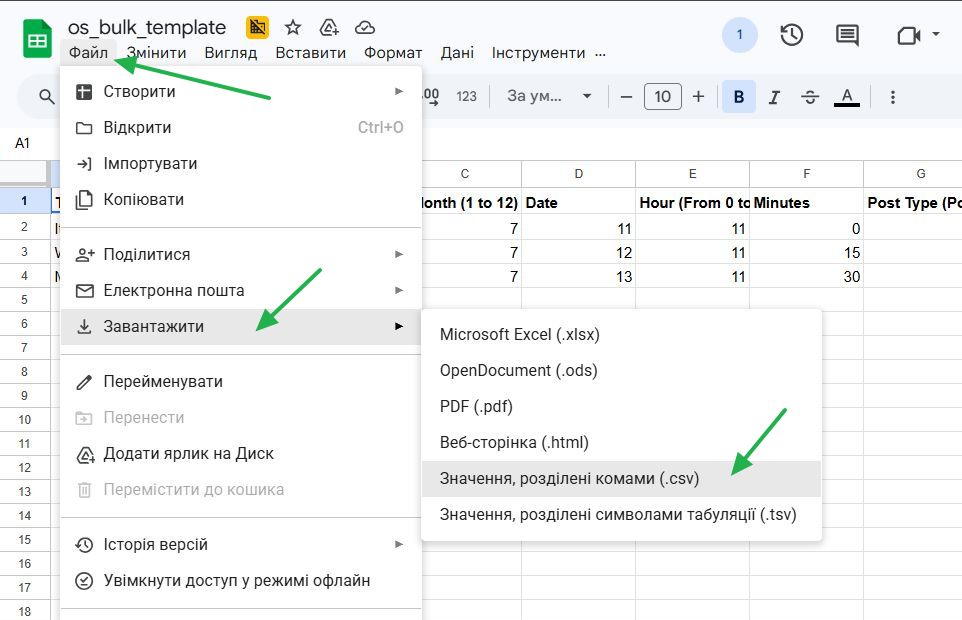
After filling out the template, download it as a CSV file:
Then return to Neyrova and upload the file. Make sure it has been uploaded successfully.
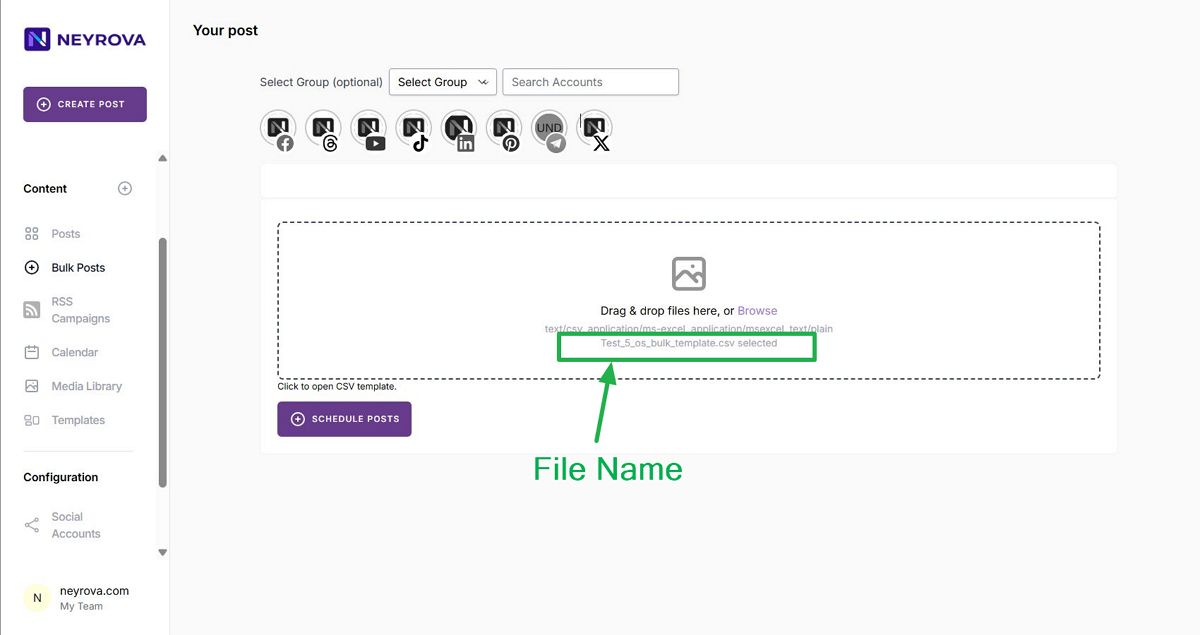
Next, select the profiles for publication — either by groups or individually.
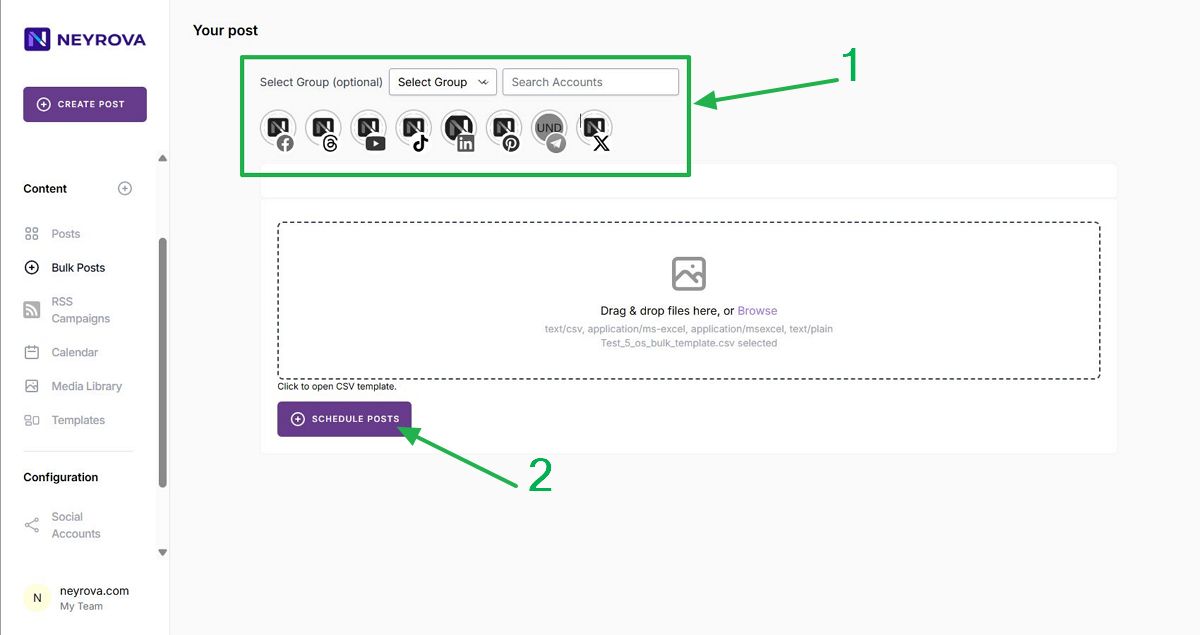
After that, click Schedule Post.
Done. You have successfully scheduled bulk posts using a CSV file.
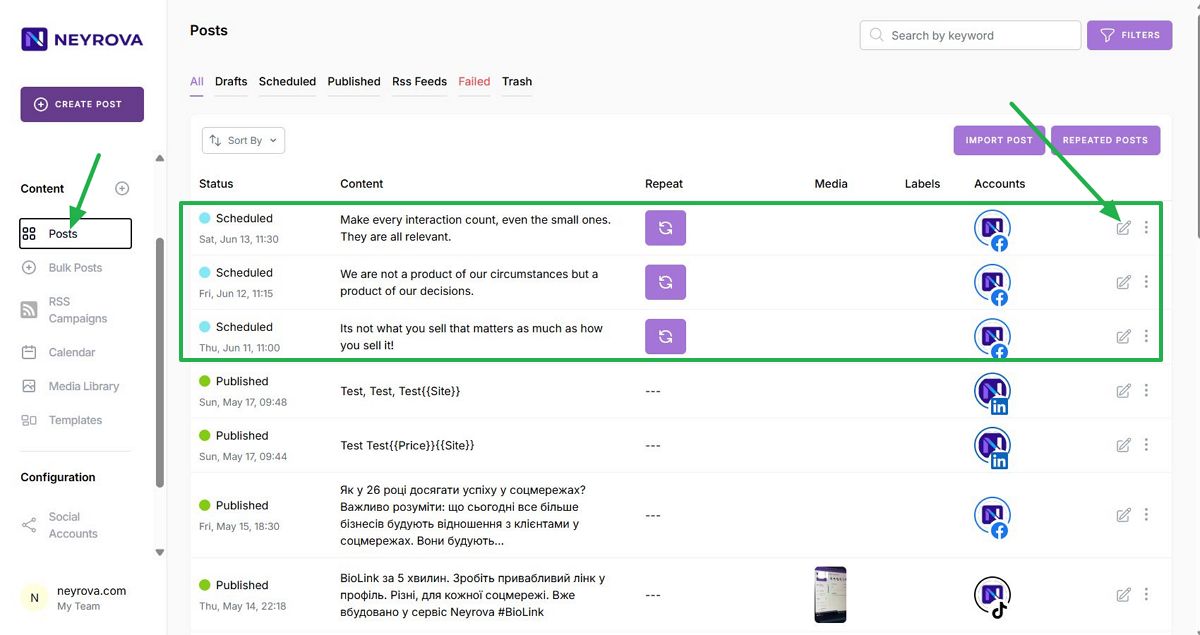
After scheduling, you can review or edit individual posts in the Posts section.
You can also manage them directly through the calendar.
This concludes the tutorial.