



This guide explains how to add a custom thumbnail to a video in Neyrova.
A video thumbnail is the image users see before playing a video. A high-quality thumbnail helps attract attention and makes your video look more professional.
This feature is supported on the following platforms: Facebook, Instagram, YouTube, Pinterest, Mastodon, and Telegram.
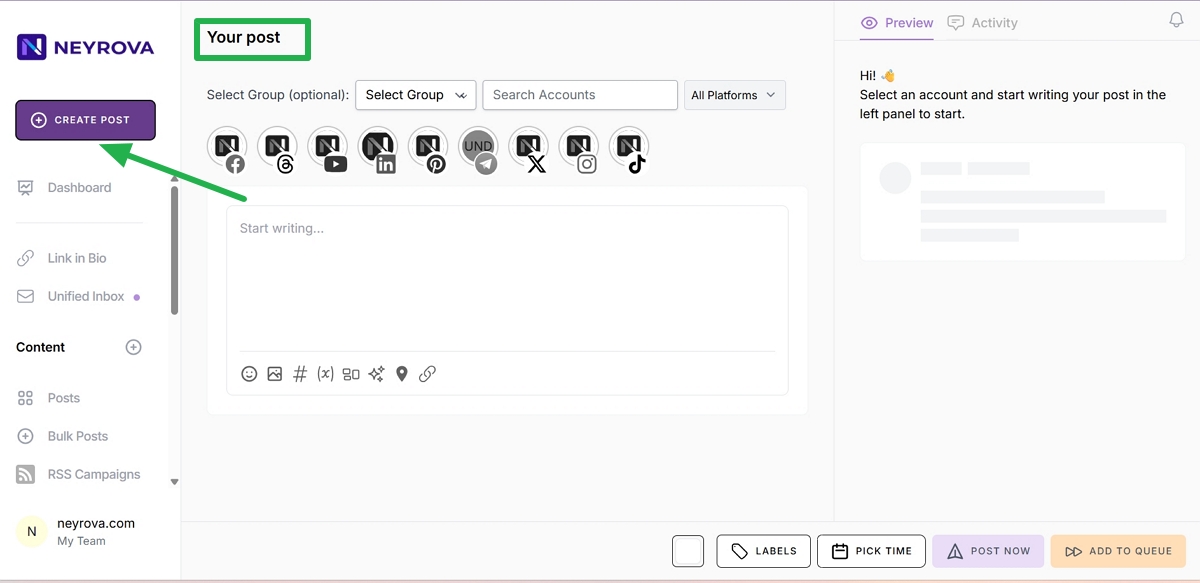
1. Open Create Post
In the Neyrova dashboard, click Create Post to open the post editor.
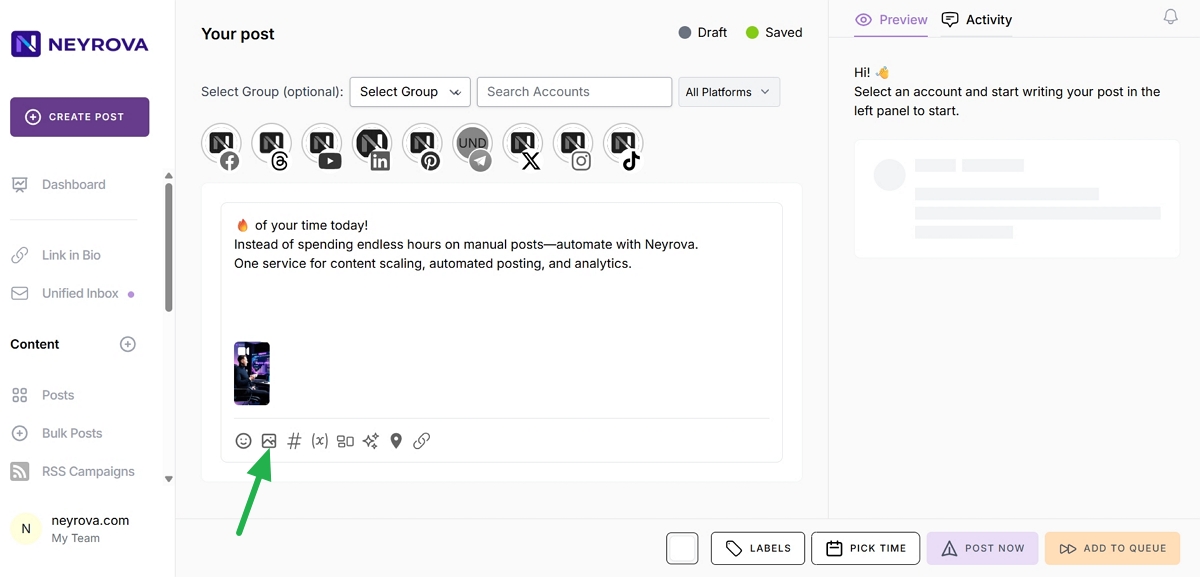
2. Upload a Video to the Media Library
Open the media library and upload the video you want to publish.
Once uploaded, add the video to your post.
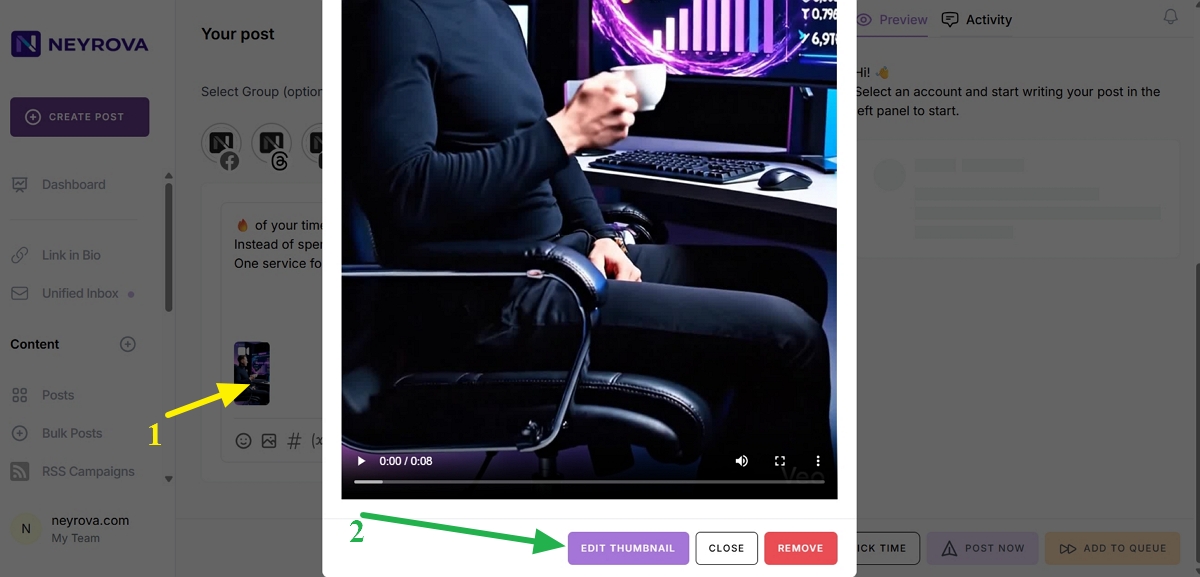
3. Open Video Settings
Click the video you added to the post editor.
This will open the video editing options.
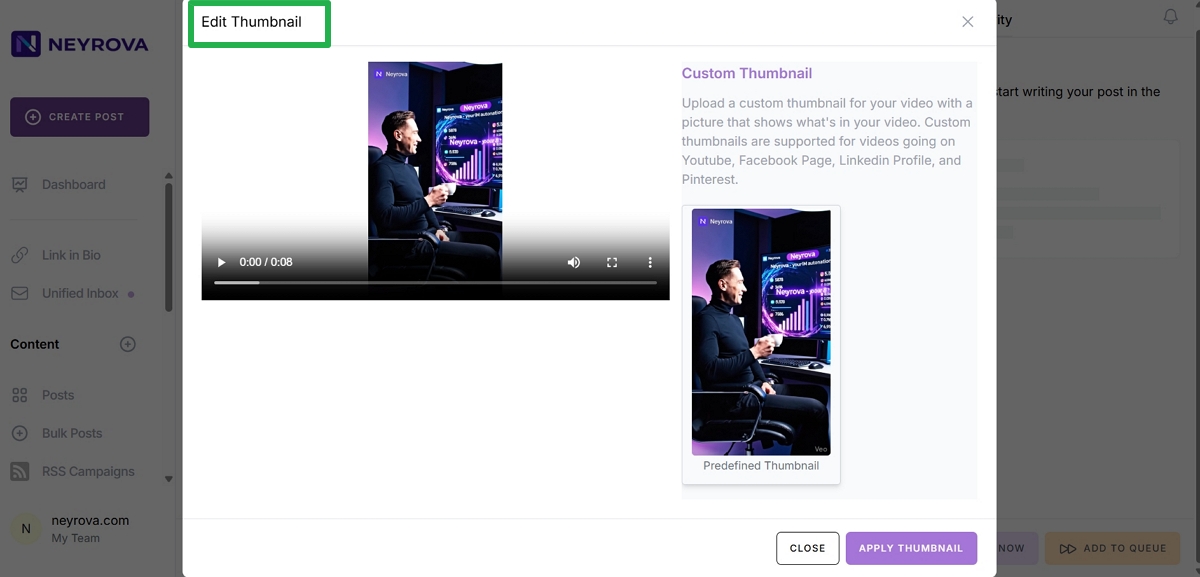
4. Select Edit Thumbnail
In the video settings, click Edit Thumbnail.
This will open the thumbnail settings for the video.
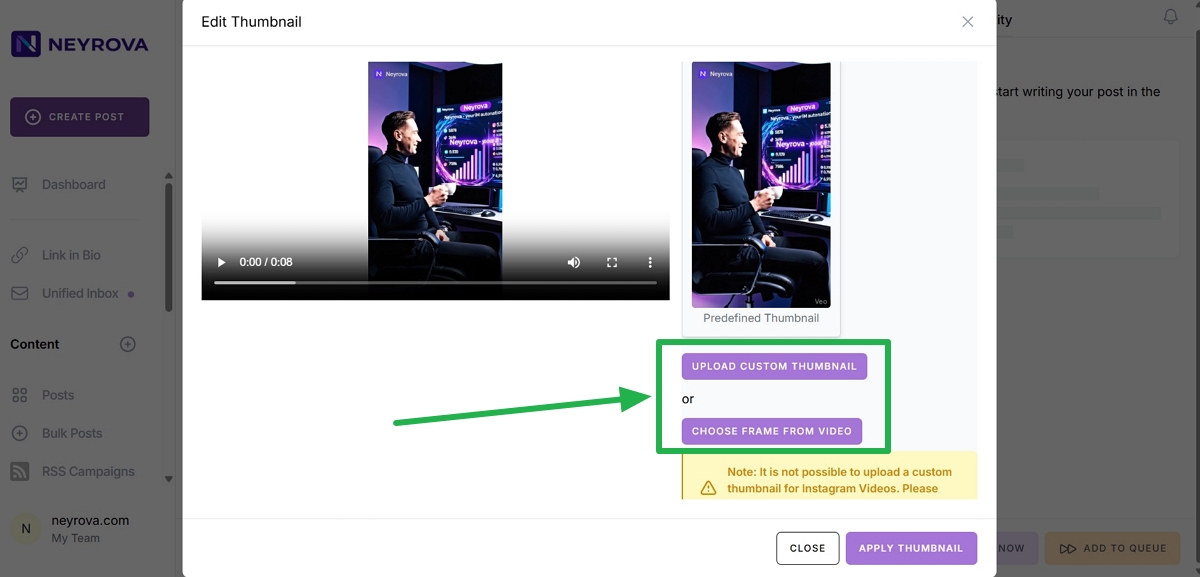
5. Choose a Thumbnail Creation Method
You have two options:
- upload your own image using UPLOAD CUSTOM THUMBNAIL;
- let the system automatically select frames from the video using CHOOSE FRAME FROM VIDEO.
If you choose the automatic option, Neyrova will analyze the video and suggest several frames that can be used as the thumbnail.
6. Select a Frame from the Video or Upload a Custom Thumbnail
If you already have a thumbnail image, click Upload Custom Thumbnail and select the prepared file from your device.
If you use the automatic option, click CHOOSE FRAME FROM VIDEO and select the best frame from the suggested options.
7. Apply the Thumbnail
After selecting the thumbnail, click Apply Thumbnail.
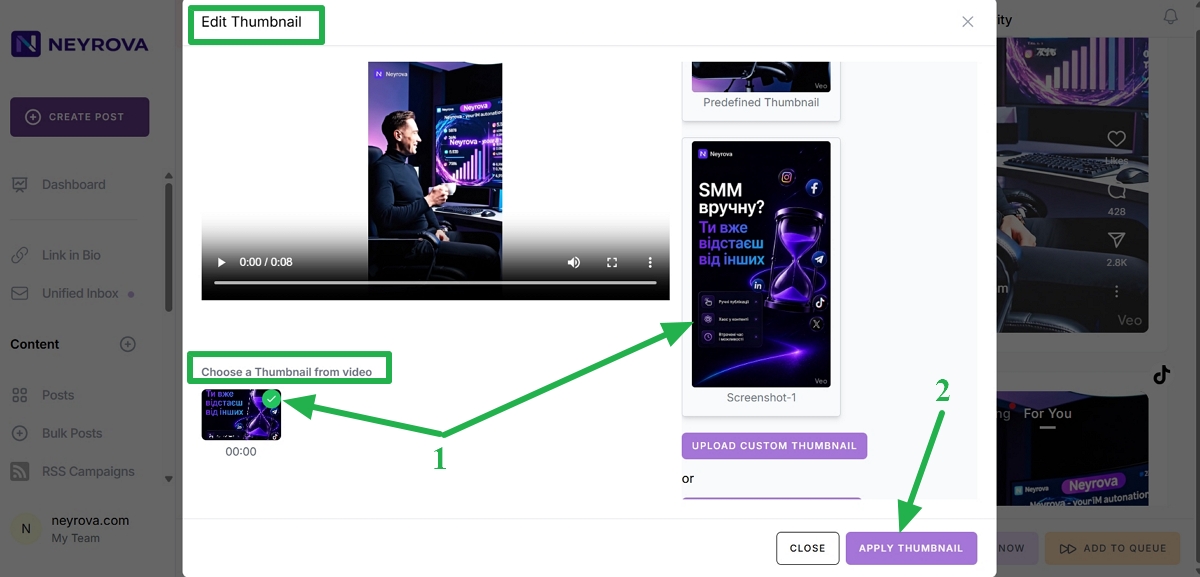
Then close the thumbnail editor by clicking CLOSE.
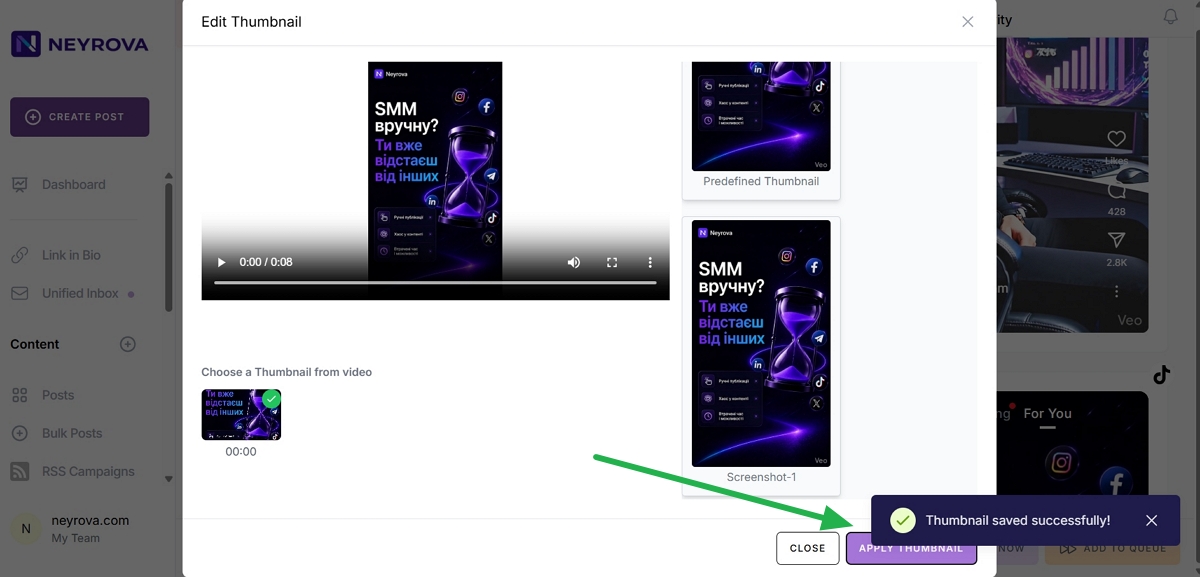
8. Verify the Thumbnail in the Post Preview
The selected video thumbnail should now appear in the post preview.
Make sure the thumbnail is displayed correctly.
9. Select an Account for Publishing
Select the social media account or platform where you want to publish the video.
10. Publish or Schedule the Video
After reviewing the video and thumbnail, publish the post.
You can publish it immediately by clicking POST NOW.
Or schedule it for a specific date and time by clicking PICK TIME or ADD TO QUEUE.
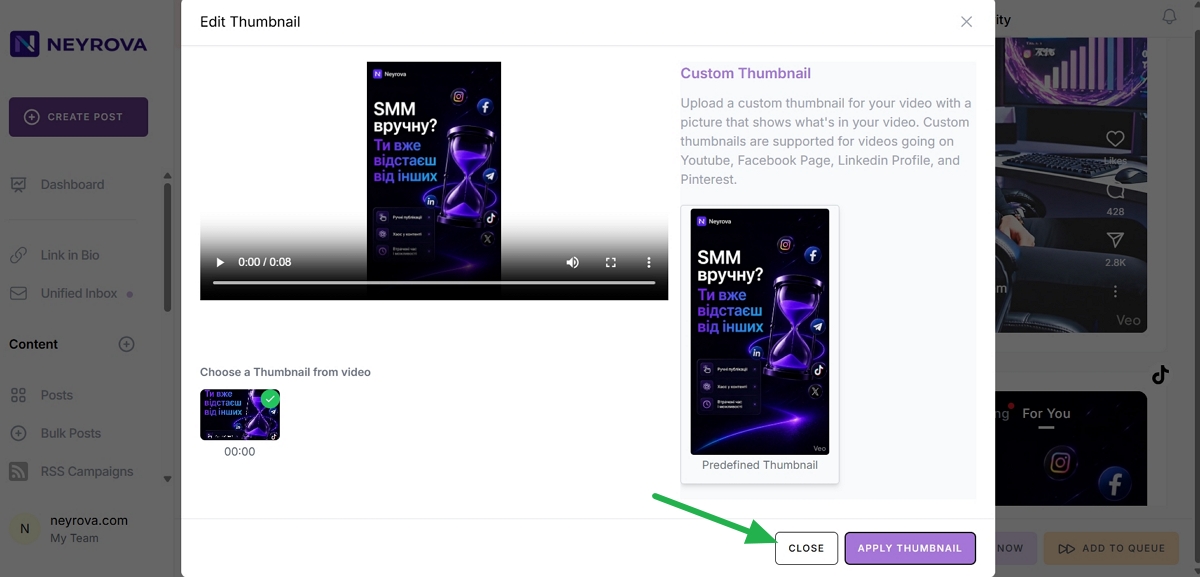
Summary
In Neyrova, you can upload a custom thumbnail for your video or choose a frame directly from the video.
To do this, upload your video, open Edit Thumbnail, select or upload a thumbnail image, click Apply Thumbnail, and then add the video to your publication.
NOTE: Custom thumbnails are supported only on the following platforms:
- YouTube
- Mastodon
- Telegram