



In this video we show you how to use Variable Manager in Neyrova to personalize posts using variables.
Video tutorial
In this guide, you’ll learn how to use Variable Manager — a variable management tool — to quickly personalize content in Neyrova.
Variables are predefined values that can be inserted into posts. For example: a website URL, a pricing page URL, a promo code, a company name, or any other information you use frequently.
1. Open Create Post
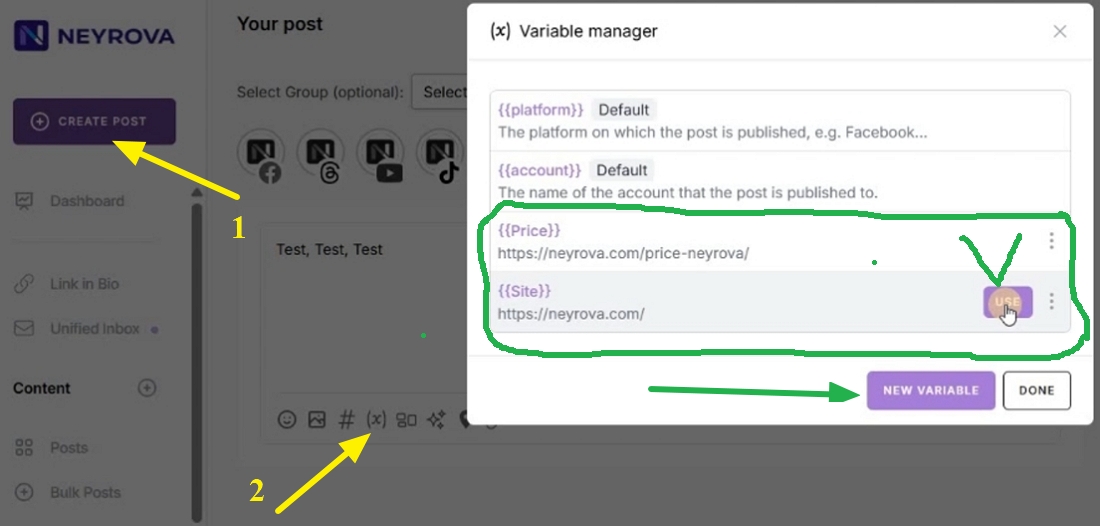
Go to the Neyrova dashboard and click Create Post.
This will open the editor for creating a new post.
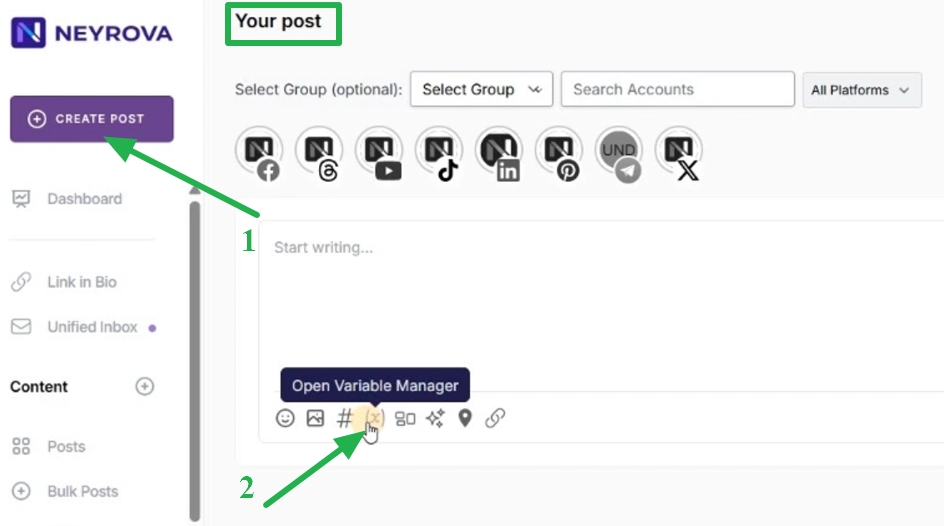
2. Open Variable Manager
Below the text input field, click the variables icon.
This will open Variable Manager, where you can create and manage variables.
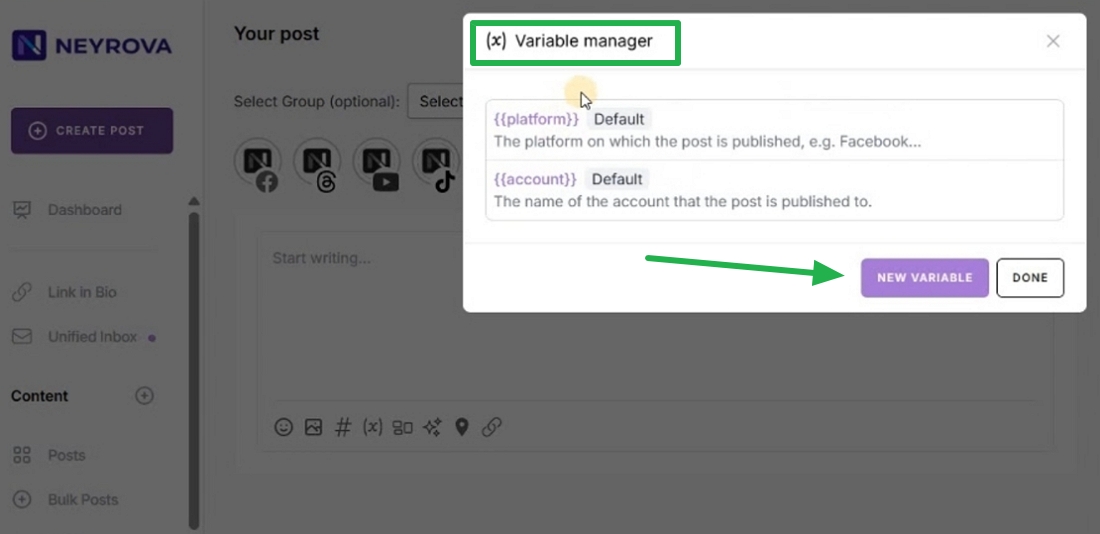
3. Create a new variable
Click New Variable.
In the new window, enter the variable name and its value.
For example, you can create:
- a variable for a website URL;
- a variable for a pricing page URL;
- a variable for a promo code;
- a variable for a user’s name or company name.
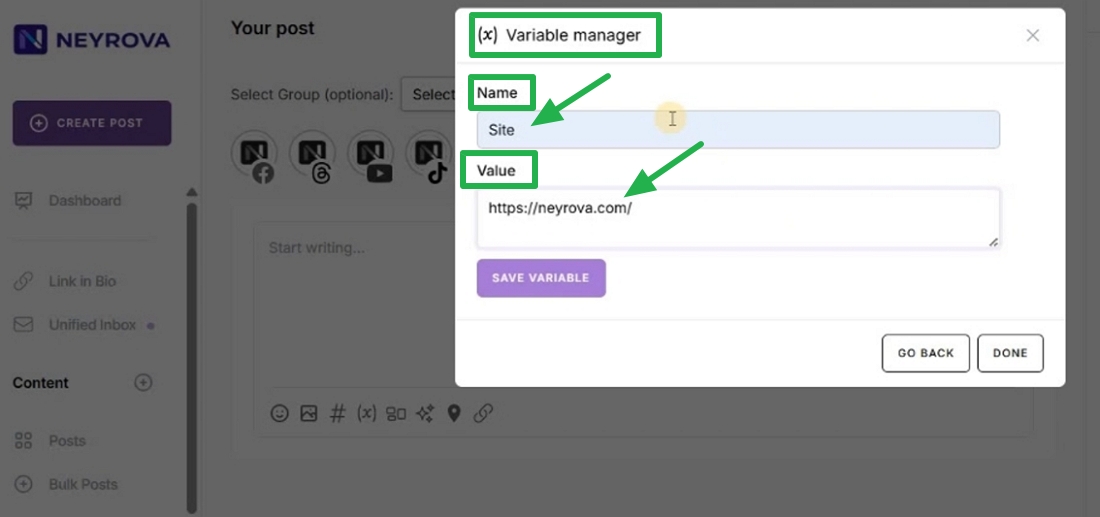
4. Save the variable
After entering the name and value, save the variable.
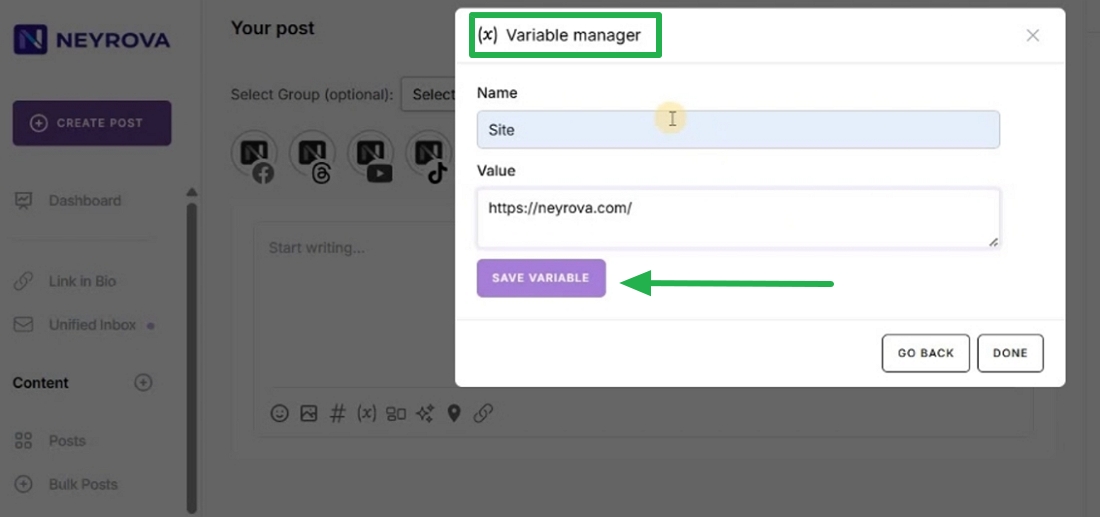
It will appear in the Variable Manager list and will be available for use in posts.
5. Insert a variable into the post text
When creating a post, add the required variable to the text.
For example, instead of manually inserting a website URL or pricing page URL every time, you can use a predefined variable from Variable Manager.
6. Choose a social network
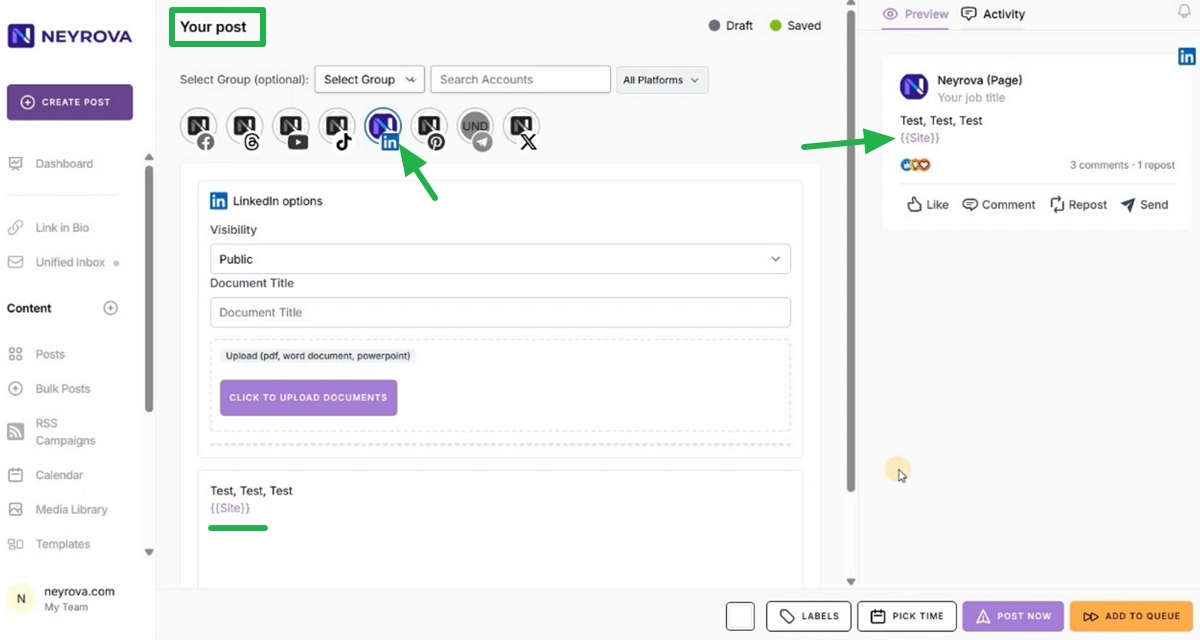
For this example, you can select LinkedIn and see how the variable will appear after publication.
Before publishing, review the post text and make sure everything looks correct.
7. Publish or schedule the post
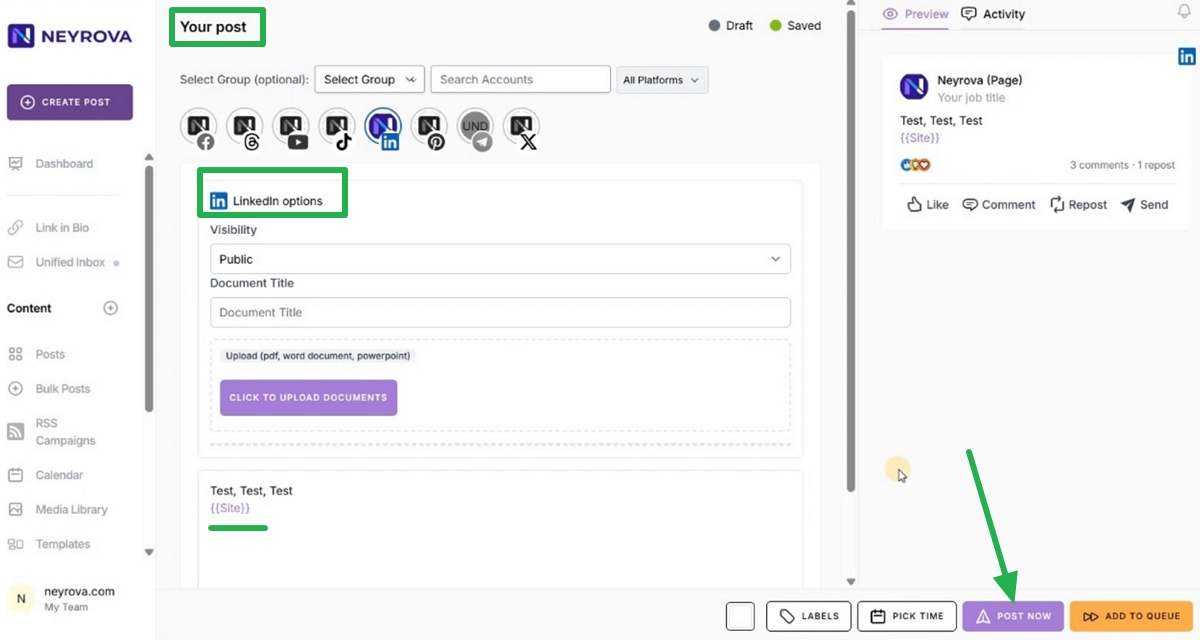
If the post is ready, publish it immediately by clicking Post Now.
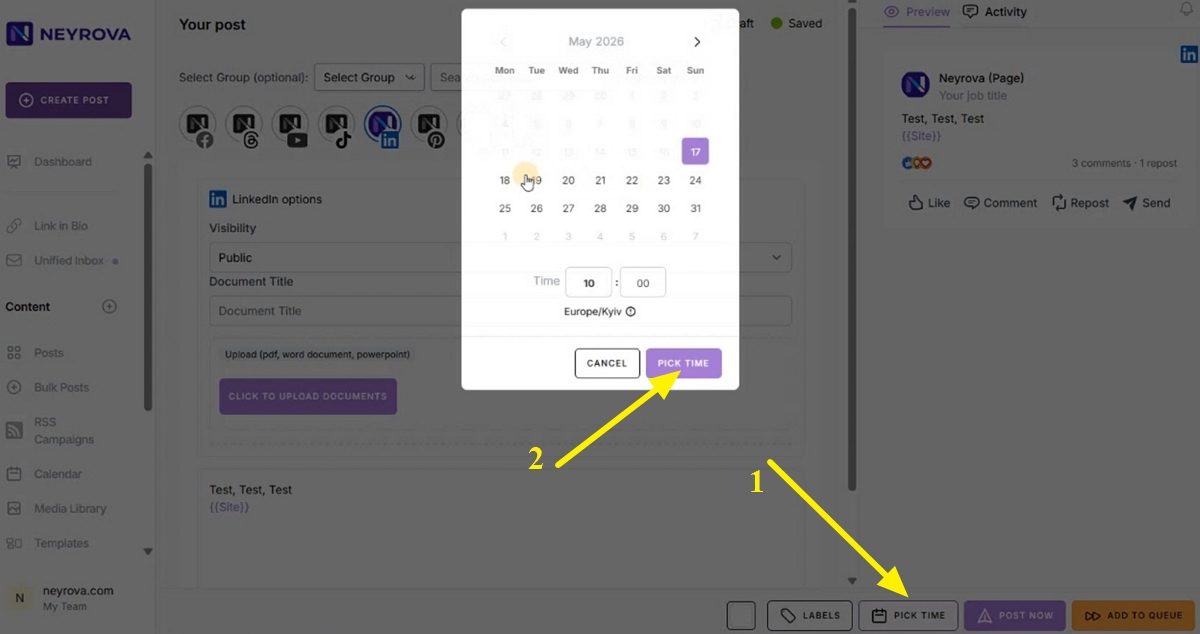
Or schedule it for another time by clicking the PICK TIME button.
After publication, Neyrova will automatically replace the variable with its value in the post text.
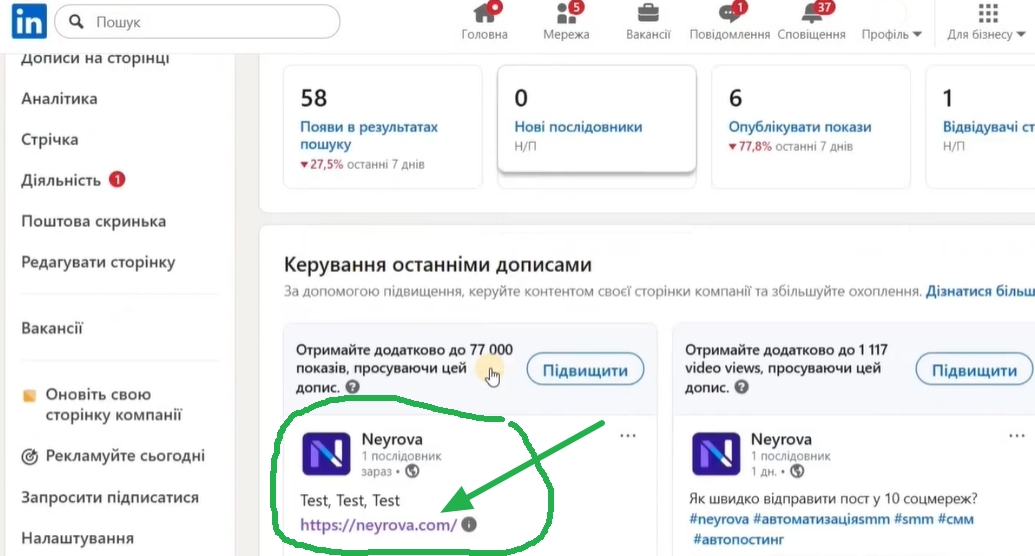
8. Check the result on the social network
After publishing, open the corresponding social network.
The variable should be replaced by its value in the post text. For example, instead of the variable, a website URL will be displayed.
Summary
Variable Manager in Neyrova allows you to create variables and quickly insert them into posts.
This is convenient for links, promo codes, company names, recurring phrases, and other information that needs to be used regularly in content.