



In this video we show you how to use Template Manager in Neyrova to save ready-made post templates and quickly reuse content
Video tutorial
In this guide, you’ll learn how to create post templates in Template Manager, use them when creating new posts, and save completed posts as templates.
Template Manager is Neyrova’s template management tool. It allows you to save ready-made post structures and quickly reuse them whenever needed.
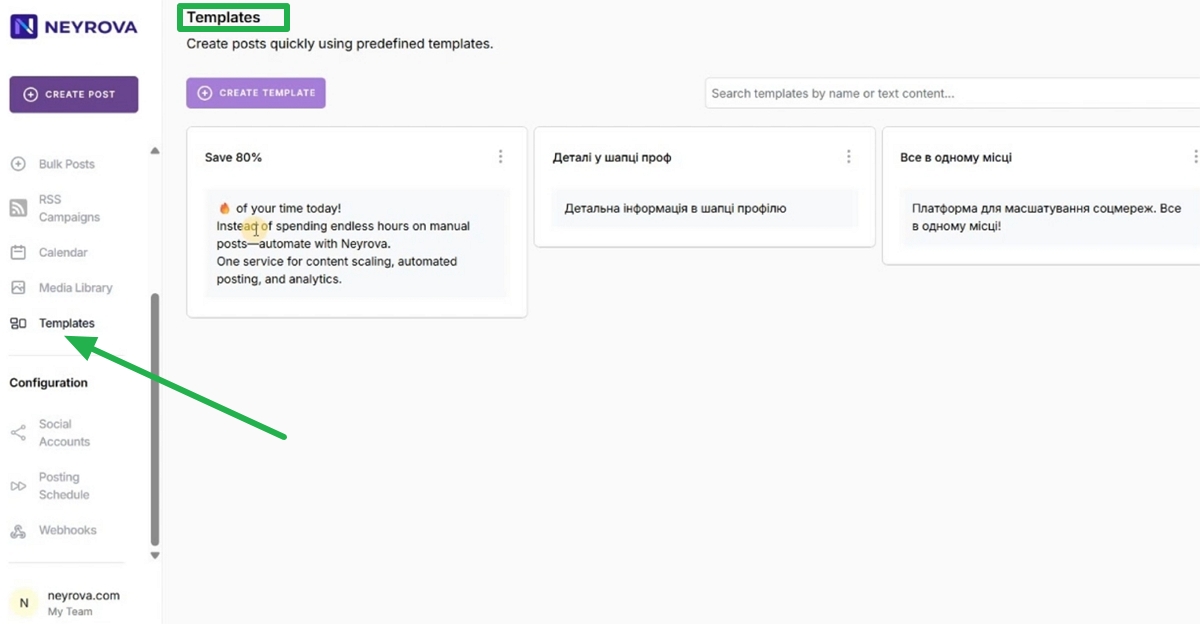
1. Open the Templates section
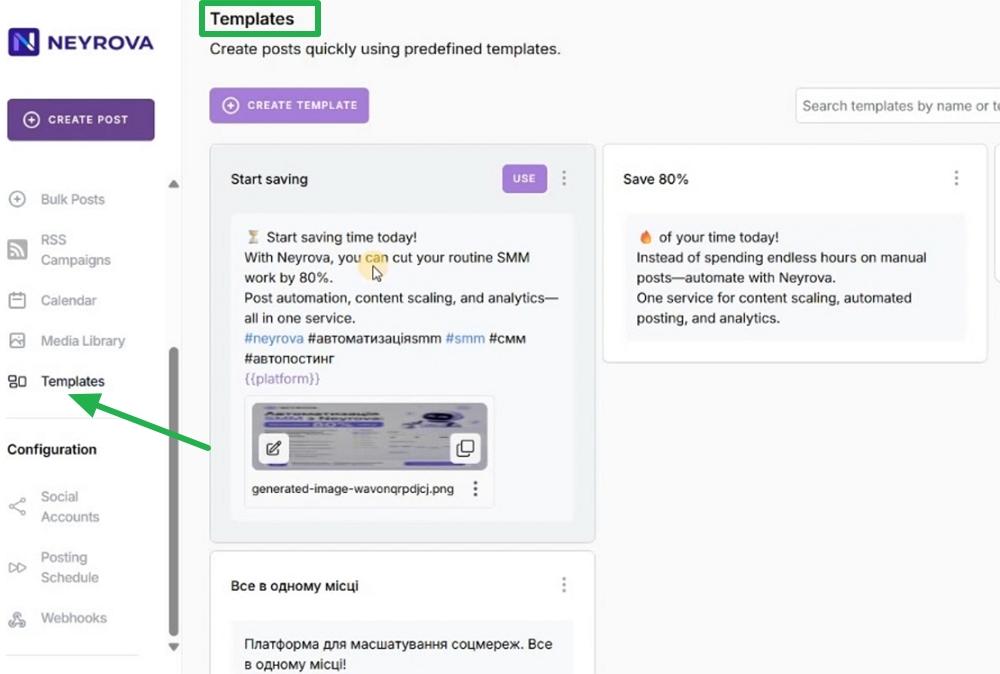
In the Neyrova dashboard, navigate to the Templates section.
All created post templates are stored here.
2. Create a new template
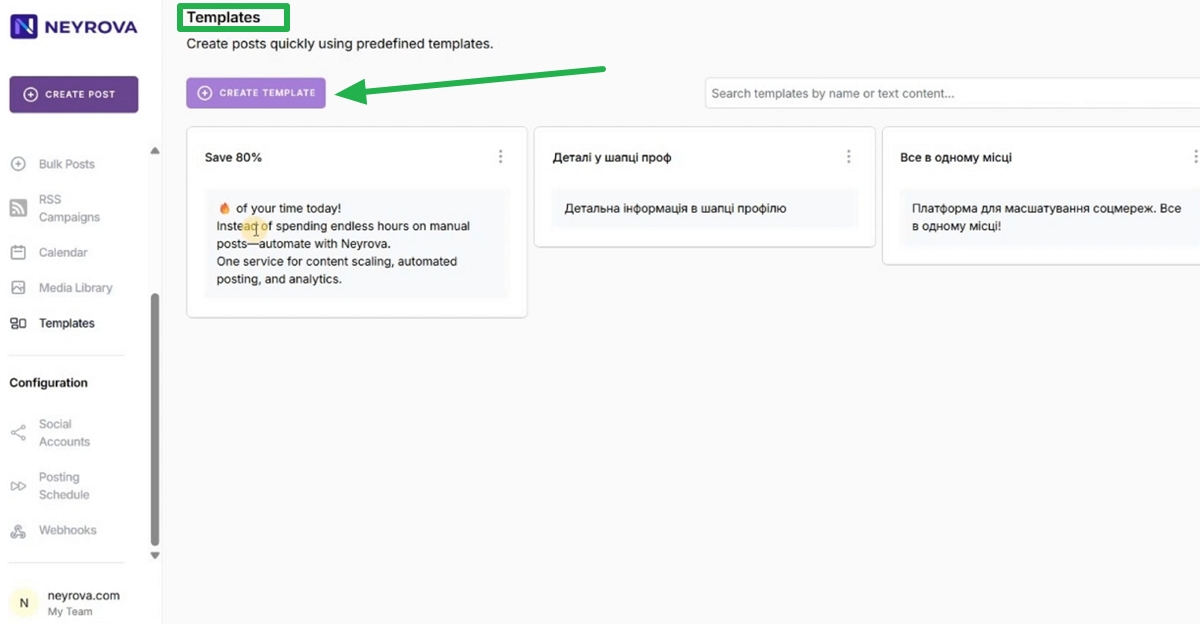
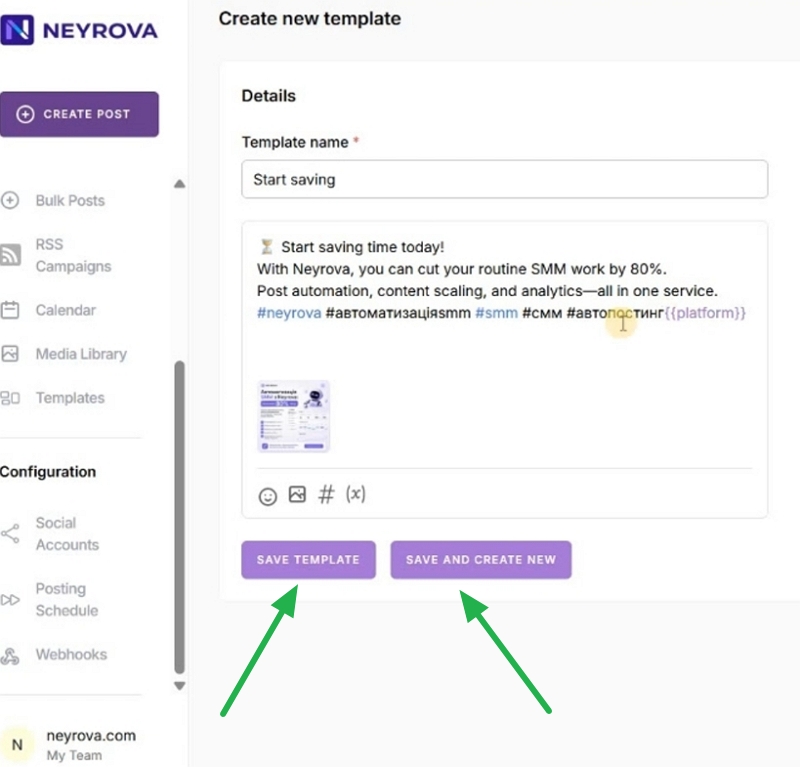
Click Create Template to create a new template.
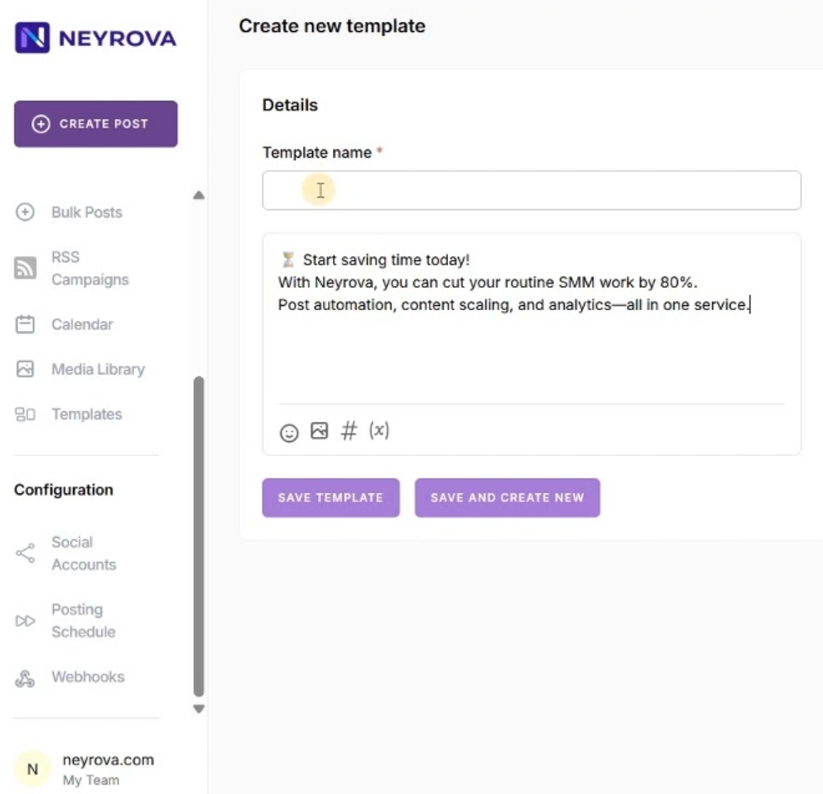
Enter a template name so you can easily find it later in the list.
3. Fill the template with content
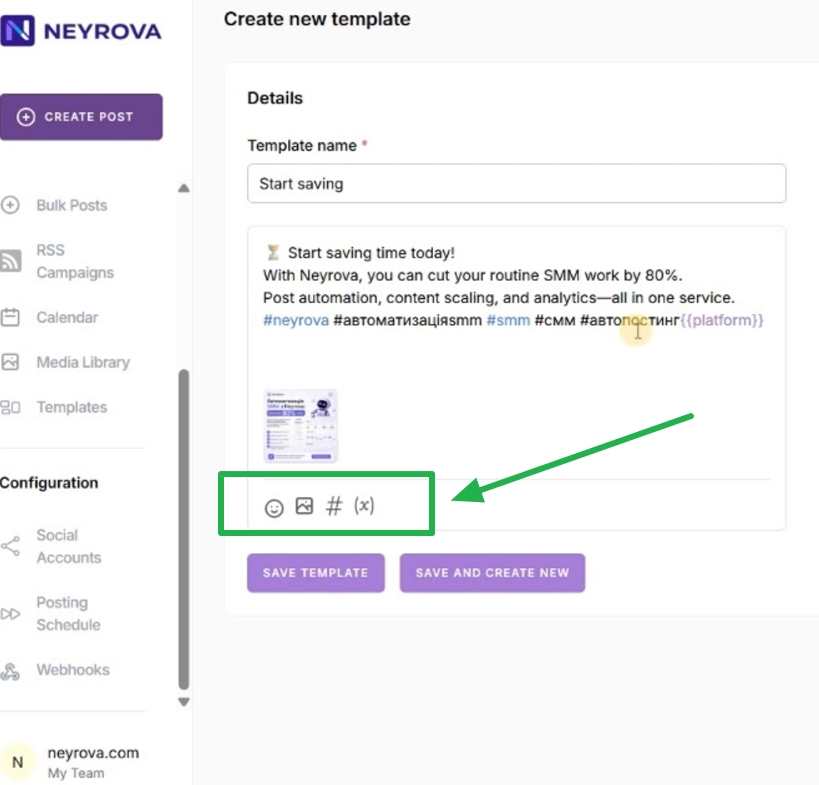
Add the required content to the template:
- text;
- emojis;
- media from the Media Library;
- hashtags from Hashtag Manager;
- variables from Variable Manager;
- any other elements needed for future posts.
4. Save the template
After filling the template with content, click Save Template.
If you want to create another template right away, click Save and Create New.
5. Manage templates using Template Manager
In Template Manager, you can view created templates, edit them, or reuse them.
This is especially useful if you frequently create posts with the same structure.
6. Use a template when creating a post
When creating a new post, select the desired template.
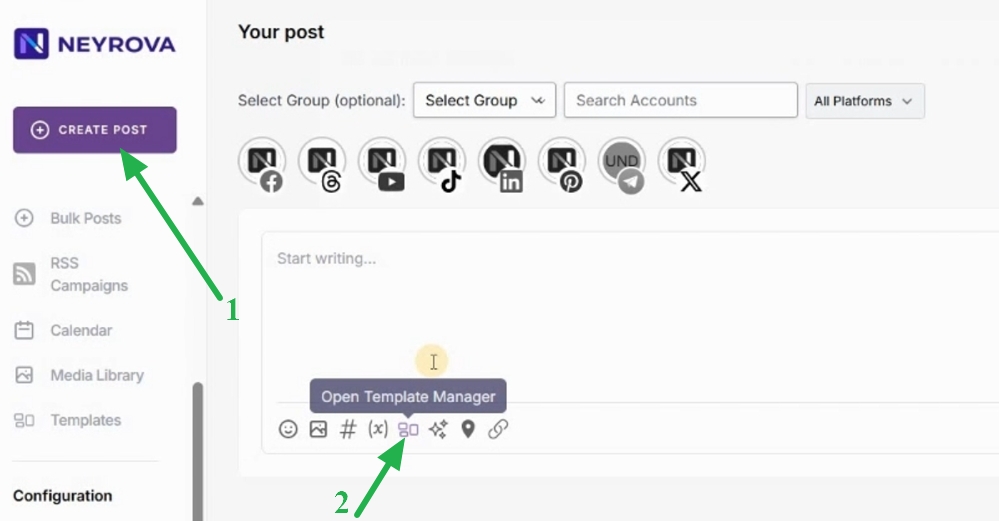
Neyrova will automatically populate the post fields with data from the template, so you don’t have to create the post from scratch.
7. Save a completed post as a template
You can also save a completed post as a template for future use.
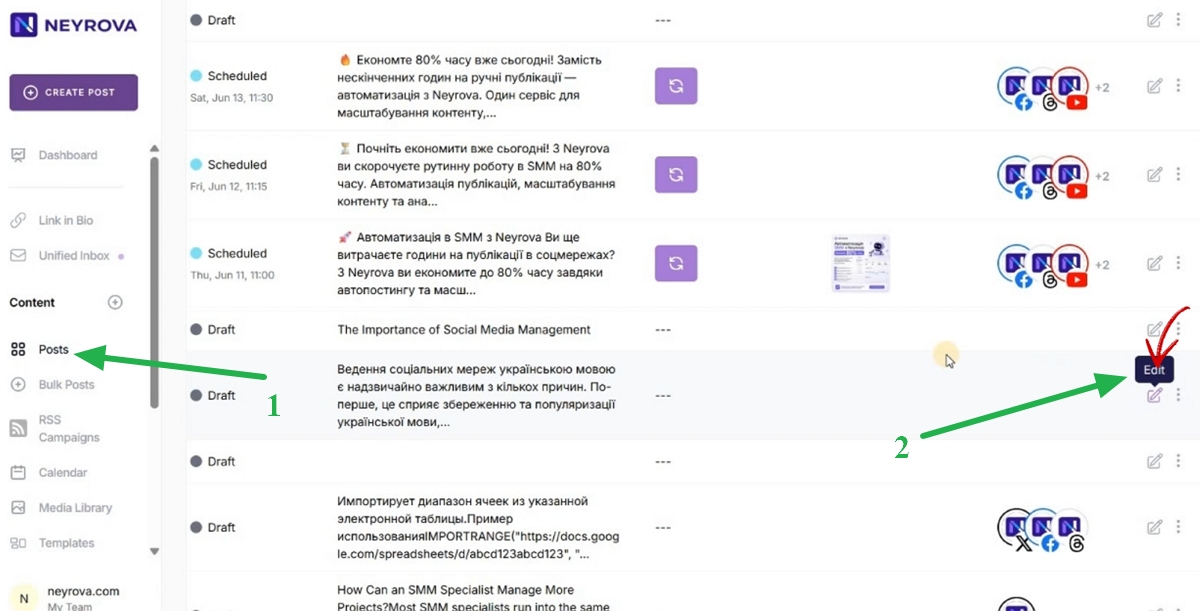
To do this, go to the Posts section and select the desired post.
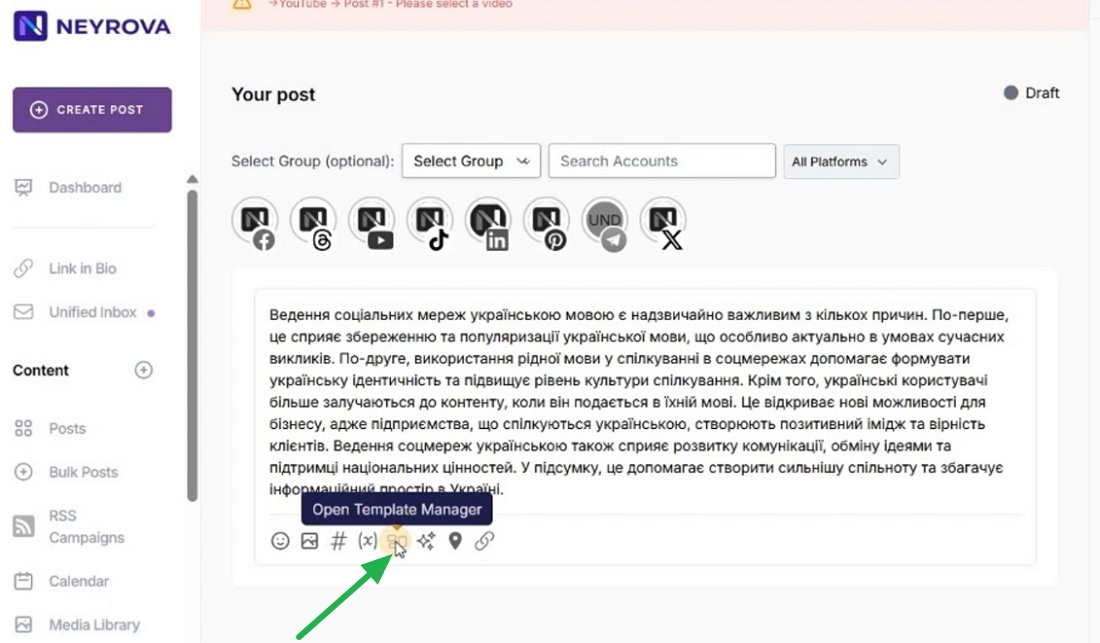
Open Template Manager.
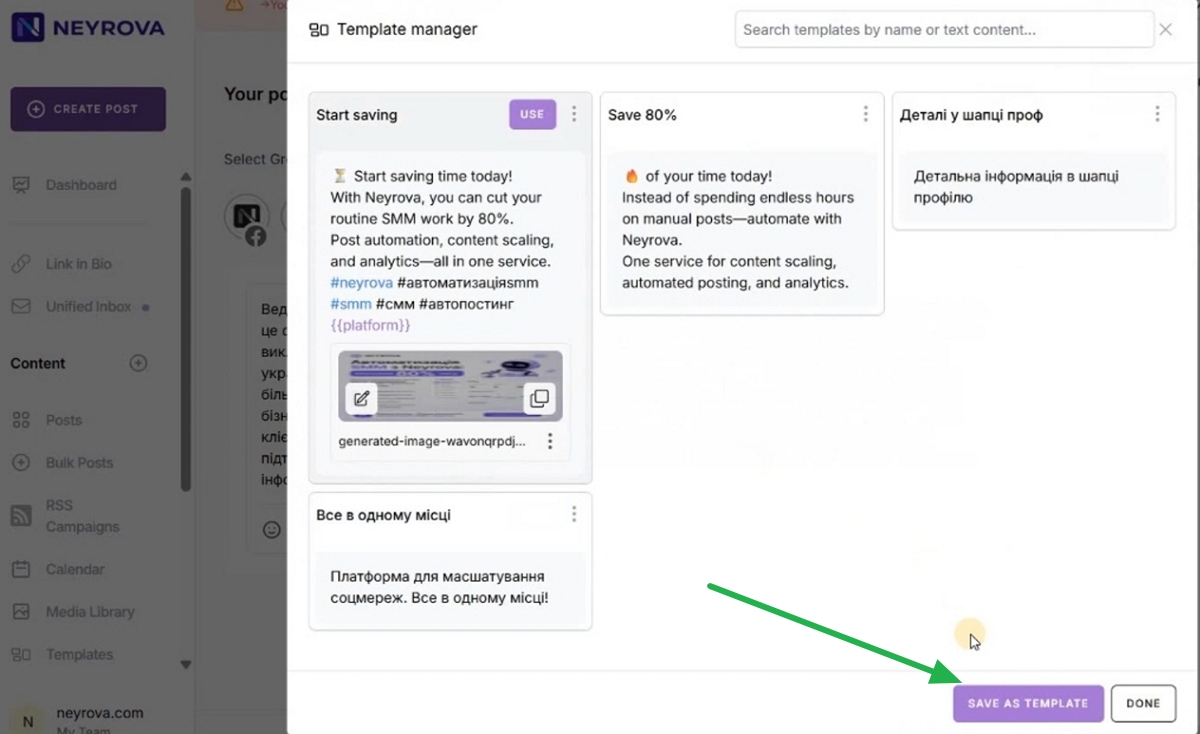
Click Save as Template to save it as a template.
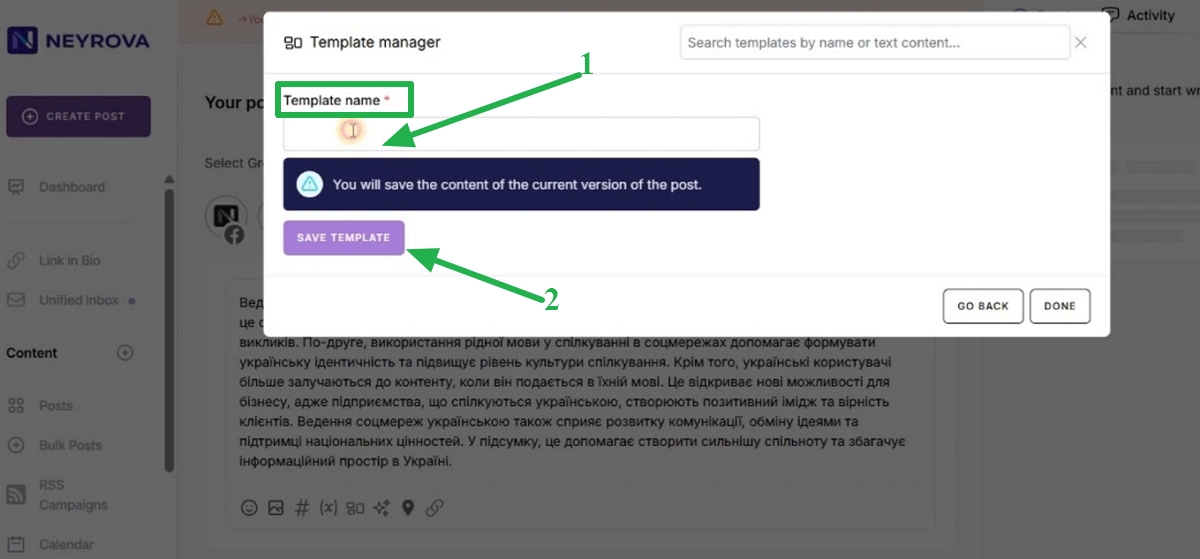
Enter a template name and save it.
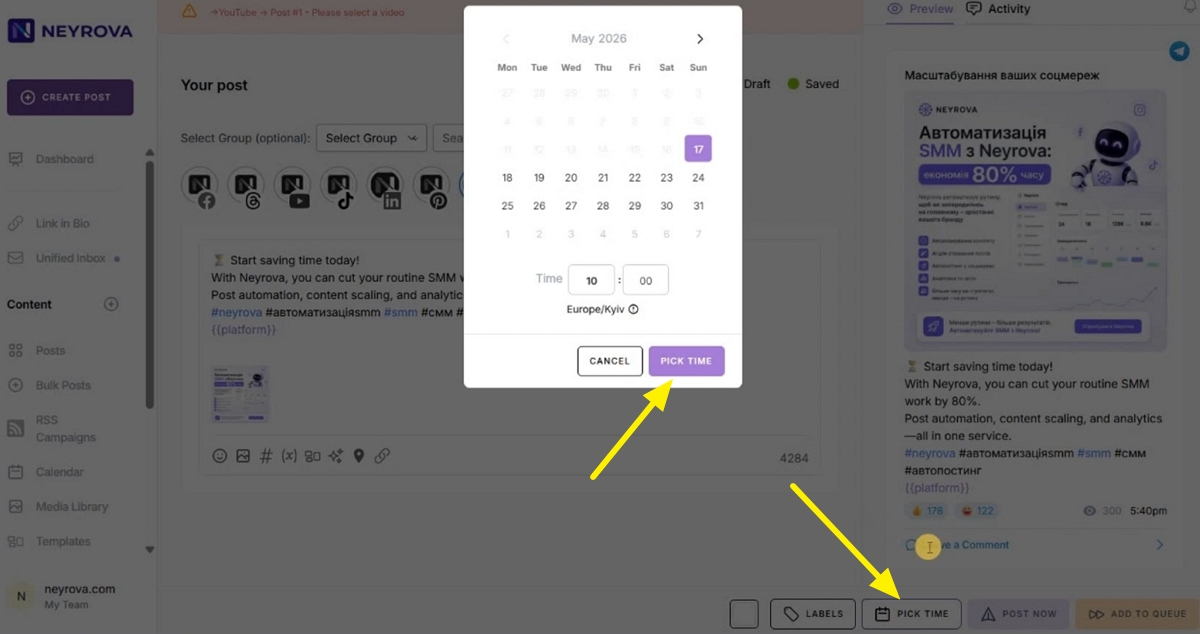
8. Create a new post from a template
Create a new post and add the saved template to it.
Before publishing, review the post to ensure that the text, media, hashtags, and other elements are displayed correctly.
9. Publish or schedule the post
When the post is ready, choose the desired action:
- schedule the publication for a later time by clicking the PICK TIME button;
- or click Post Now to publish the post immediately.

Summary
Template Manager in Neyrova allows you to create post templates, edit them, reuse them, and save completed posts as new templates.
This reduces the time spent preparing content and simplifies the regular creation of posts using a ready-made structure.