



This guide explains how to create multiple versions of the same post for different social media platforms in Neyrova.
Each platform has its own character limits:
- LinkedIn — up to 3,000 characters;
- TikTok — up to 2,200 characters as a safe limit for scheduling tools;
- X / Twitter — up to 280 characters for standard posts;
- Google Business Profile — up to 1,500 characters;
- Mastodon — typically up to 500 characters, although the limit may vary by server;
- Facebook — up to 5,000 characters within a safe scheduling limit;
- Instagram — up to 2,200 characters.
Because of these limitations, a single long post cannot always be published in the same form across all platforms. That is why Neyrova includes a post versioning feature: you create a primary post and then adapt separate versions for specific channels.
1. Open Create Post
Go to the Neyrova dashboard and click Create Post.
This opens the editor where you can create a new publication.
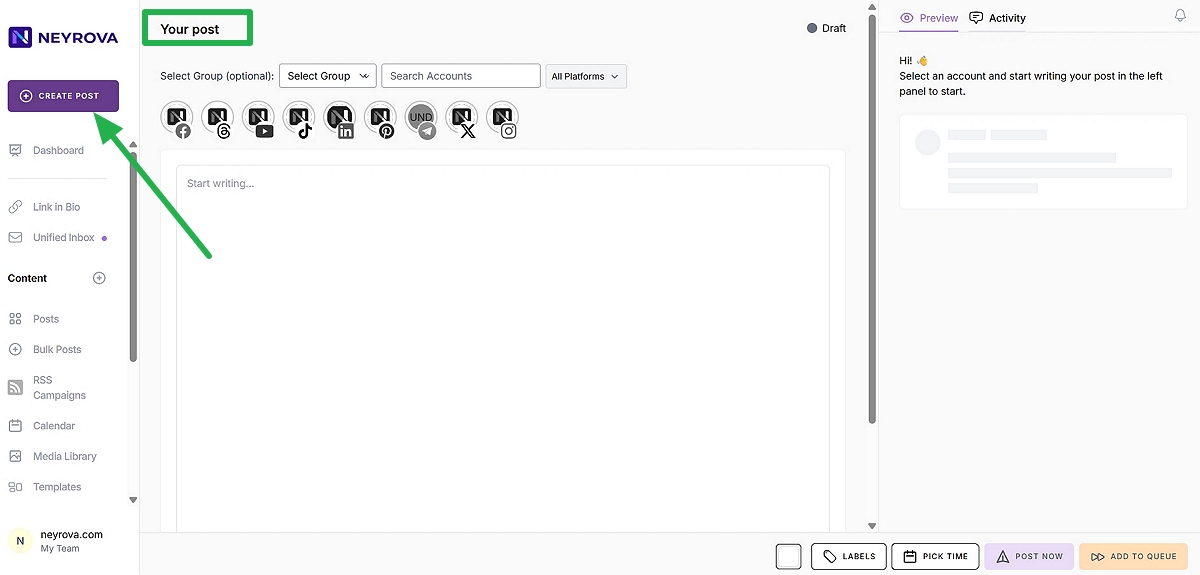
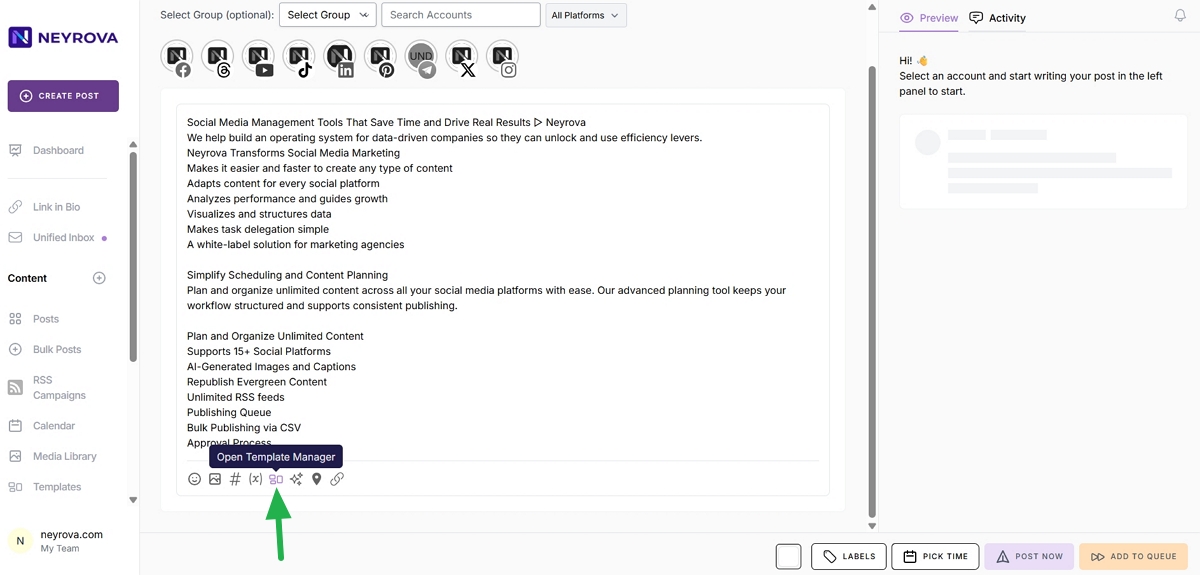
2. Add Your Base Post Content
Enter your post manually or select a saved template by clicking Open Template Manager.
This content becomes the primary version that can later be adapted for different social networks.
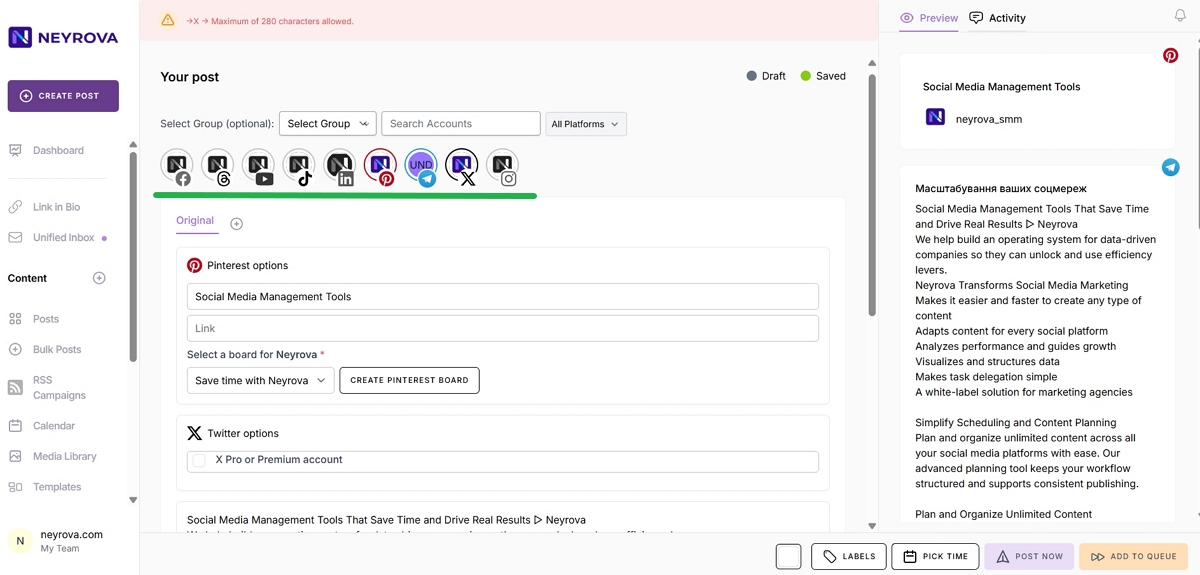
3. Select Social Networks for Publishing
Choose the profiles and platforms where you want to publish the post.
If more than one platform is selected, Neyrova automatically saves the original content as Original.
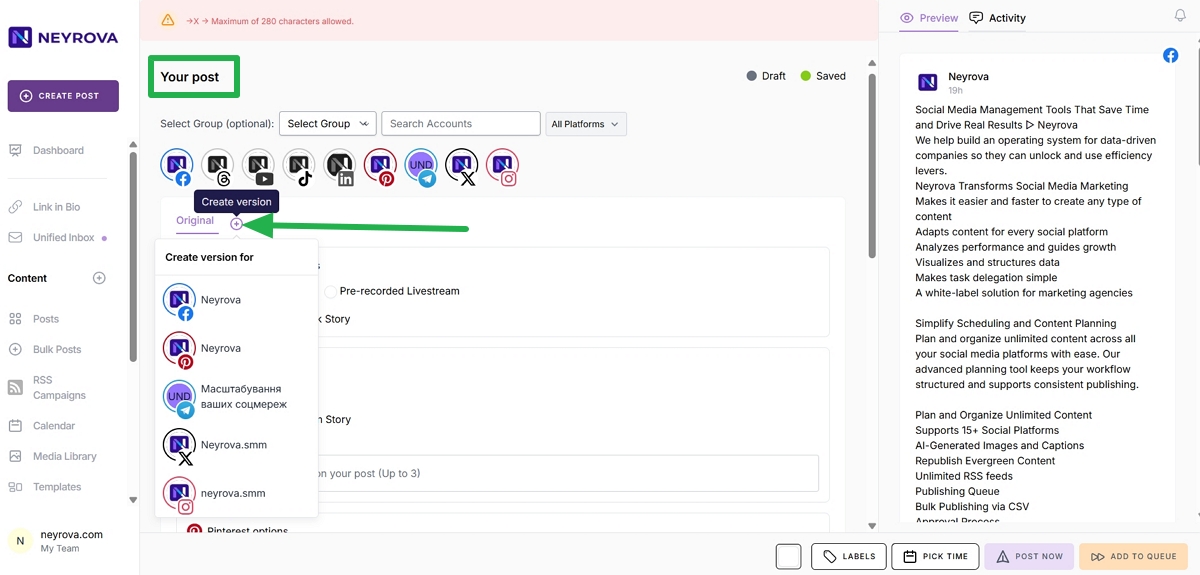
4. Create Additional Post Versions
After selecting multiple platforms, a + icon will appear, allowing you to create separate post versions.
Click + and choose the profiles that require a dedicated version. Leave one profile unselected so it remains the original version.
For example, you can keep LinkedIn as the Original version and create separate versions for X and Pinterest because they require fewer characters than the original content.
5. Review Neyrova Warnings
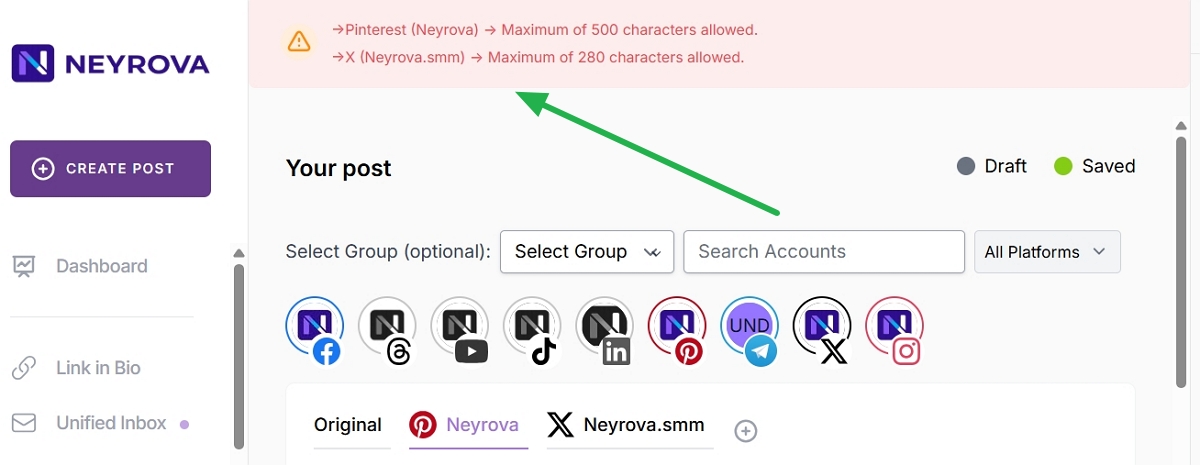
After creating versions, Neyrova will display warnings if the content or media do not comply with the selected platform’s requirements.
For example, the text may be too long for X or Pinterest, or Google Business Profile may contain more images than the platform supports.
6. Edit a Platform-Specific Version
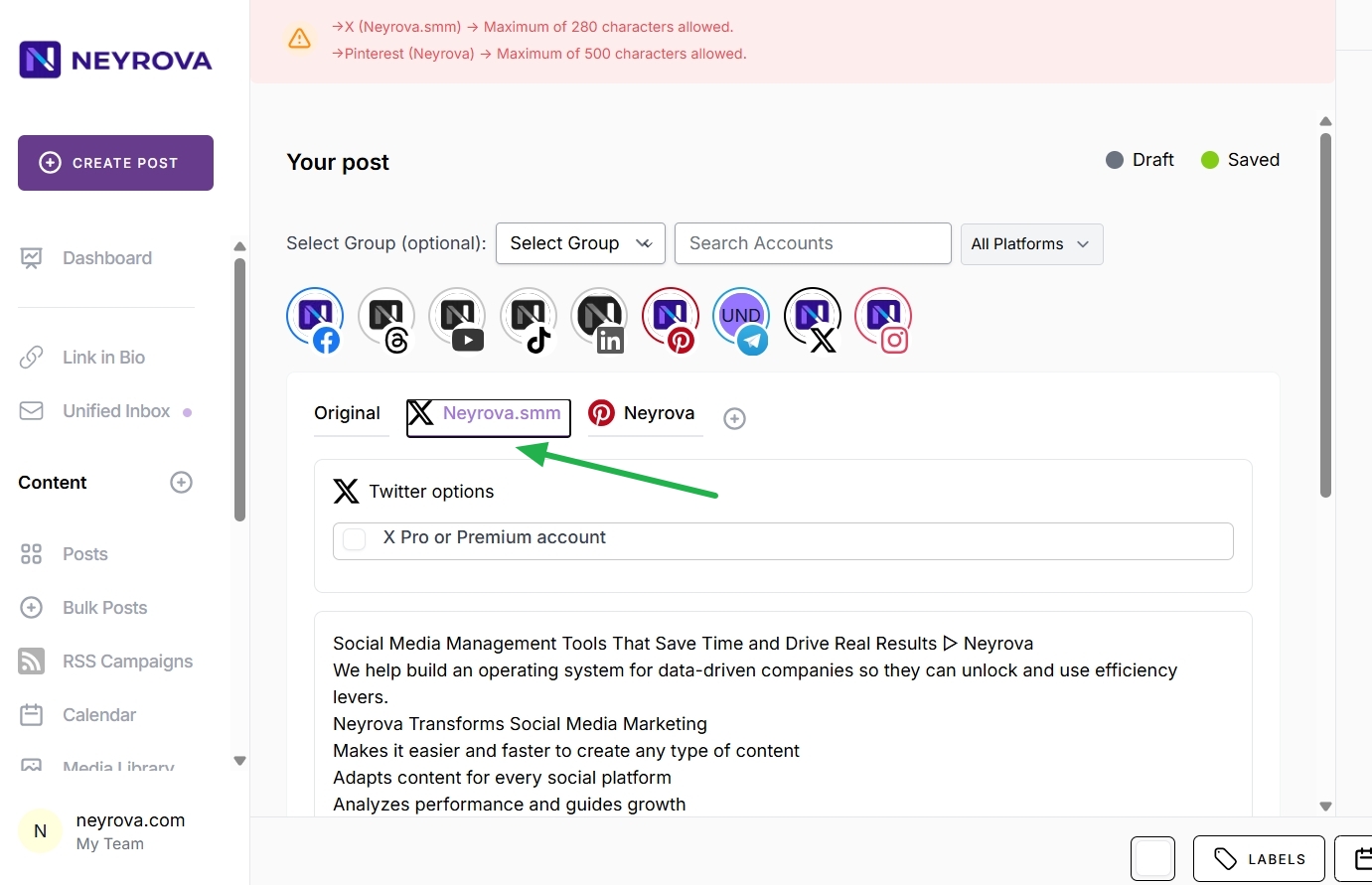
Select the profile for which you want to modify the text or media, such as X.
Each version can be edited independently: shorten the text, replace images, remove unnecessary media files, or tailor the message to fit the platform.
7. Shorten Content Using AI Assistant
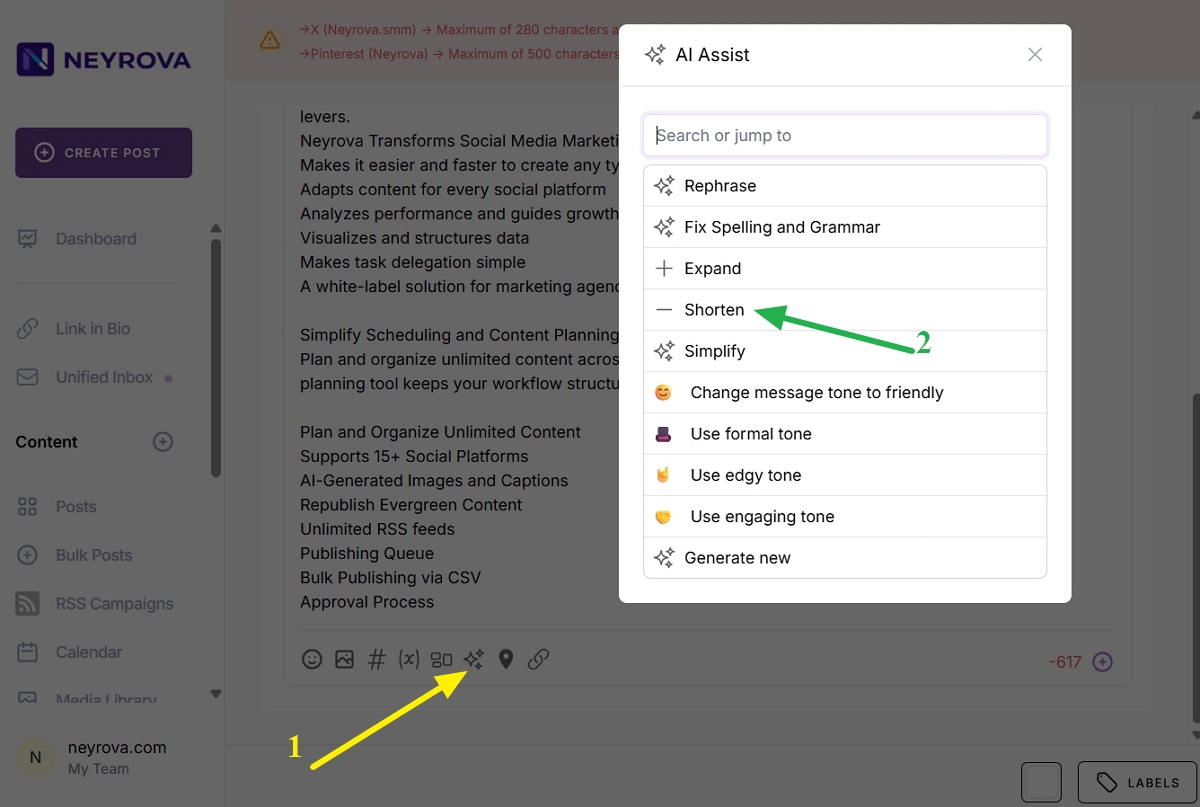
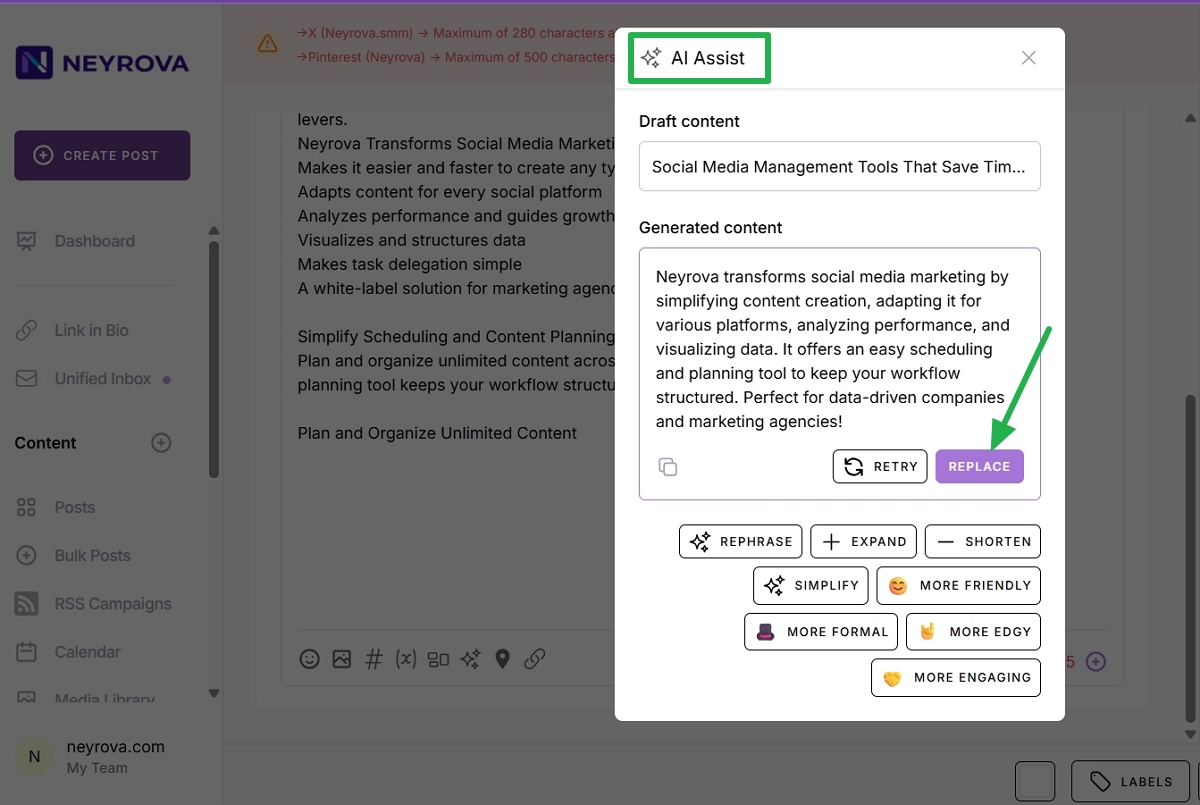
If the content exceeds the character limit, open AI Assistant and click Shorten.
For example, content published on X / Twitter must fit within 280 characters. You can repeat the action until the content meets the platform’s requirements.
If you are satisfied with the AI-generated result, click Replace.
8. Adapt Media to Platform Requirements
If a platform has restrictions on the number or type of media files, edit the media in the specific version of the post.
For example, if Google Business Profile only allows one image, remove any additional files.
9. Repeat the Process for Other Platforms
Review all created versions of the post.
If necessary, separately adapt the content and media for X, Mastodon, Google Business Profile, Instagram, Facebook, LinkedIn, TikTok, or any other selected channels.
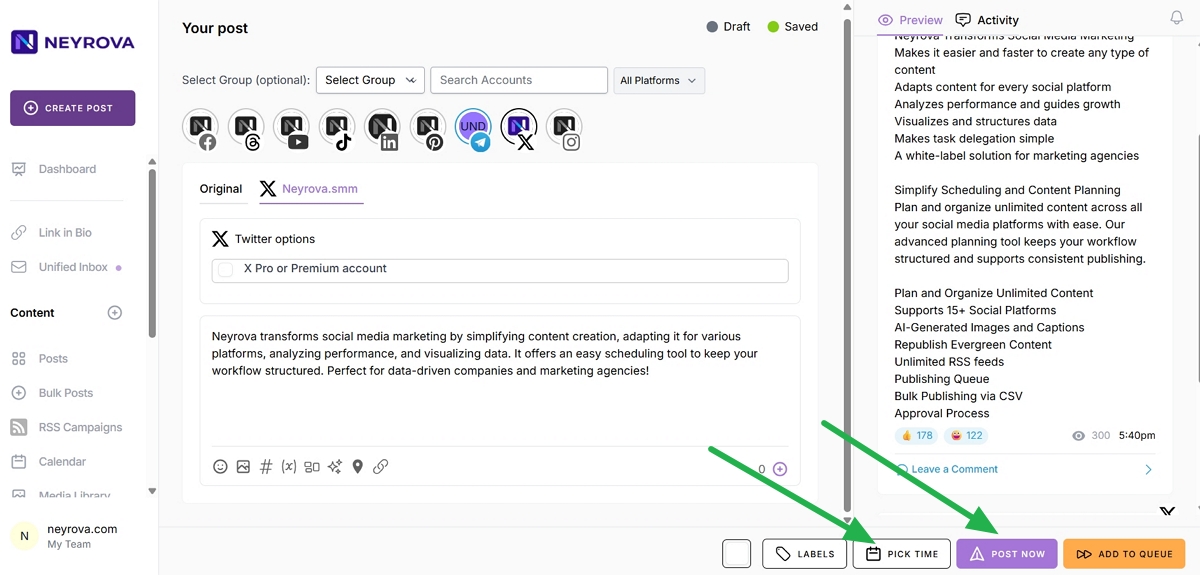
10. Publish or Schedule the Post
Once all versions are ready and no warnings remain, choose the desired action.
You can publish immediately by clicking Post Now or schedule the post for later by clicking Pick Time.
Important
Platform limits may change or vary depending on the account type, content format, or platform itself.
Therefore, rely not only on general limits but also on the warnings displayed in Neyrova. If the content or media do not meet a platform’s requirements, the system will indicate what needs to be corrected before publishing.
Summary
Neyrova allows you to create multiple versions of the same post for different social media platforms.
This makes it possible to adapt text, message length, and media content to each platform’s requirements while preserving the core message of the post.