



This guide explains how to use AI Writer in Neyrova to create new posts, edit existing content, change the tone of voice, shorten, expand, and improve descriptions.
1. Sign In to Your Neyrova Dashboard
Log in to your Neyrova account and open the dashboard.
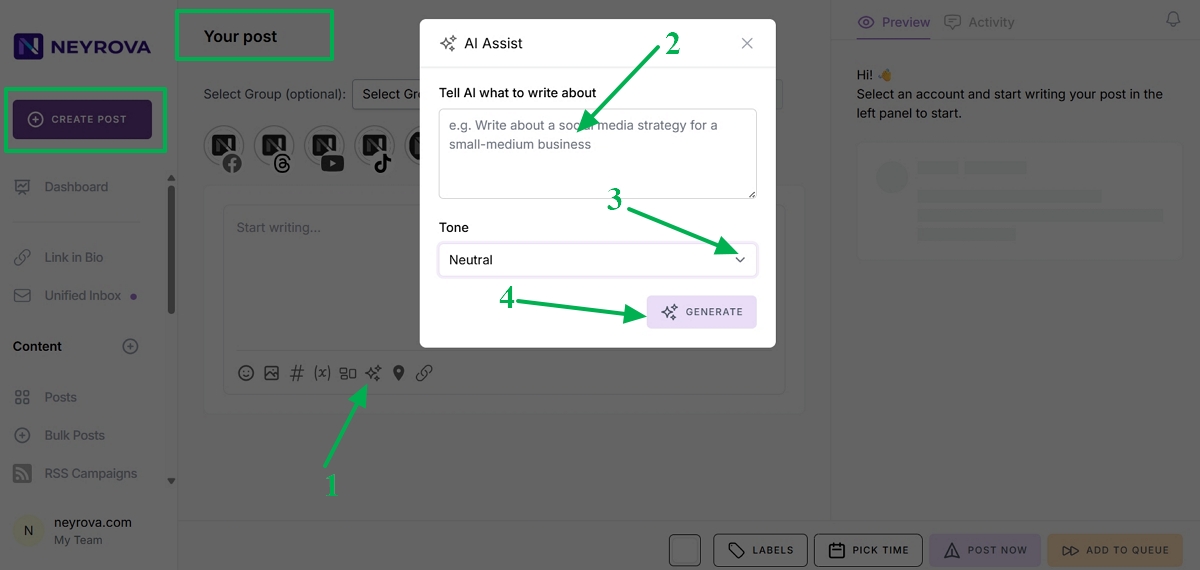
2. Click Create Post
In the dashboard, click Create Post to start creating a new publication.
3. Open AI Assistant
3.1 Open AI Assistant in the Post Editor
In the post editor, open AI Assistant.
This tool allows you to create post content from scratch or improve an existing description.
3.2 Enter a Topic or Keywords
Enter a topic, keywords, or a short instruction for the content you want to generate.
AI Writer will automatically generate content based on your request.
3.3 Select the Tone of the Post
Before generating content, choose the desired tone of voice.
For example, you can select:
- Friendly;
- Formal;
- Edgy;
- Engaging.
A friendly tone makes the content warmer and more approachable, while an edgy tone makes it more bold and expressive.
3.4 Generate the Post Content
Click Generate.
AI Writer will create content based on your prompt and the selected tone.
4. Paste Existing Content for Improvement
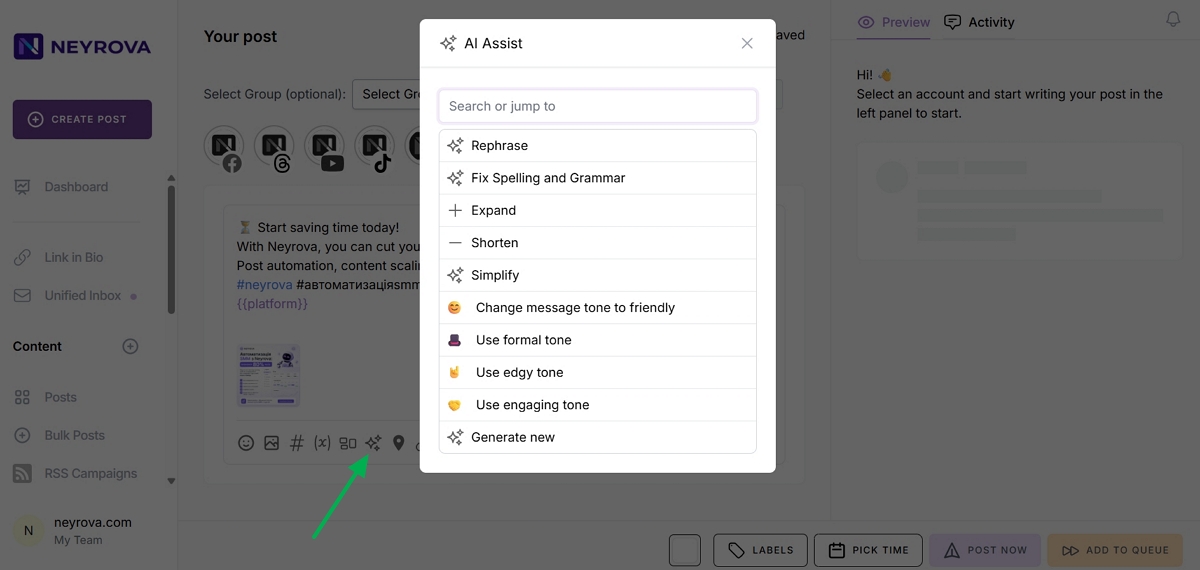
If you already have content that needs improvement or modification, paste it into AI Assistant.
You can then enhance it using the available AI-powered tools.
4.1 Use Rephrase to Rewrite Content
To rewrite content, click Rephrase.
AI Writer will change the wording while preserving the original meaning.
4.2 Fix Spelling and Grammar
AI Writer can also correct spelling and grammar mistakes.
To do this, click Fix Spelling and Grammar.
This helps make your content cleaner, more professional, and ready for publication.
4.3 Expand the Content with Expand
If you need a more detailed description, click Expand.
AI Writer will generate an extended version of the content with additional details.
4.4 Shorten the Content with Shorten
If the content is too long, click Shorten.
AI Writer will make the content shorter and more concise while keeping the main message intact.
4.5 Simplify the Content with Simplify
To make the content easier to understand, click Simplify.
AI Writer will rewrite the description in a clearer and more accessible way.
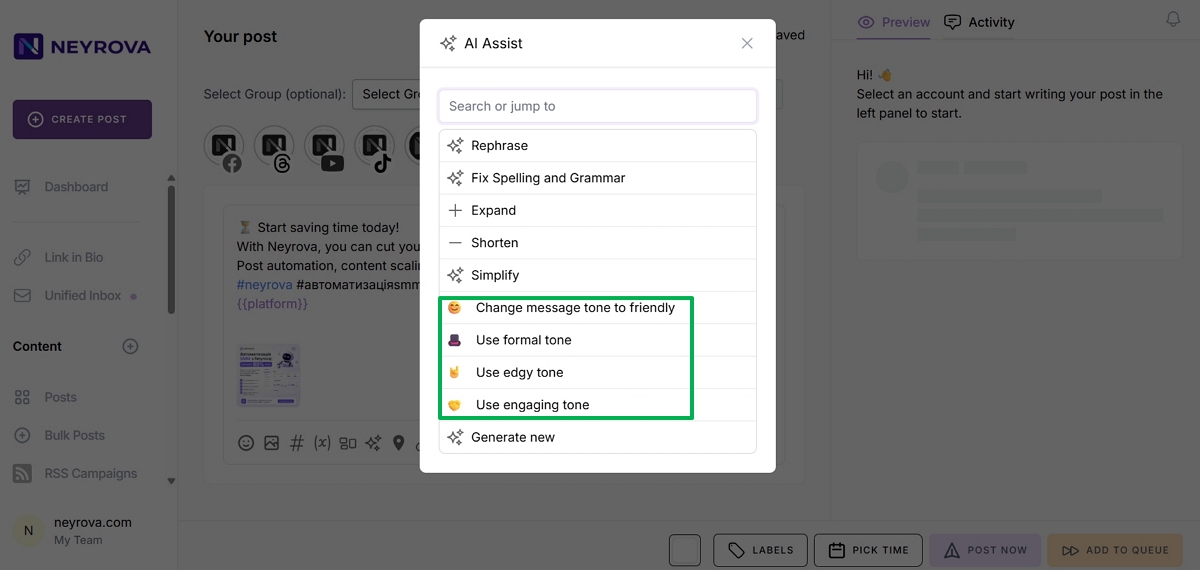
4.6 Change the Tone of the Content
You can change the tone of the content at any stage of the editing process.
For example, you can choose a friendly tone (Change message tone to friendly), an engaging tone (Use engaging tone), a formal tone (Use formal tone) for professional communication, or an edgy tone (Use edgy tone) to make the content more expressive.
4.7 Generate New Content from Scratch
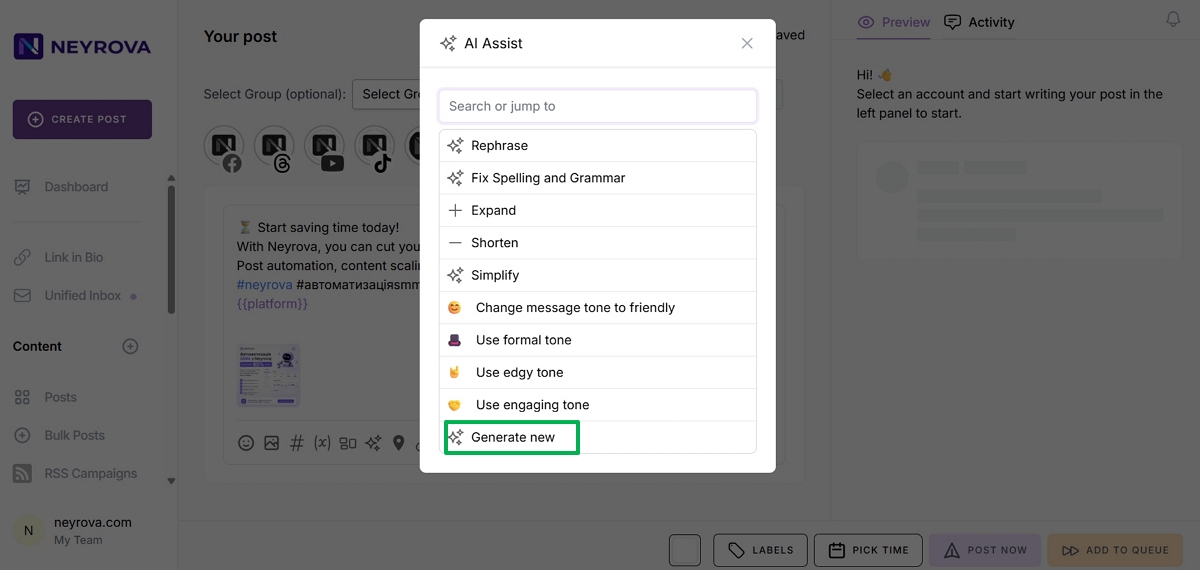
If you need completely new content, click Generate New.
Enter a topic or keywords. The more specific your prompt, the more relevant the generated content will be.
AI Writer will automatically generate a new description for your post.
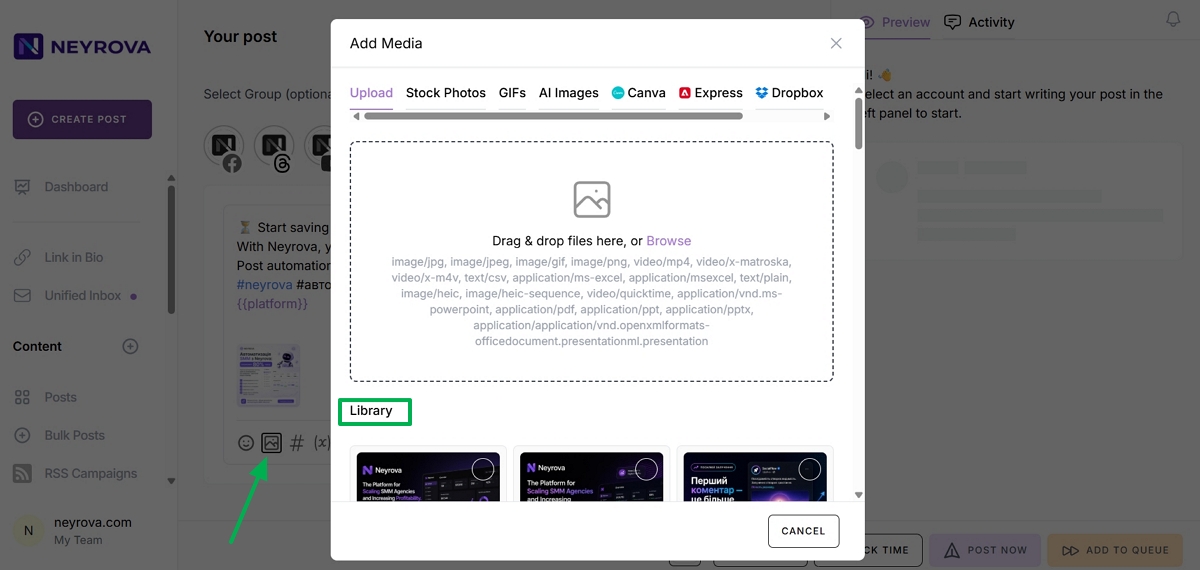
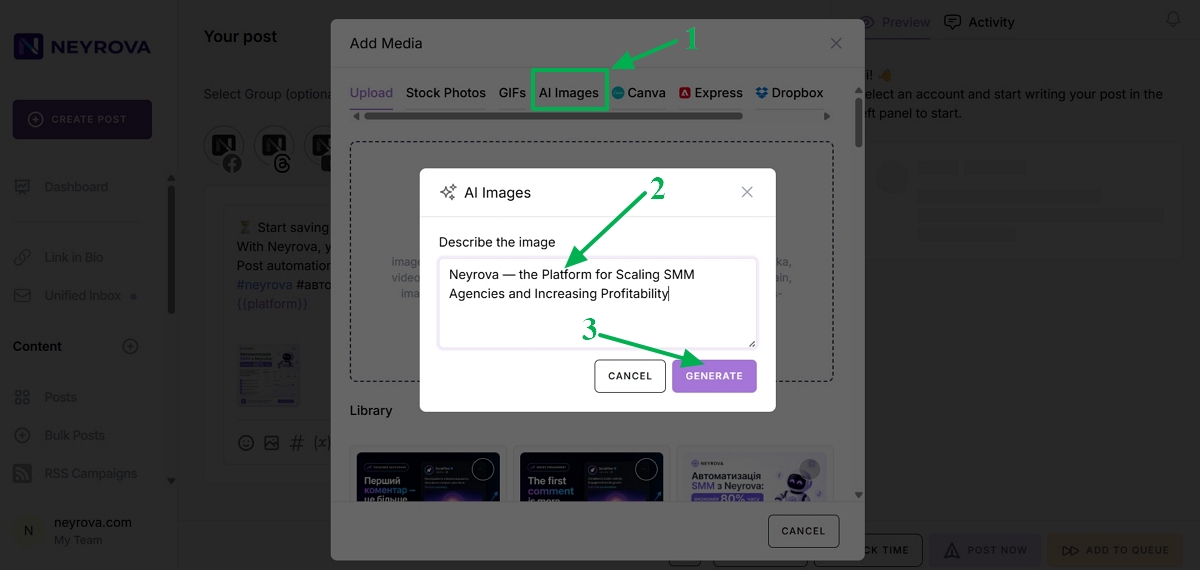
5. Add Media to Your Post
After preparing the content, add images, videos, or other media from your library.
If you do not have suitable media, you can use the AI image generator.
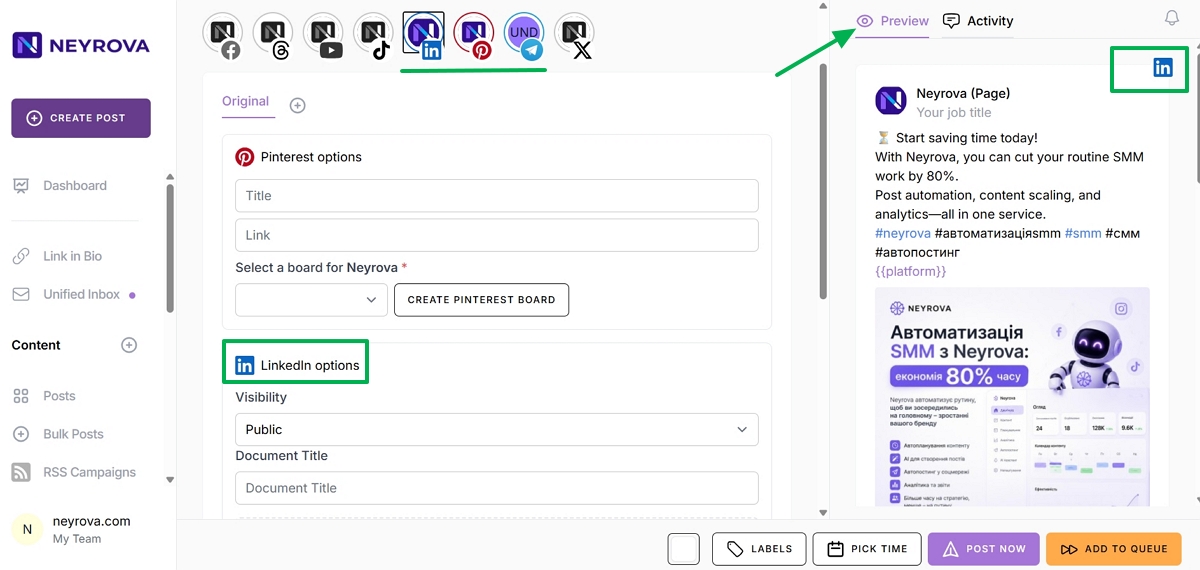
6. Select Social Networks for Publishing
Choose the social media platforms where you want to publish the post.
Then use the Preview section to review how the publication will appear on each selected platform.
7. Review the Final Post
Before publishing, review the content, media, and selected social networks.
Make sure everything looks correct, matches your goals, and is ready for publication.
8. Publish or Schedule the Post
Once everything is ready, publish the post immediately by clicking Post Now or schedule it for a specific date and time by clicking Pick Time.
Summary
AI Writer in Neyrova helps you quickly create new content, edit existing text, change tone, correct mistakes, shorten, expand, and simplify descriptions.
It is a powerful tool for creating social media posts in Neyrova—from the initial idea to a fully prepared publication.